Apr 2, 2026

You want to find qualified leads on LinkedIn. Fast.
But manual prospecting is slow. You open profiles one by one. You copy names, job titles, companies. Hours disappear. Your pipeline barely moves.
LinkedIn Sales Navigator fixes that.
It gives you 30+ advanced filters, real-time alerts, and intent data. You find the right people, at the right time, with the right context.
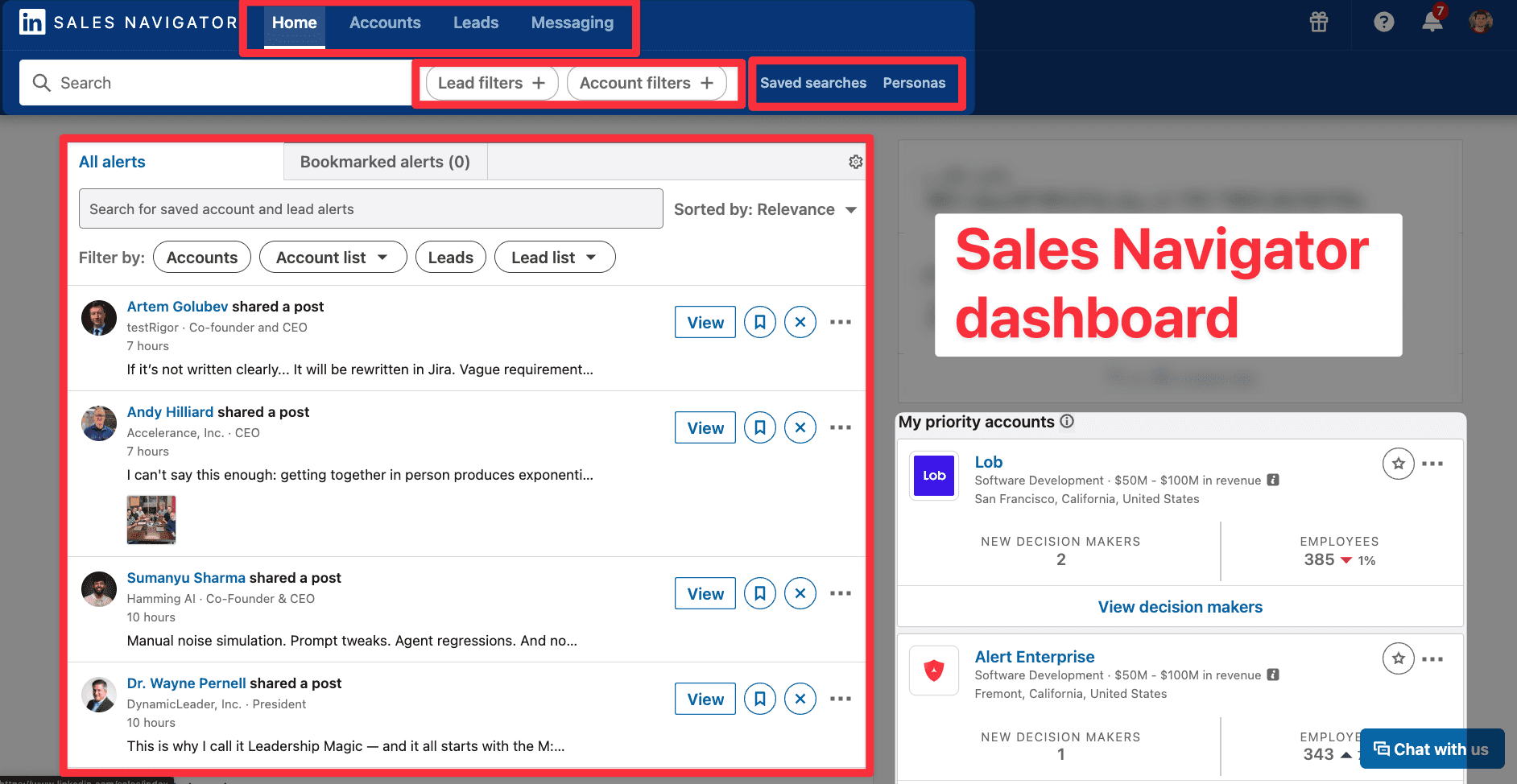
In this guide, you'll learn:
What LinkedIn Sales Navigator is and how it works
Which plan is right for you
How to find qualified leads with the best filters
How to catch warm leads using intent data
How to export your leads with verified emails in one click
Let's start!
🎥 Want the video version instead? Simply watch the video below:
What Is LinkedIn Sales Navigator?
LinkedIn Sales Navigator is a premium prospecting tool built for sales teams.
You use it to find, filter, and reach decision-makers faster than with regular LinkedIn.
It sits on top of LinkedIn's database of 1 billion+ users. But it gives you access to advanced search filters, saved lead lists, and real-time alerts that the free version simply doesn't have.
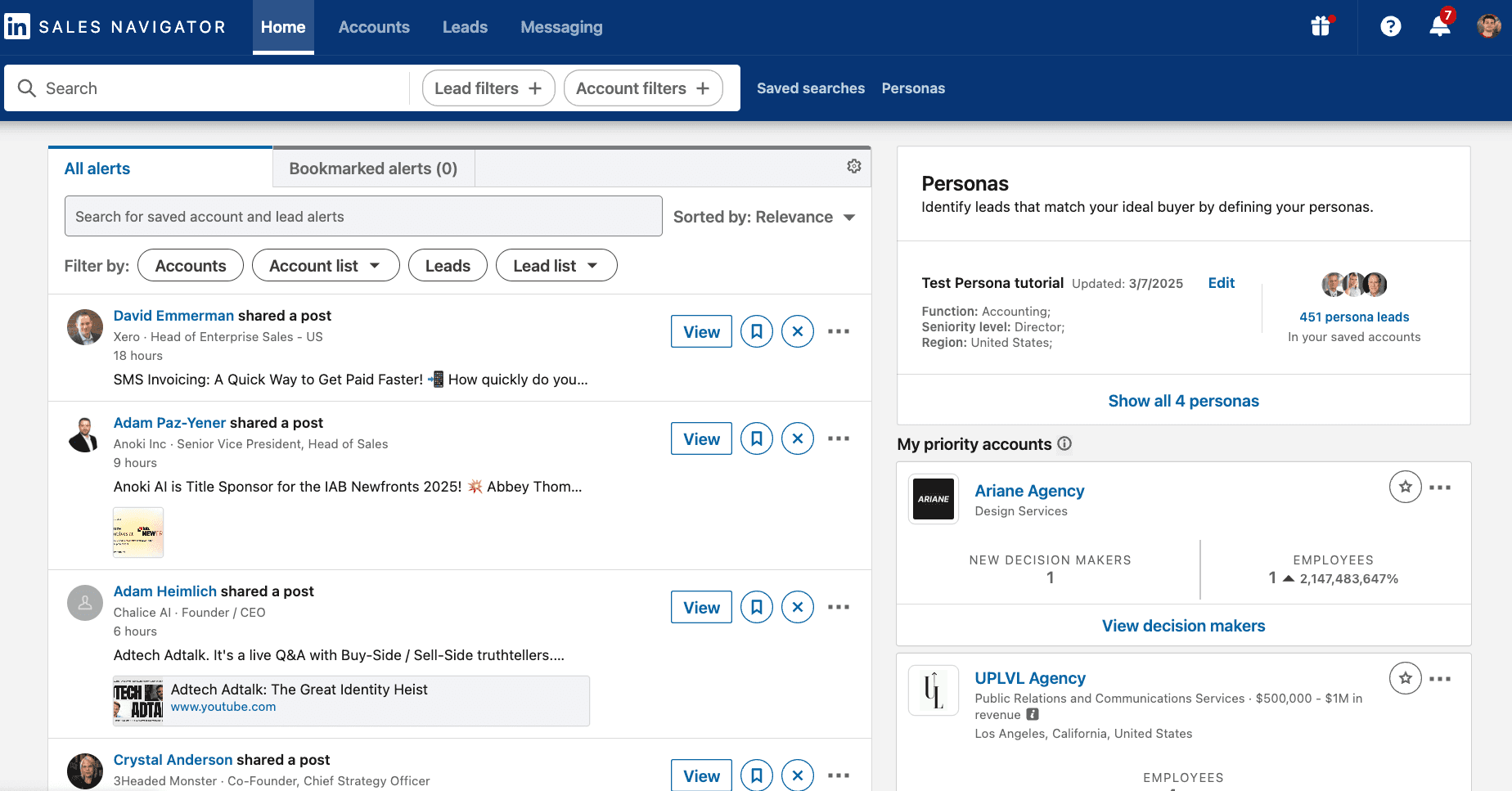
What Can You Do With Sales Navigator?
Here’s what makes Sales Navigator useful:
Search with 30+ advanced filters (job title, company size, location, seniority, and more)
Get alerts when a lead changes jobs, gets promoted, or posts on LinkedIn
See who viewed your profile in the last 90 days
Send InMails to people outside your network
Use intent signals to reach out at the perfect moment
In short: Sales Navigator turns LinkedIn into a B2B lead generation machine.
Why Is Sales Navigator Better Than Free LinkedIn?
Free LinkedIn is built for networking. Sales Navigator is built for sales.
Here's how they compare:
Feature | Free LinkedIn | Sales Navigator |
|---|---|---|
Advanced search filters | ❌ | ✅ |
Lead and account lists | ❌ | ✅ |
Real-time job change alerts | ❌ | ✅ |
InMail credits | ❌ | ✅ |
Profile viewers (last 90 days) | ❌ | ✅ |
CRM integration | ❌ | ✅ |
Intent data filters | ❌ | ✅ |
With a free account, you hit search limits fast. You can view around 80 profiles per day before LinkedIn cuts you off.
With Sales Navigator, those limits are much higher. And the data is fresher and more accurate than any B2B database you can buy.
💡 Pro tip: 99% of B2B data on the market originally comes from LinkedIn. Why buy a copy when you can go straight to the source?
What Sales Navigator Plan Is Best for You?
LinkedIn offers three plans. Each one is built for a different stage of growth.
Here's how to pick the right one.
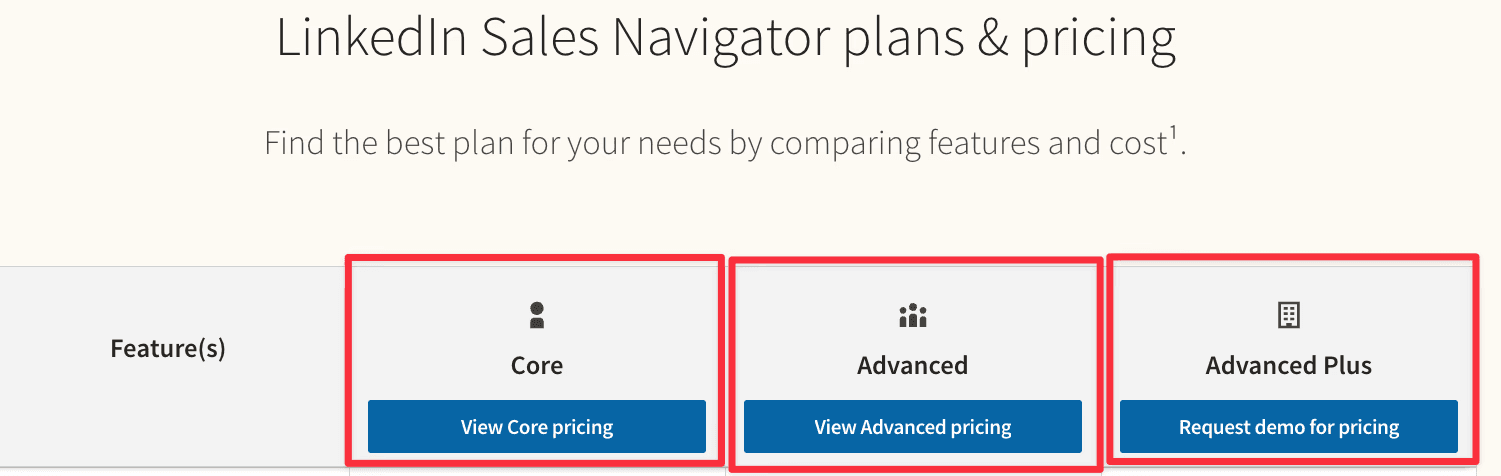
1 - Sales Navigator Core
Price: $99/month — or $79.99/month if you pay annually ($959.88/year)
Core is the starting point. And for most users, it's all you'll ever need.
You get:
30+ advanced search filters
Lead and account lists
Alerts on job changes, promotions, and new posts
50 InMail credits per month
Profile viewers (last 90 days)
Saved searches with automatic new lead alerts
✅ Who it's for: Solo salespeople, SDRs, founders, and recruiters doing outbound on their own.
Sales Navigator Advanced
Price: $179/month — or $139.99/month annually ($1,679.88/year)
Advanced adds team features on top of everything in Core.
You get everything in Core, plus:
Shared lead and account lists across your team
CRM integrations (Salesforce, HubSpot, and more)
TeamLink — see shared connections across your whole team
Engagement tracking across team members
✅ Who it's for: Sales teams with multiple reps who need to share lists, avoid duplicates, and sync data with their CRM.
Sales Navigator Enterprise
Price: Custom — usually $1,000+/year per seat
Enterprise is for large sales organizations that need full control and deep integrations.
You get everything in Advanced, plus:
Full CRM sync with advanced API access
Admin controls and user management
Advanced reporting and usage analytics
Custom onboarding and dedicated support
✅ Who it's for: Large companies with big sales teams and complex tech stacks.
Plans Comparison Table
Core | Advanced | Enterprise | |
|---|---|---|---|
Price | $99/mo | $179/mo | Custom |
Advanced filters | ✅ | ✅ | ✅ |
Lead & account lists | ✅ | ✅ | ✅ |
Job change alerts | ✅ | ✅ | ✅ |
InMail credits | 50/mo | 50/mo | Custom |
Shared lists | ❌ | ✅ | ✅ |
CRM integration | Limited | ✅ | Full sync + API |
TeamLink | ❌ | ✅ | ✅ |
Admin controls | ❌ | ❌ | ✅ |
Best for | Solo users | Sales teams | Large orgs |
🎥 If you want more details, you can check the video about the best Sales Navigator plans:
How To Find Qualified Leads on LinkedIn Sales Navigator
Sales Navigator gives you 30+ filters. But most of them aren't worth your time.
The goal is simple: find the right people, fast. Here's how to do it.
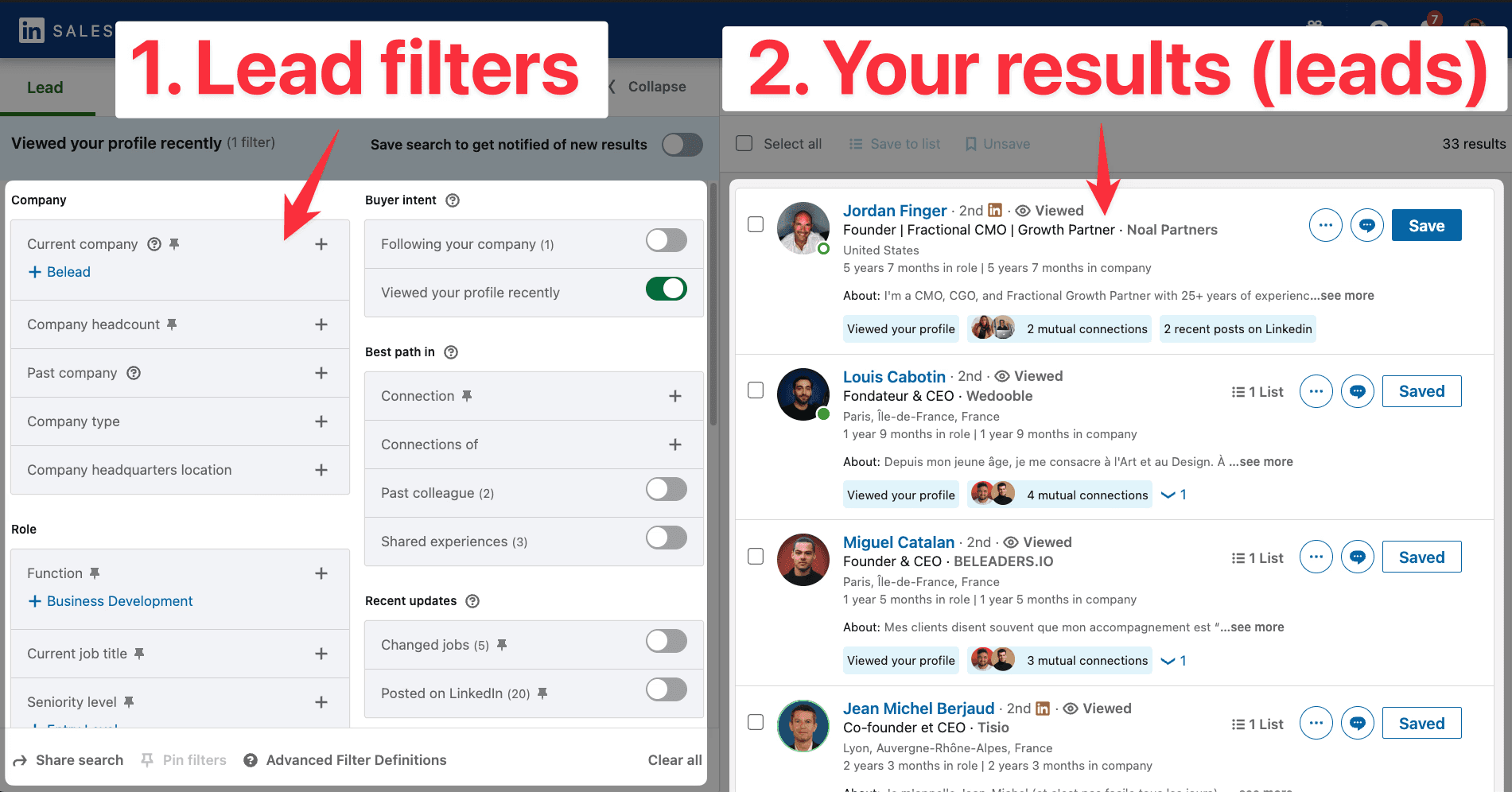
The 5 Filters That Actually Matter
You don't need all 30 filters. You need the right 5.
These are the ones that give you the most qualified results:
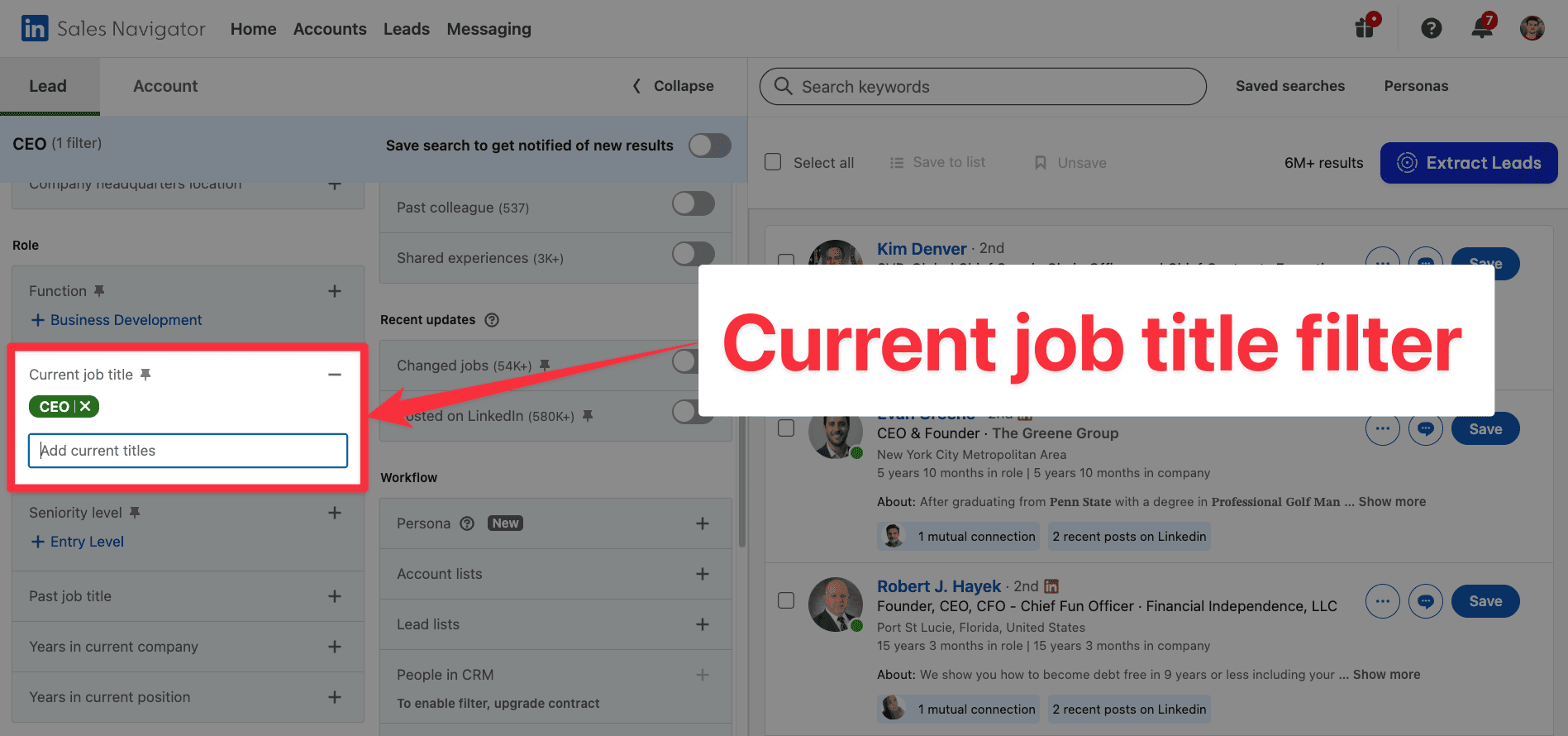
1. Current Job Title
This is your most important filter.
You use it to target decision-makers directly. No guessing. No wasting time on people who can't sign the deal.
💡 Pro tip: Don't just type one job title. Use Boolean search to catch every variation.
Example:
This finds everyone with buying power in sales — regardless of how they wrote their title.
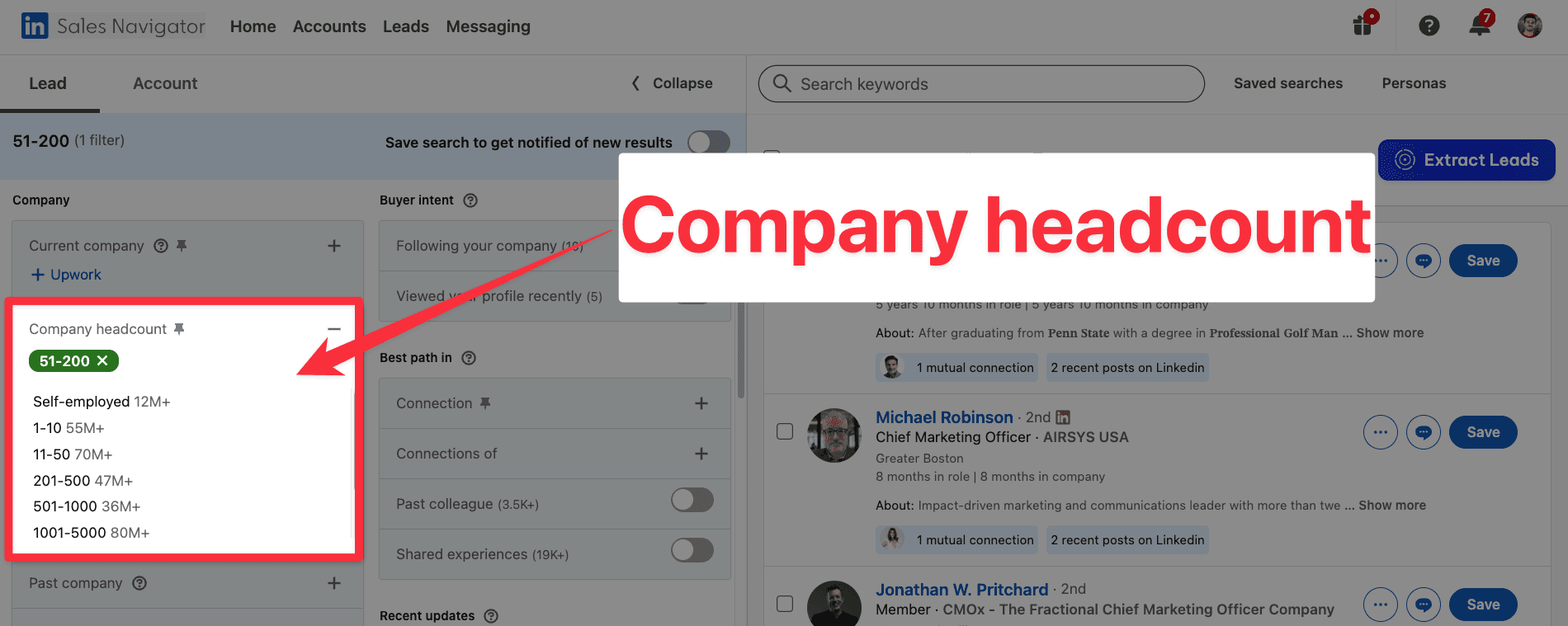
2. Company Headcount
Company size tells you a lot about budget.
A 10-person startup and a 500-person company have very different needs — and very different budgets.
Use this filter to match your offer to the right company size:
Company size | What it signals |
|---|---|
1-10 employees | Early stage. Budget is tight. |
11-50 employees | Growing. Starting to invest. |
51-200 employees | Sweet spot for most B2B offers. |
201-500 employees | Bigger budget. Longer sales cycle. |
500+ employees | Enterprise. Multiple stakeholders. |
✅ Pick the range that fits your ideal customer profile. Then stick to it.
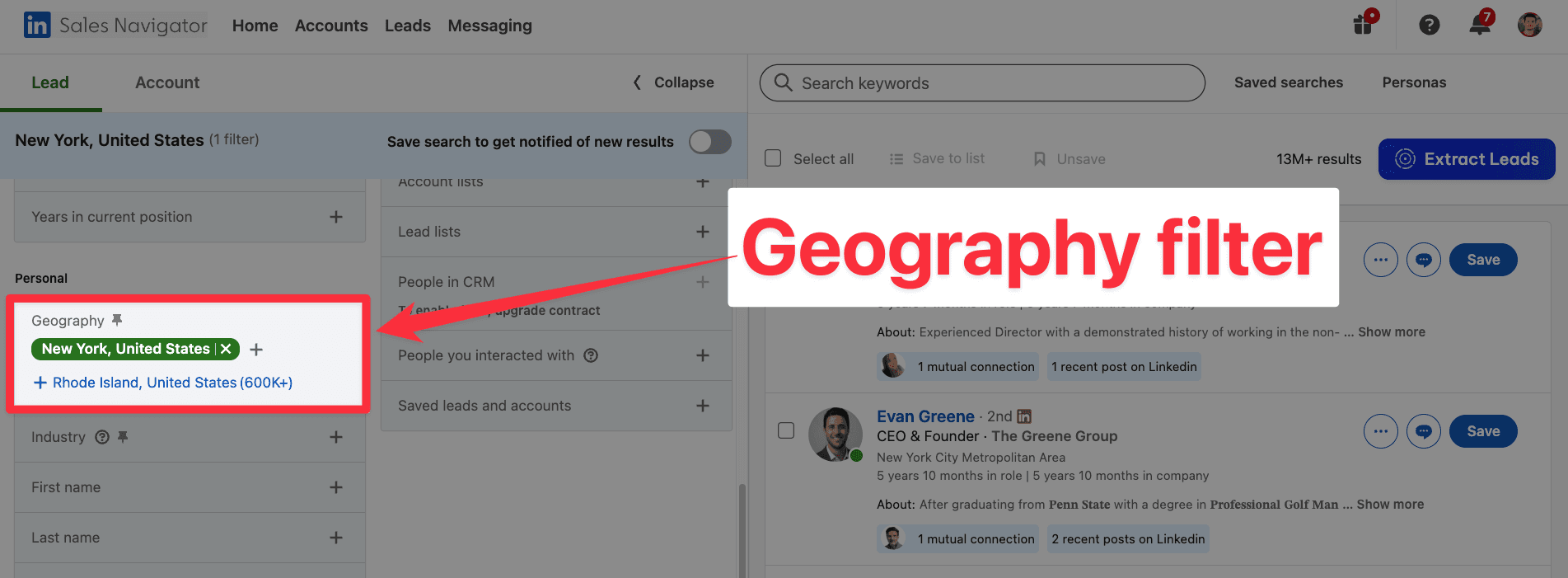
3. Geography
Target by country, region, or city.
This matters for two reasons:
Language: You want to reach out in the right language.
Buying power: Some regions have higher average salaries and bigger budgets (US, UK, Switzerland, UAE).
💡 Pro tip: If you sell in multiple regions, create separate lead lists per geography. It makes personalization much easier.
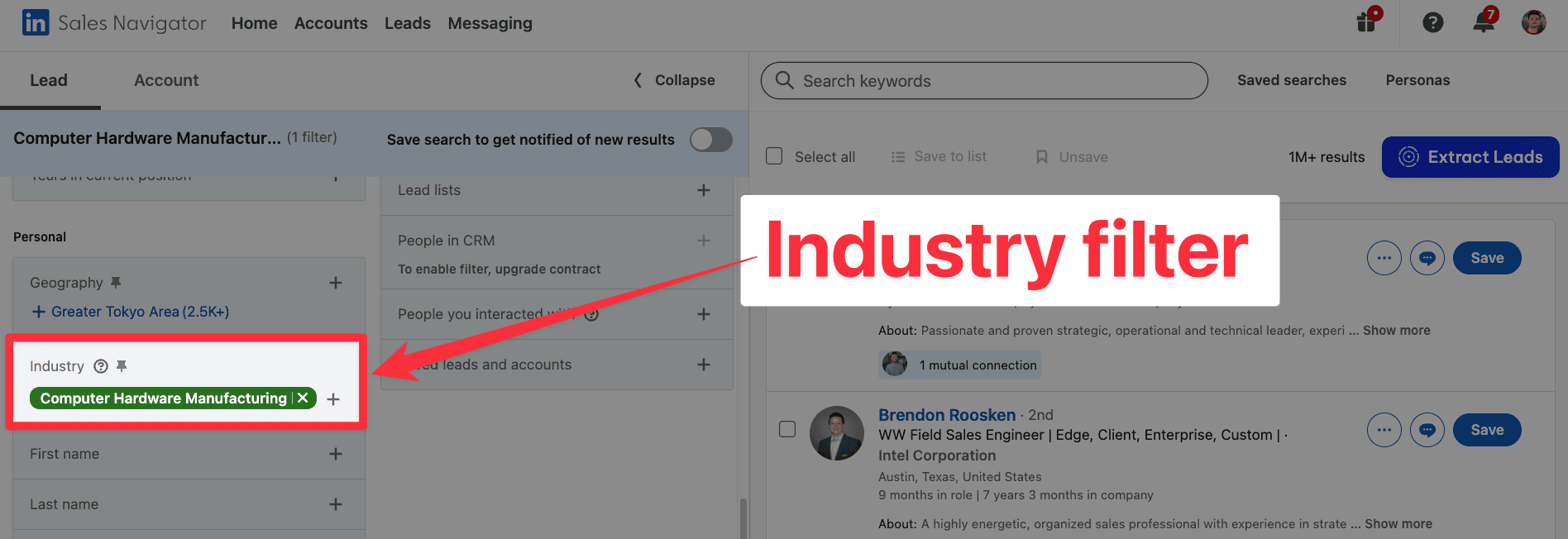
4. Company Industry
Not all industries spend the same.
Some are cash-rich. Others are always tight on budget.
Here are the industries that tend to buy more:
Finance and banking
Insurance
Legal
SaaS and tech
Healthcare
Consulting
✅ Add this filter to avoid wasting time on industries that rarely convert.
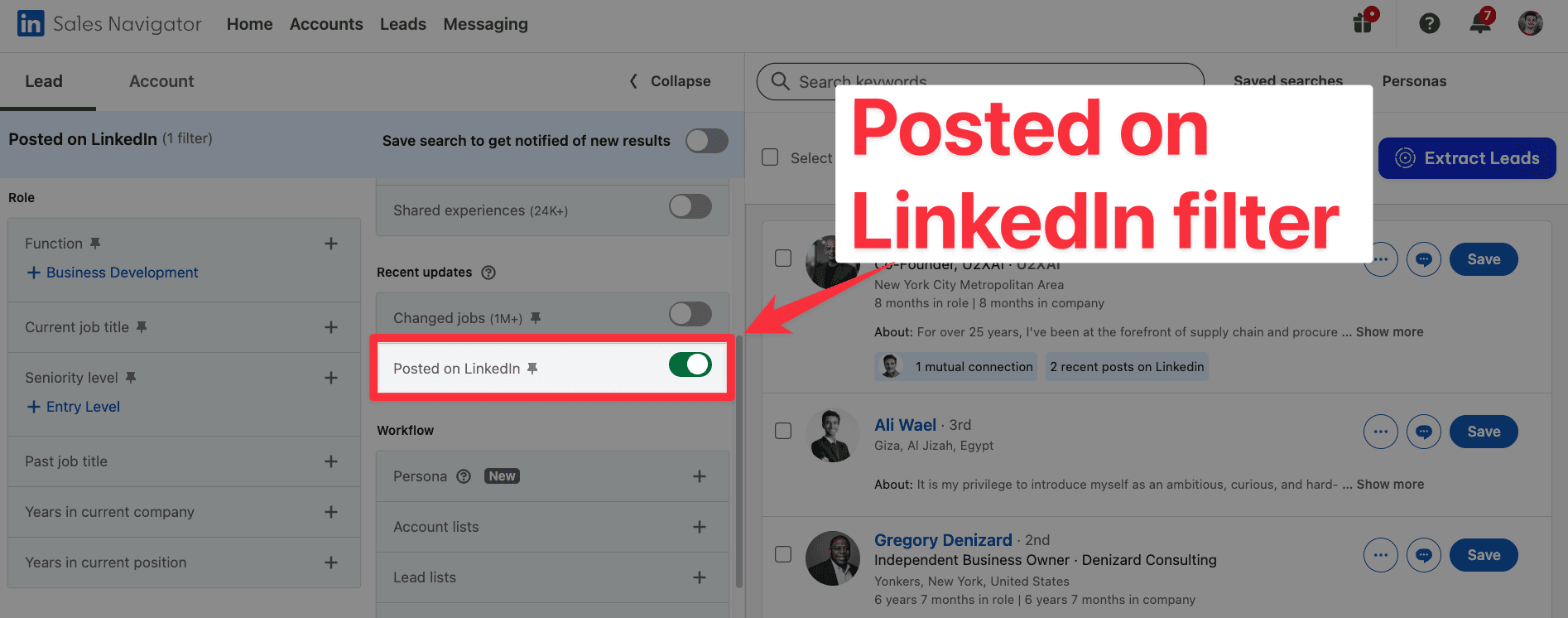
5. Posted on LinkedIn
This filter shows leads who posted something in the last 30 days.
Why does it matter? Active leads are warm leads. They're on LinkedIn right now. They're more likely to see your message and reply.
💡 Pro tip: Engage with their post before you send a connection request. A simple, genuine comment gives you a natural reason to reach out.
Here are the details of all the lead filters:
Filter | Usefulness | What It Does / Why It’s Useful | Example |
|---|---|---|---|
Current company | ★☆☆ | Target leads working at a specific company | Find all employees at HubSpot |
Company headcount | ★★★ | Filter by company size (helps qualify budget) | Target companies with 51–200 employees |
Past company | ★☆☆ | Find leads who used to work at a specific company | Former Google employees |
Company type | ★☆☆ | Choose between public, private, non-profit, etc. | Target only public companies |
Company HQ location | ★★☆ | Filter by where the company is based | Target companies headquartered in Paris |
Function | ★☆☆ | Filter by job function (Marketing, Sales...) | Find all leads in the "Operations" function |
Current job title | ★★★ | Target by job title (ideal for decision-makers) | "CMO", "Head of Sales", "Founder" |
Seniority level | ★☆☆ | Target C-level, Managers, Entry level... | Target only VP and above |
Past job title | ★☆☆ | Useful for career path targeting | Former SDRs now in leadership |
Years in current company | ★★☆ | Spot newcomers or loyal employees (Decision Makers) | Less than 1 year = Newcomer = Open to change |
Years in current position | ★★☆ | Identify recently promoted leads | New Head of Marketing |
Geography | ★★★ | Filter by where the person is located | France, US, Dubai... |
Industry | ★★☆ | Qualify based on company’s industry | Target only Fintech or SaaS companies |
First name | ★☆☆ | Rarely used unless personal targeting | Leads named "John" |
Last name | ★☆☆ | Same as above, very niche targeting | Leads named "Smith" |
Profile language | ★★☆ | Useful for multilingual targeting | French-speaking leads in Canada |
Years of experience | ★★☆ | Qualify by total work experience | More than 10 years = senior profile |
★☆☆ | Filter by LinkedIn groups joined | Members of "B2B SaaS Leaders" | |
School | ★☆☆ | Alumni-based targeting | Target HEC or Stanford alumni |
Following your company | ★★★ | Shows interest—warm lead signal | Prospects already following your page |
Viewed your profile recently | ★★★ | Hot signal—reach out fast | They saw you = they’re curious |
Connection | ★★★ | 1st, 2nd, or 3rd degree connection | Prioritize 1st and 2nd for better reply rate |
Connections of | ★★★ | Great to mine competitors’ or clients’ networks | “Connections of John from Agency X” |
Past colleague | ★☆☆ | Build rapport via shared past experience | Used to work at the same company as you |
Share experiences | ★☆☆ | Shared school, group, or past company | Build trust with shared background |
Changed jobs | ★★★ | New role = New budget = New opportunities | Prospect just became Head of Ops |
Posted on LinkedIn | ★★★ | Active users = more likely to reply | Engaged leads = warm leads |
Persona | ★☆☆ | Predefined buyer persona filter | Filter all "Tech decision-makers" persona |
Account lists | ★★★ | Filter leads based on saved companies | Show only leads from my “Top 100 targets” |
Lead lists | ★★★ | Focus outreach on saved contacts | Show only people in "Q2 CMO list" |
People in CRM | ★★☆ | Sync CRM data (Advanced/Enterprise only) | Show leads already in Salesforce |
People you interacted with | ★☆☆ | Keep track of people you’ve messaged | Follow up with warm contacts |
Saved leads and accounts | ★☆☆ | Segment and prioritize your targets | Re-engage saved leads from last campaign |
It's a lot, but most of them are not useful. You will see later what filters are the best to find qualified leads.
How to Save Your Lead Search
Found the right filters? Don't lose them.
Click "Save Search" at the top of your results. Sales Navigator will notify you every time a new lead matches your criteria.
This means your lead list updates automatically. You don't have to redo your search every week.
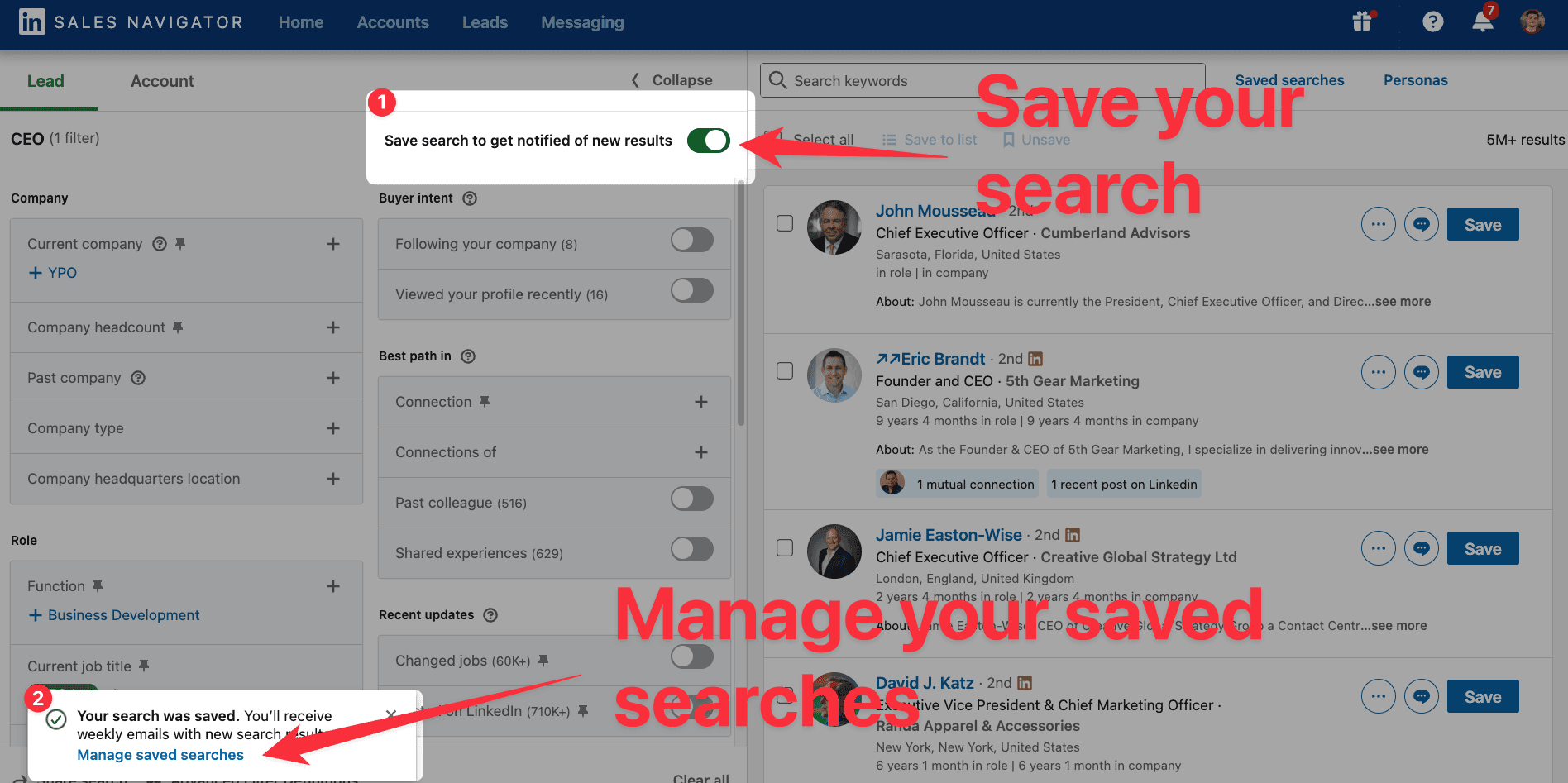
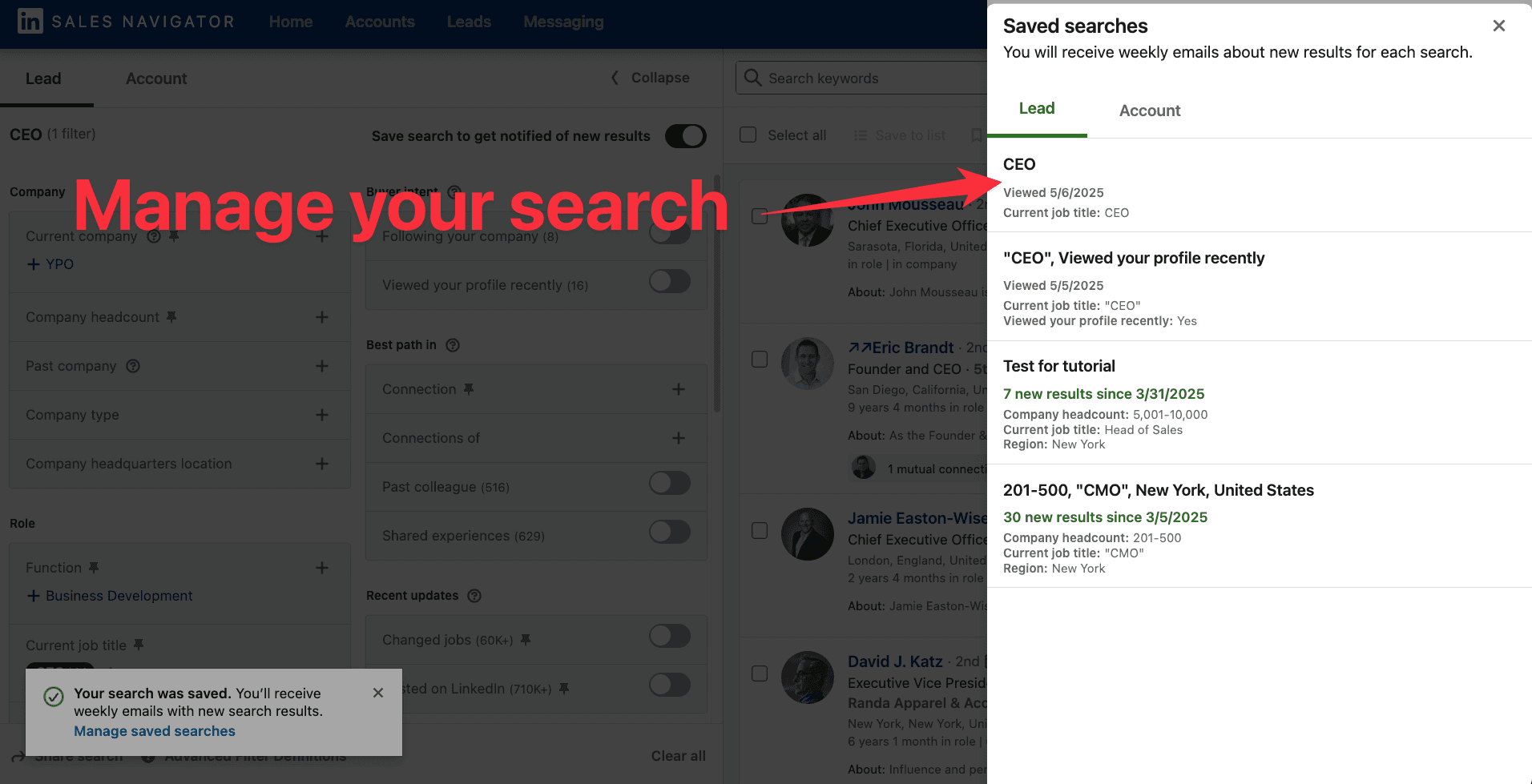
You can manage your saved searches by clicking on "Manage saved searches".
🎥 If you want an in-depth video on how to save your search on LinkedIn Sales Navigator, you can check this video:
How to Use Boolean Search
Boolean search is the fastest way to be precise with your targeting.
You can use it in two fields on Sales Navigator:
Current job title
Keywords
Here's how it works:
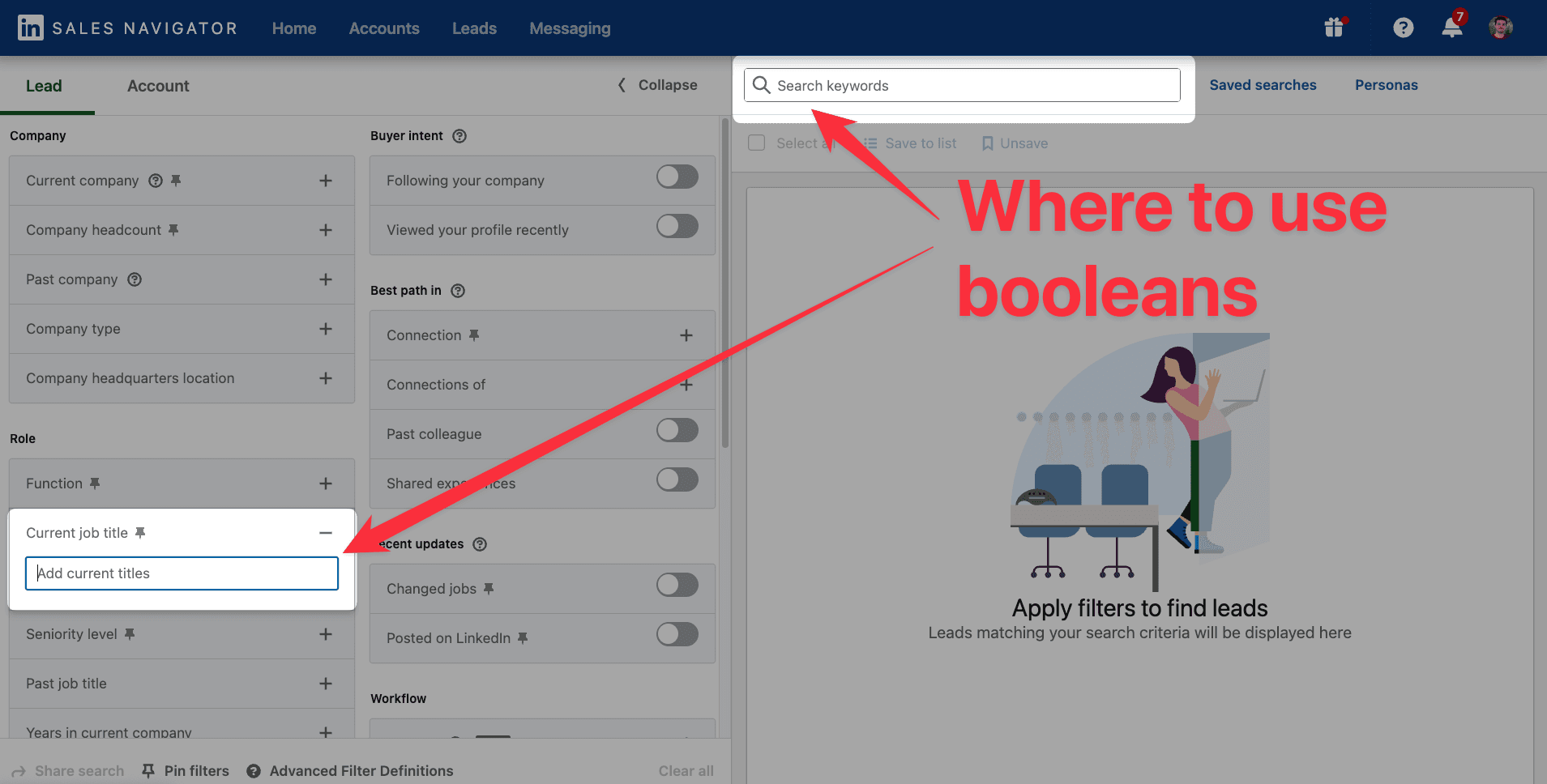
Here's how they work:
Operator | What It Does | Example |
|---|---|---|
| Includes both terms |
|
| Includes either term |
|
| Excludes specific terms |
|
| Searches for an exact phrase |
|
| Groups terms for complex searches |
|
Boolean Search Examples by Job Title
Here are ready-to-use Boolean searches for the most common decision-makers:
CEO / Founder
Chief Marketing Officer
Head of Sales
Head of Growth
💡 Pro tip: Always add
NOT "Intern"andNOT "Assistant"to your searches. It keeps your list clean from the start.
🎥 You can see a video tutorial on how to use boolean operators on LinkedIn Sales Navigator:
How to Create a Lead List
You’ve found good leads? It's time to save them in a lead list.
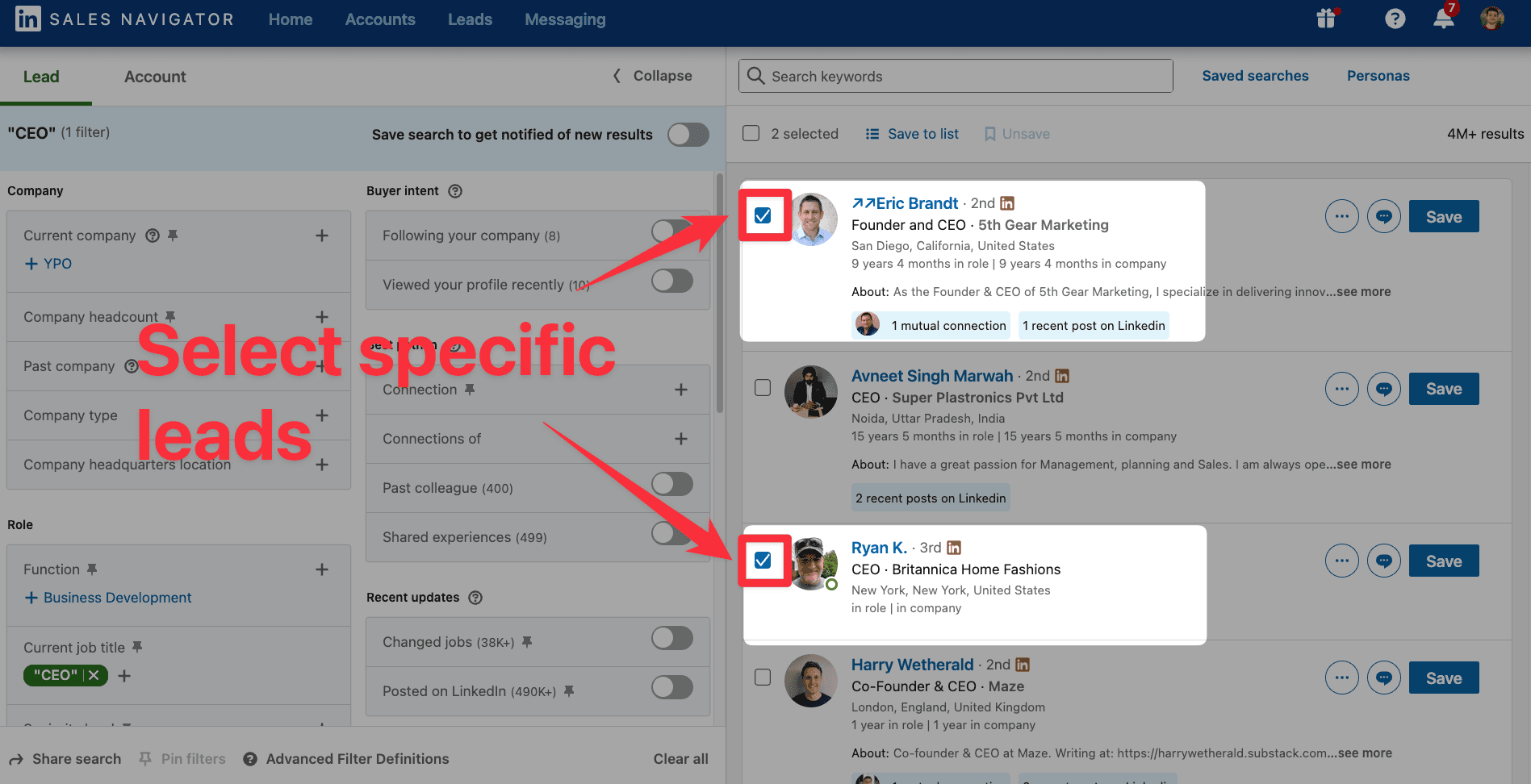
You can save specific leads in a list by clicking on the box next to the lead:
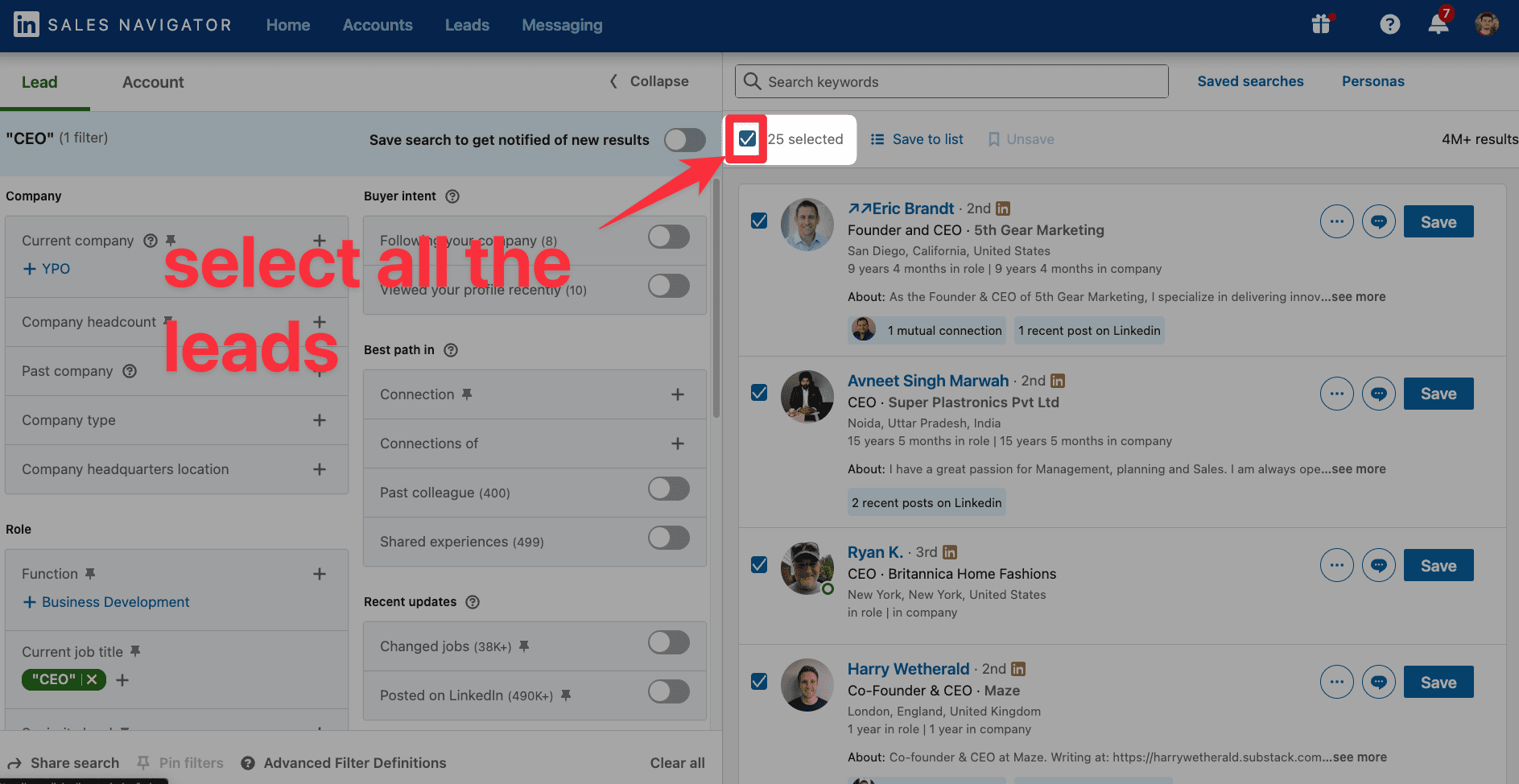
Or you can click on "Select all" to select the 25 leads of the page:
Then, you click on "Save to list", "Create new list":
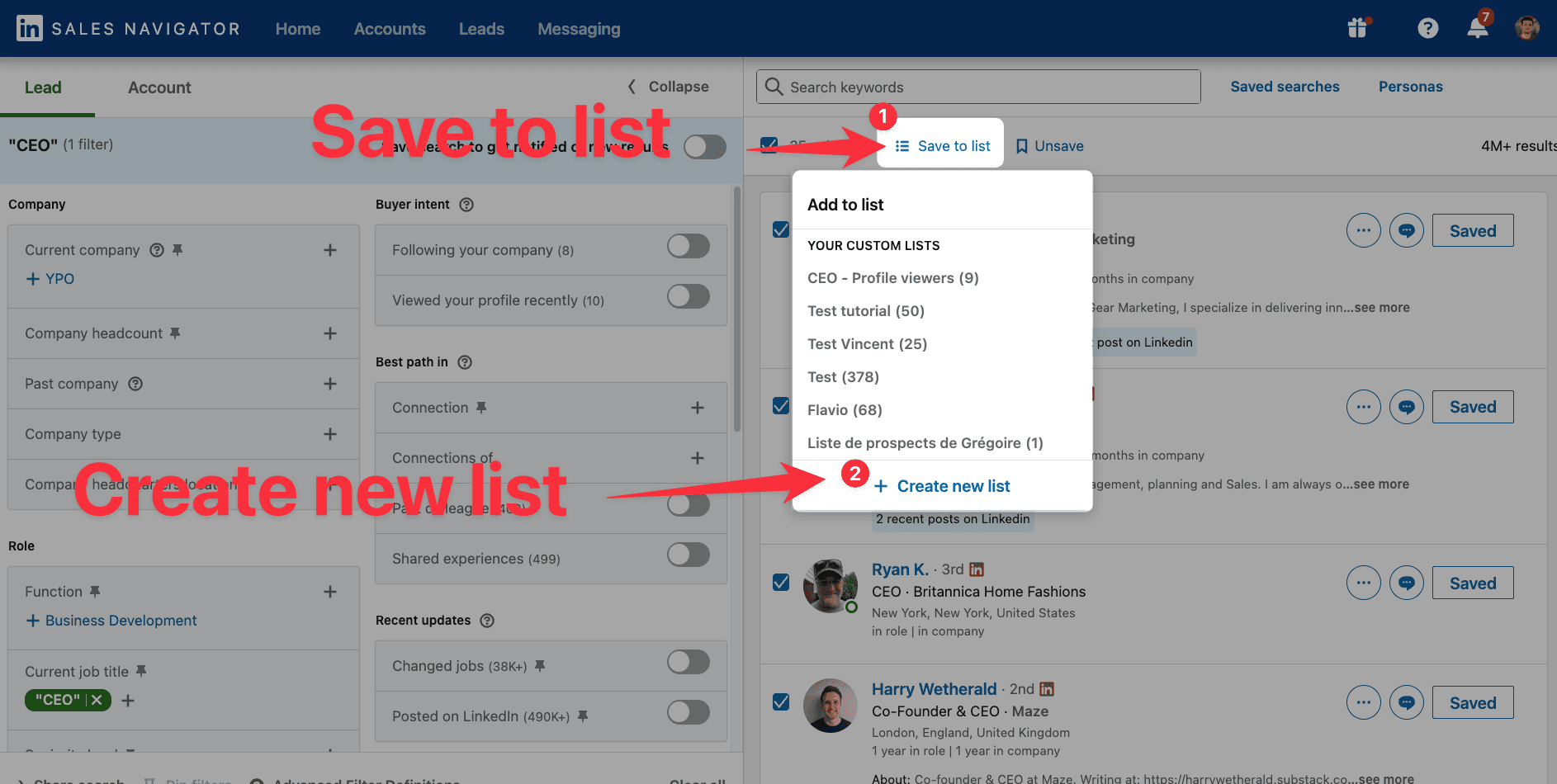
To create a lead list, choose a List name, list description and click on "Create and save":
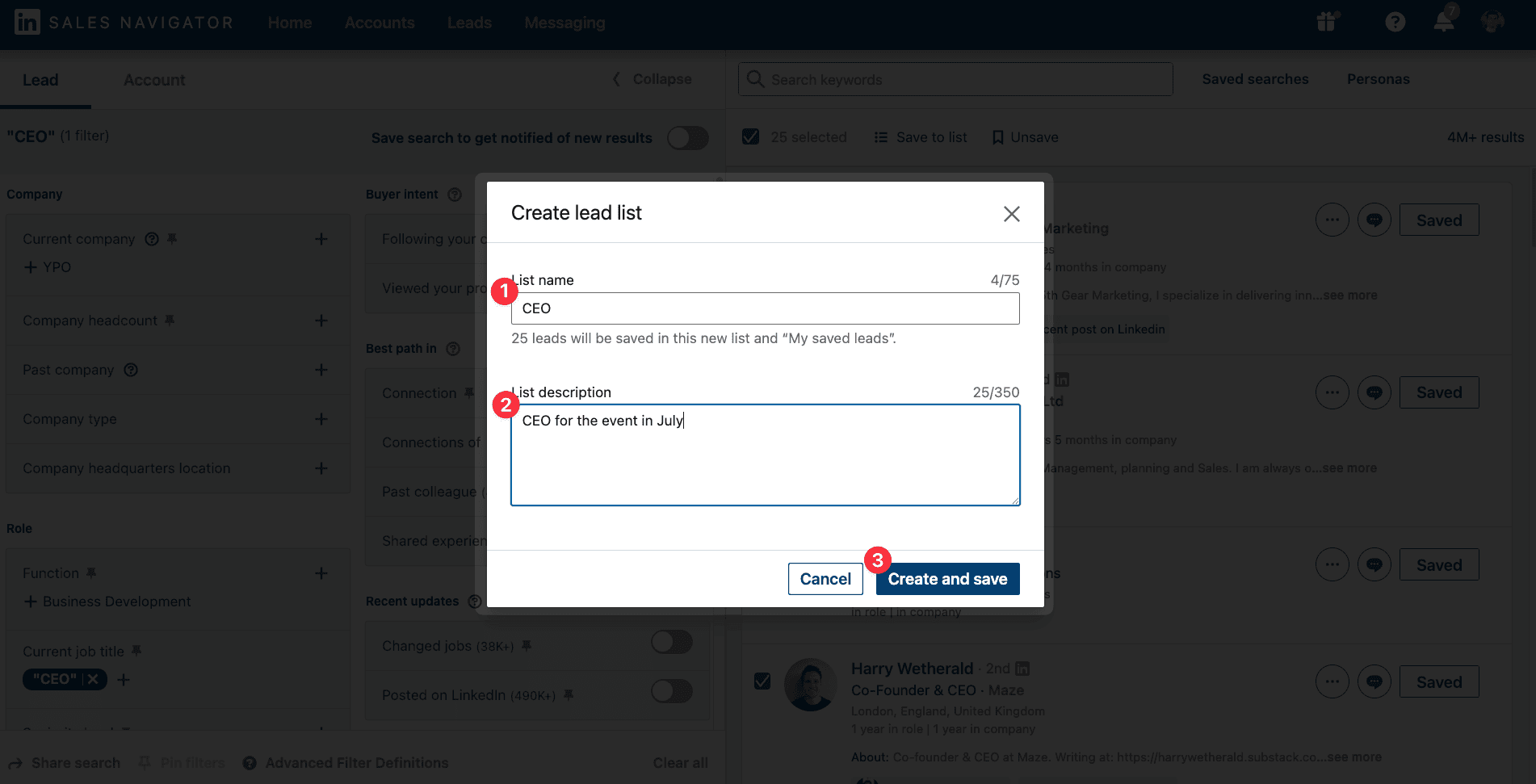
If you want to add leads in the list, you just need to select the leads and select your list.
You will have the number of leads in it.

You have to go on the next page to add the next 25 leads.
Unfortunately, you have to repeat this process page by page :/
🎥 If you want to have a video tutorial on how to create a lead lists, you have this video:
How To Find Leads in Your Competitors' Networks
This is one of the most underrated filters on Sales Navigator.
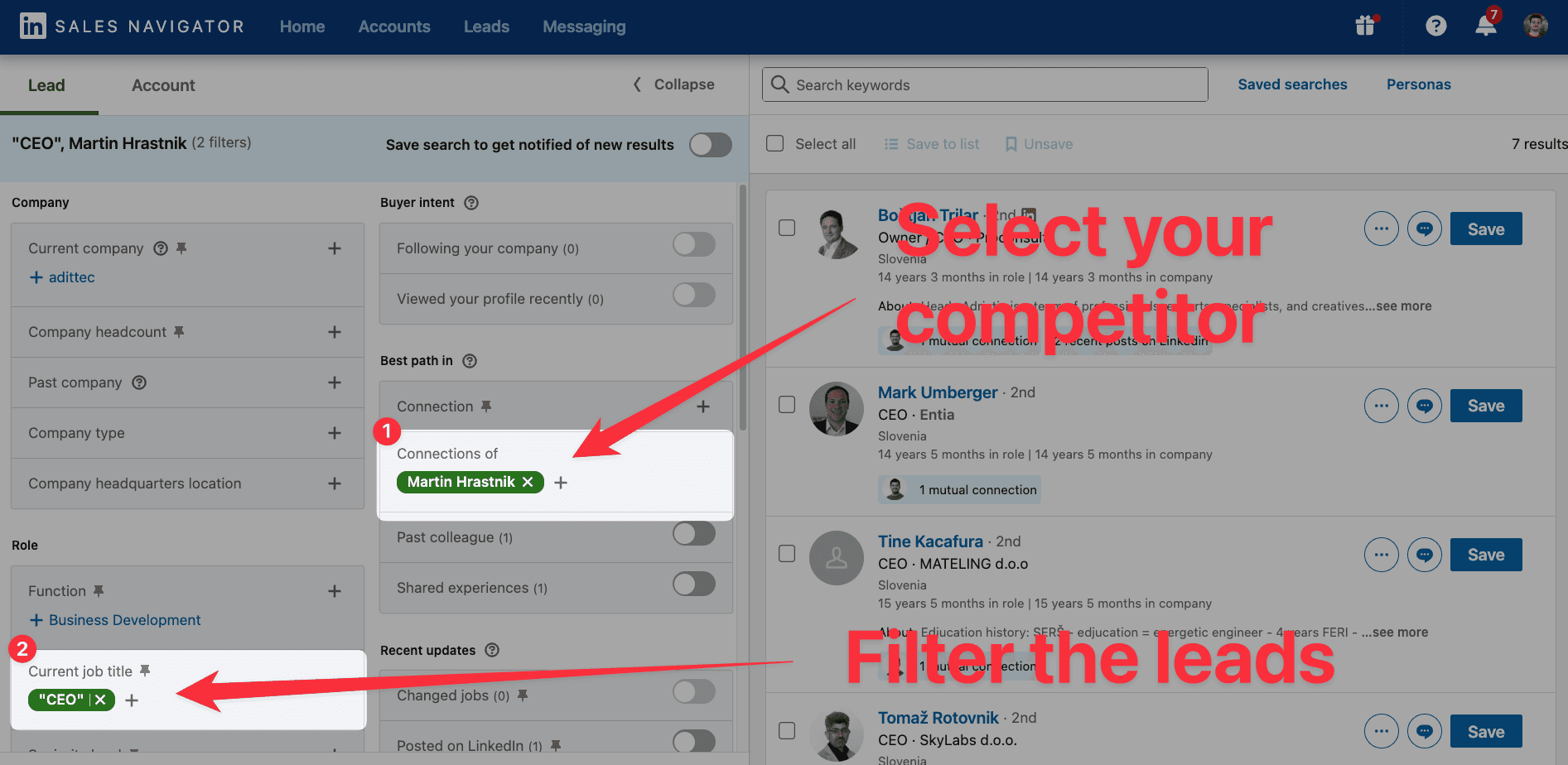
Use the "Connections of" filter to see the network of a specific person — like a competitor or a past client.
Here's how:
Go to the Lead filters
Click "Connections of"
Type the name of your competitor or target
Add extra filters like job title or location
⚠️ Important: You need to be a 1st-degree connection with that person. Otherwise the filter won't work.
This gives you a list of warm, qualified leads who are already in the right ecosystem.
🎥 If you want to have a video tutorial on how to create a list of leads from your competitors, you can watch this video:
How to Exclude Clients & Competitors From Search Results
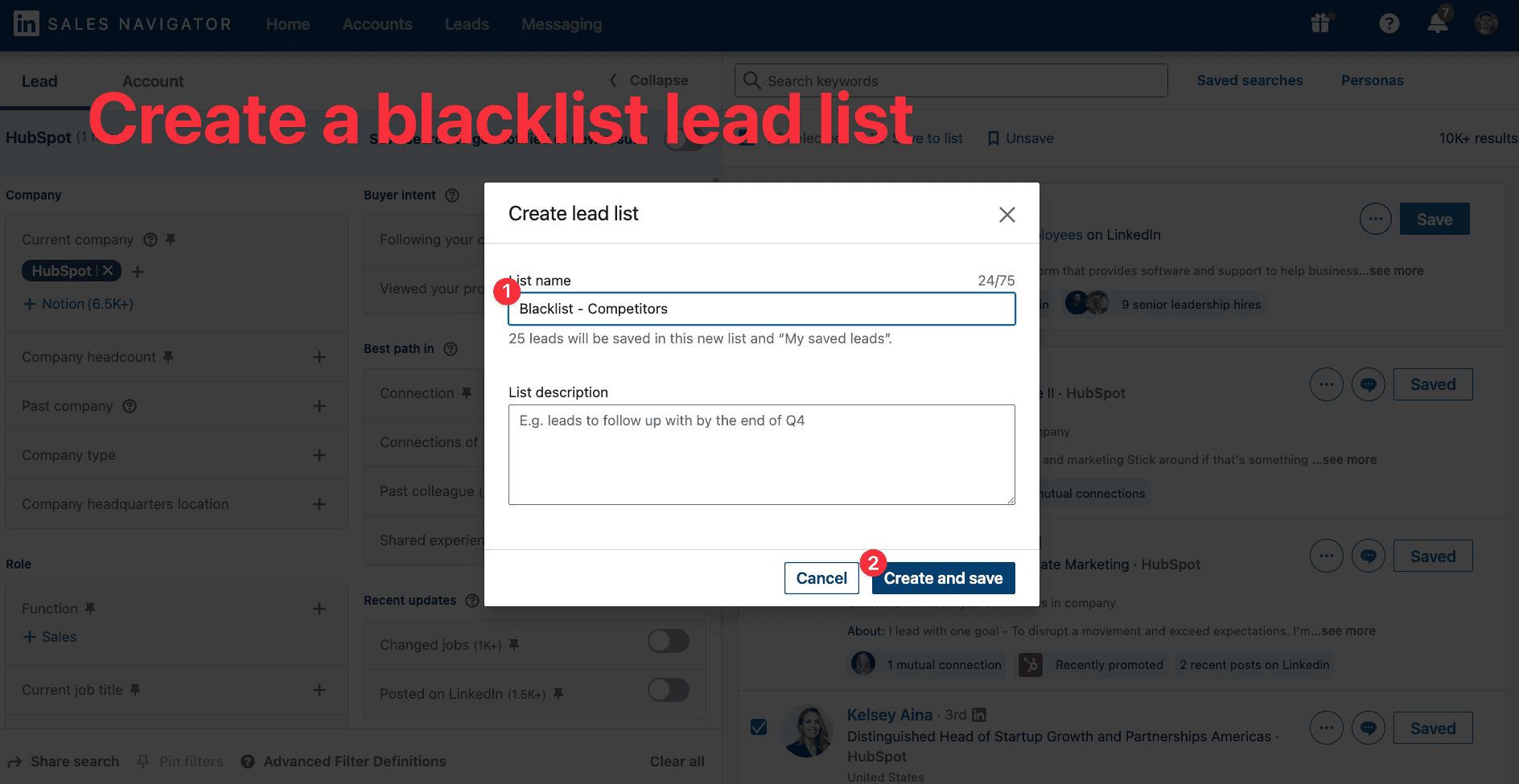
You want a clean lists? A best practice is to exclude people you already work with. Or your competitors.
Here’s how:
Create a list with your clients or competitors
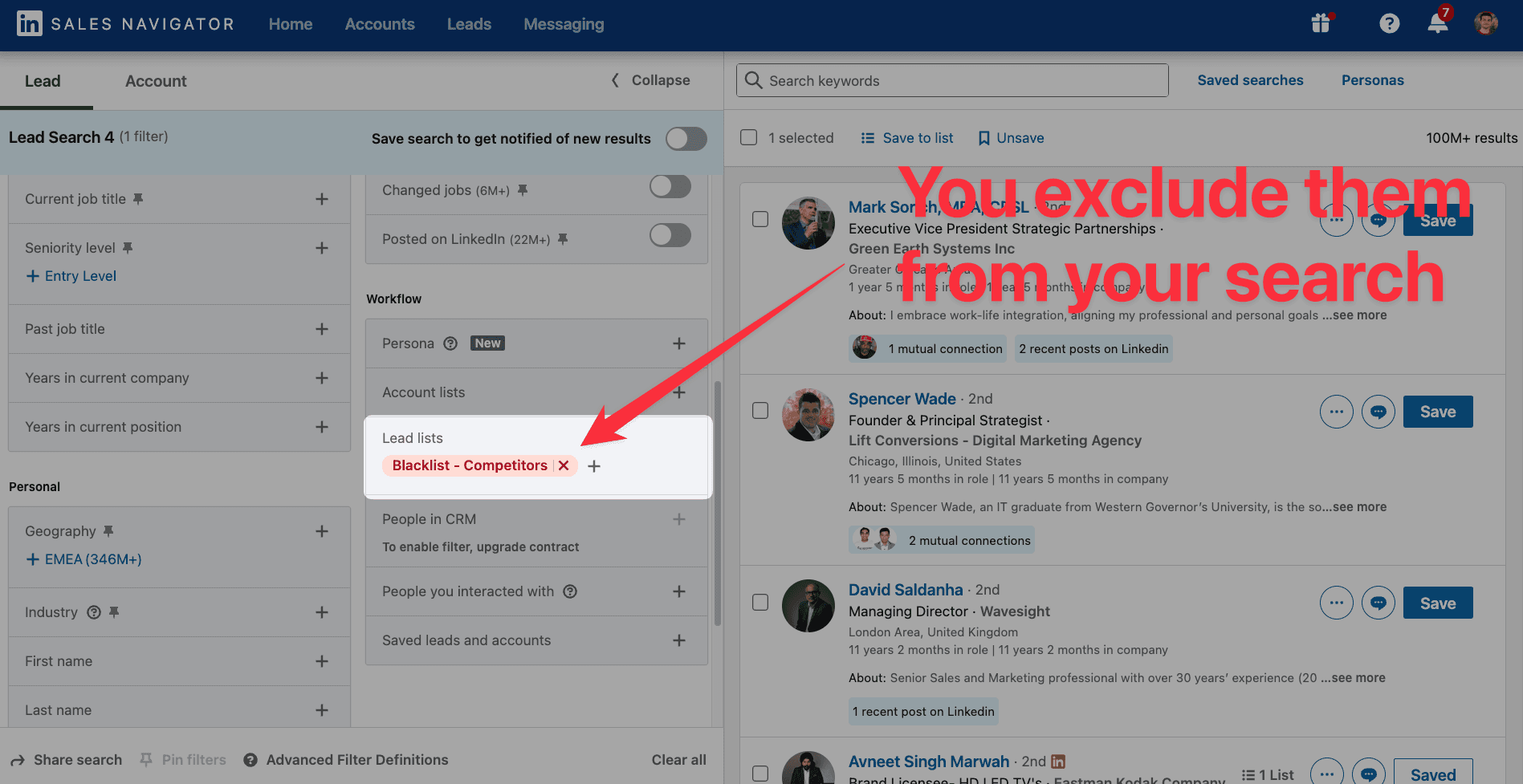
When searching, click “Exclude from lists”
Select the list you created
🎥 If you want to learn how to exclude your competitors or clients, you can watch this video:
How to Export Your Profile Viewers
Sales Navigator can show you who viewed your profile recently (last 90 days). These are warm leads because they might have a good idea of who you are and what you do.
If you want to identify them:
click on "Viewed your profile recently"
Add filters like "Current job title"
Oh and by the way, it's one of the quickest way to book sales calls with qualified leads.
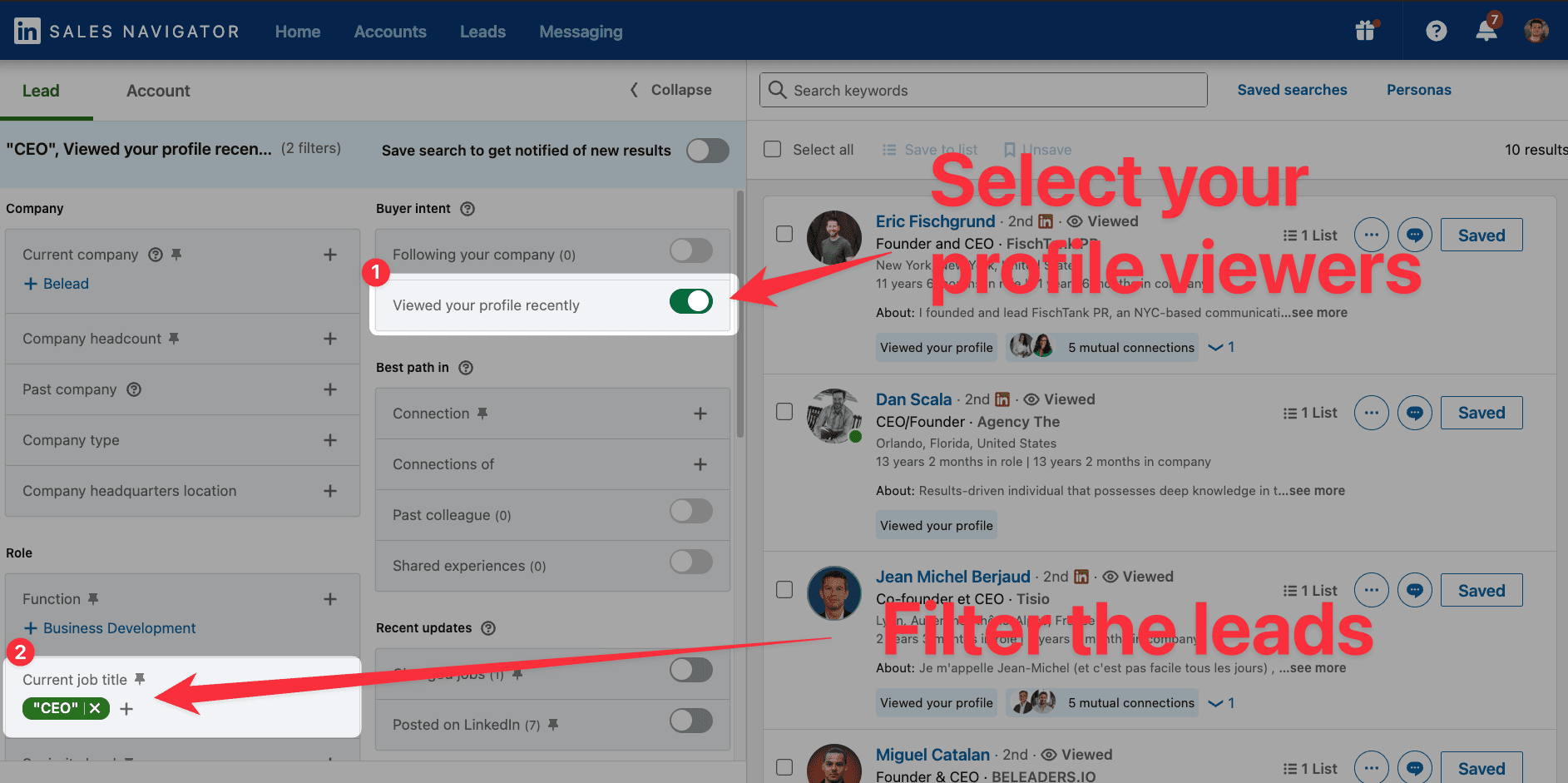
🎥 If you want to have a video tutorial on how to export your profile viewers, you can watch this video:
How To Find Warm Leads on LinkedIn Sales Navigator
Cold outreach is hard. Reply rates are low. Most messages get ignored.
But warm leads are different.
Warm leads already know you exist. They've visited your profile. They follow your company. They're active on LinkedIn right now.
When you reach out to them, it doesn't feel cold. It feels natural.
Here's how to find them using Sales Navigator's intent data.
What Is Intent Data?
Intent data tells you who is showing interest — before you even reach out.
On Sales Navigator, intent signals come from real LinkedIn behavior:
Someone viewed your profile
Someone followed your company page
Someone changed jobs recently
Someone posted on LinkedIn this week
These signals tell you: this person is active and open to conversation.
That's your window. Use it.
The 6 Best Intent Filters on Sales Navigator
1. Viewed Your Profile Recently
This is your hottest signal.
These people searched for someone like you — and landed on your profile. They're curious. They might even be ready to buy.
Sales Navigator shows you everyone who viewed your profile in the last 90 days.
Here's what to do:
Go to Lead filters
Click "Viewed your profile recently"
Add filters like job title or company size to qualify them further
Save them to a lead list
Reach out within 48 hours
💡 Pro tip: Mention the visit in your message. Something simple like: "I noticed you stopped by my profile — thought it might be worth connecting." It's honest. It works.
✅ This is one of the fastest ways to book sales calls with people who already know you exist.
2. Following Your Company
Someone follows your company page. They didn't have to. They chose to.
That's a buying signal.
They know what you do. They're interested in what you offer. They're just waiting for the right moment.
Don't wait for them to come to you. Go to them.
Here's how to find them:
Go to Lead filters
Click "Following your company"
Add filters to narrow down by job title or seniority
Reach out with context: reference what you do and why you thought of them
💡 Pro tip: These leads are already warm. Skip the generic intro. Go straight to value.
3. Changed Jobs Recently
A new job means new priorities. New budget. New problems to solve.
People who just started a new role are often actively looking for tools and services to help them succeed. They want to make an impact fast.
That's your opportunity.
Here's what to look for:
Signal | What it means |
|---|---|
Started a new role < 3 months ago | They're setting up their stack |
Got promoted | They now have more budget and decision power |
Moved to a new company | Clean slate — open to new vendors |
💡 Pro tip: Congratulate them on the new role. It's a natural, non-salesy opener. Then pivot to how you can help them win in their new position.
4. Posted on LinkedIn Recently
If someone posted in the last 30 days, they're active. They're on the platform. They'll see your message.
But there's a smarter way to use this filter.
Don't just message them cold. Engage with their post first.
Here's the sequence:
Find leads with the "Posted on LinkedIn" filter
Read their latest post
Leave a genuine comment
Wait 24-48 hours
Send a connection request with a personalized note referencing their post
Follow up with your pitch after they connect
✅ This approach feels human. Not automated. Reply rates go up significantly.
5. 1st-Degree Connections
Your existing network is your warmest audience.
These people already know you. They've accepted your connection request. They're much more likely to reply than a cold contact.
Use this filter to:
Re-engage connections you haven't spoken to in a while
Identify people in your network who match your ICP
Ask for warm introductions to their colleagues
💡 Pro tip: Filter your 1st-degree connections by job title and company size. You'll be surprised how many qualified leads are already in your network.
6. Connections of [a Specific Person]
This is one of the most powerful — and most underused — filters on Sales Navigator.
You pick a person. Sales Navigator shows you their entire network.
Use it to:
Mine your best client's network for similar profiles
Access your competitor's connections
Leverage a mutual contact for warm introductions
Here's how:
Go to Lead filters
Click "Connections of"
Type the name of the person whose network you want to explore
Add filters like job title, location, or company size
⚠️ Remember: You need to be a 1st-degree connection with that person for this filter to work.
Intent Data: Quick Reference Table
Filter | Signal strength | Best use case |
|---|---|---|
Viewed your profile | 🔥🔥🔥 | Reach out within 48 hours |
Following your company | 🔥🔥🔥 | Skip the intro, go straight to value |
Changed jobs recently | 🔥🔥 | Congratulate + pitch your solution |
Posted on LinkedIn | 🔥 | Engage first, then reach out |
1st-degree connections | 🔥🔥 | Re-engage or ask for intros |
Connections of [person] | 🔥🔥 | Mine your best clients' networks |
How to Export Leads From Sales Navigator
Follow the 5 steps to export your leads from LinkedIn Sales Navigator with their verified emails:
Create a GiveMeLeads account
Download the Chrome Extension
Select your target on LinkedIn Sales Navigator
Launch your export
Download your leads file
Let's dive in!
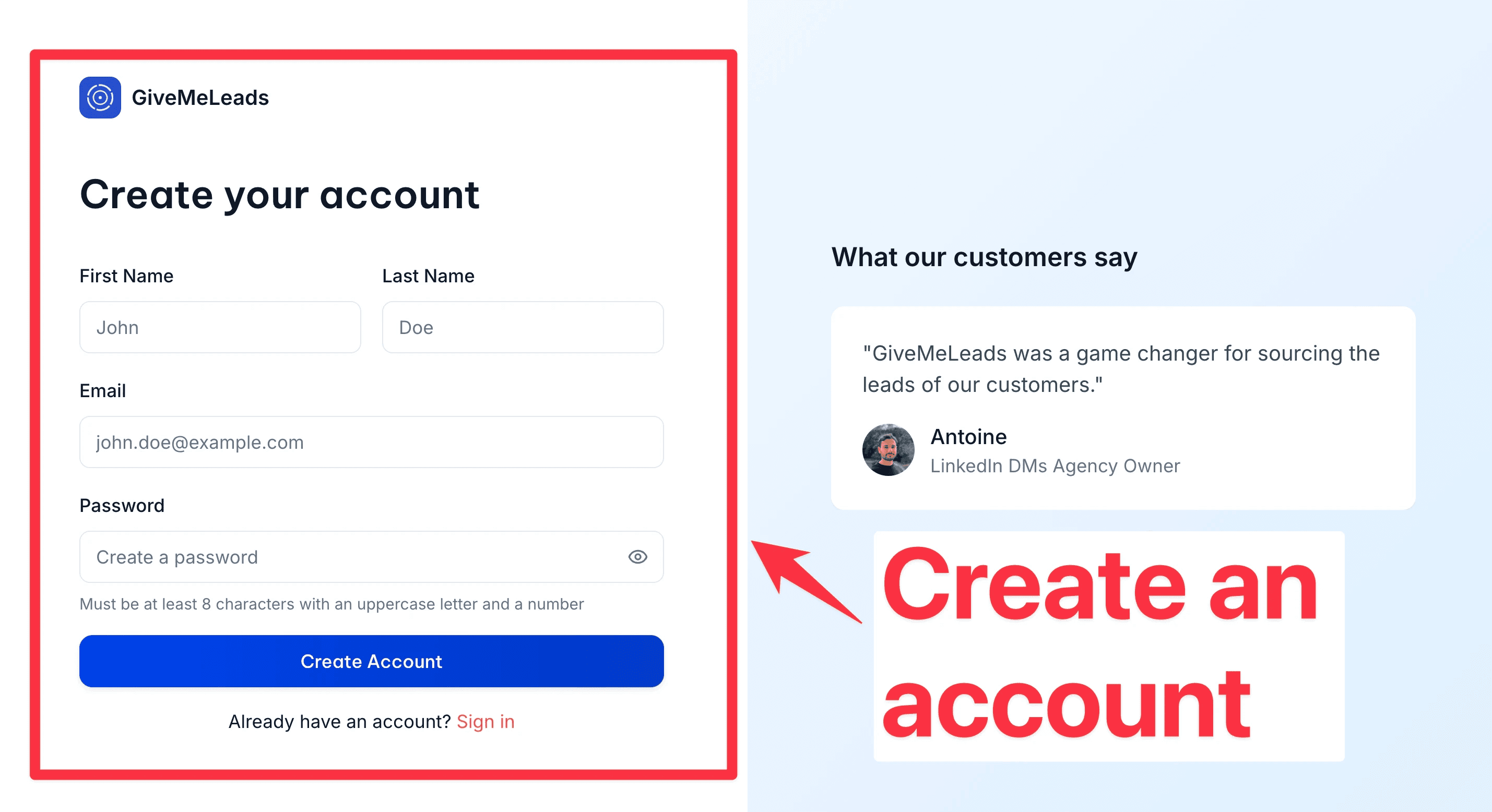
Step 1: Create a GiveMeLeads account
Go on GiveMeLeads. Then click on "Get first 10 leads for free".
Then, you have to write your:
First Name
Last Name
Email
Password
And click on "Create account".
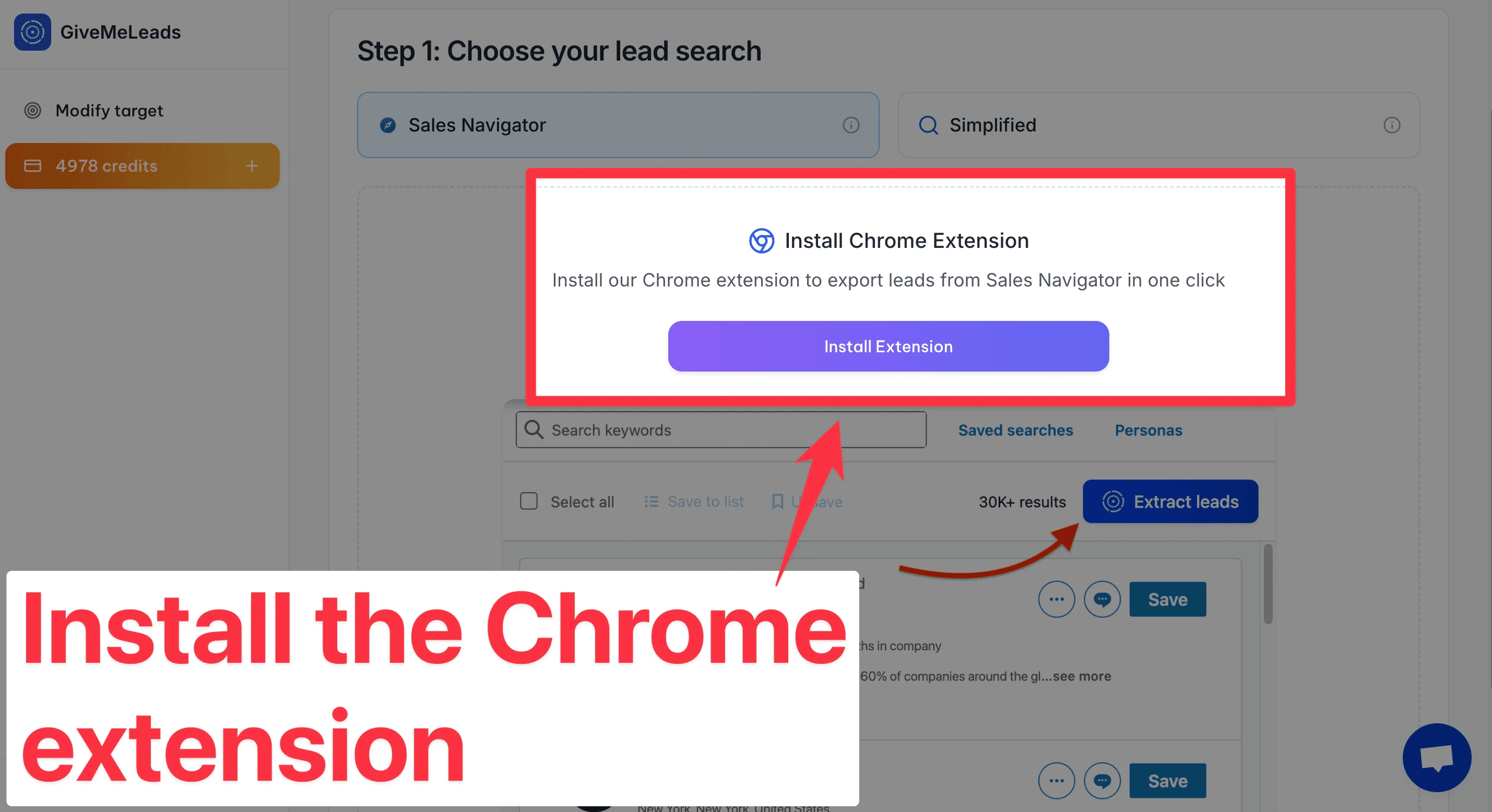
Step 2: Download the Chrome Extension
To get started, install the GiveMeLeads Chrome extension from the Chrome Web Store.
Once installed, it integrates directly into LinkedIn Sales Navigator, allowing you to extract your leads instantly while browsing your search results or saved lead lists.
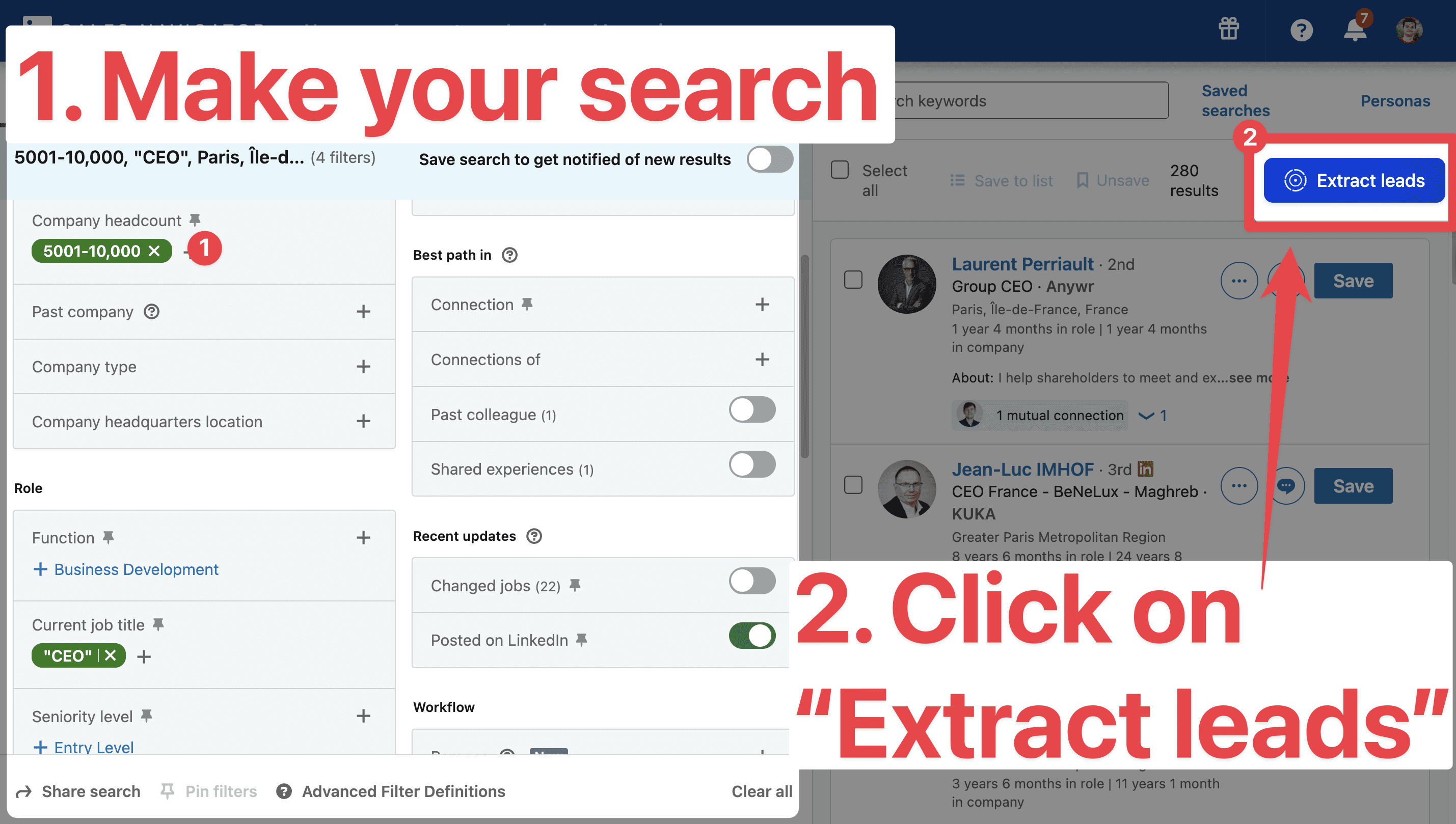
Step 3: Select your target on LinkedIn Sales Navigator
Go to LinkedIn Sales Navigator.
Use filters to find your ideal leads (like job title, company size, or location). Like decision makers for example.
Then click “Extract leads” using the GiveMeLeads extension or paste the search URL on the platform.
🎥 If you're not sure how to use LinkedIn Sales Navigator to find qualified leads, you can check this video:
Step 4: Launch your export
You target is set up. Now it's time to export your leads.
For that, click on "New Export".
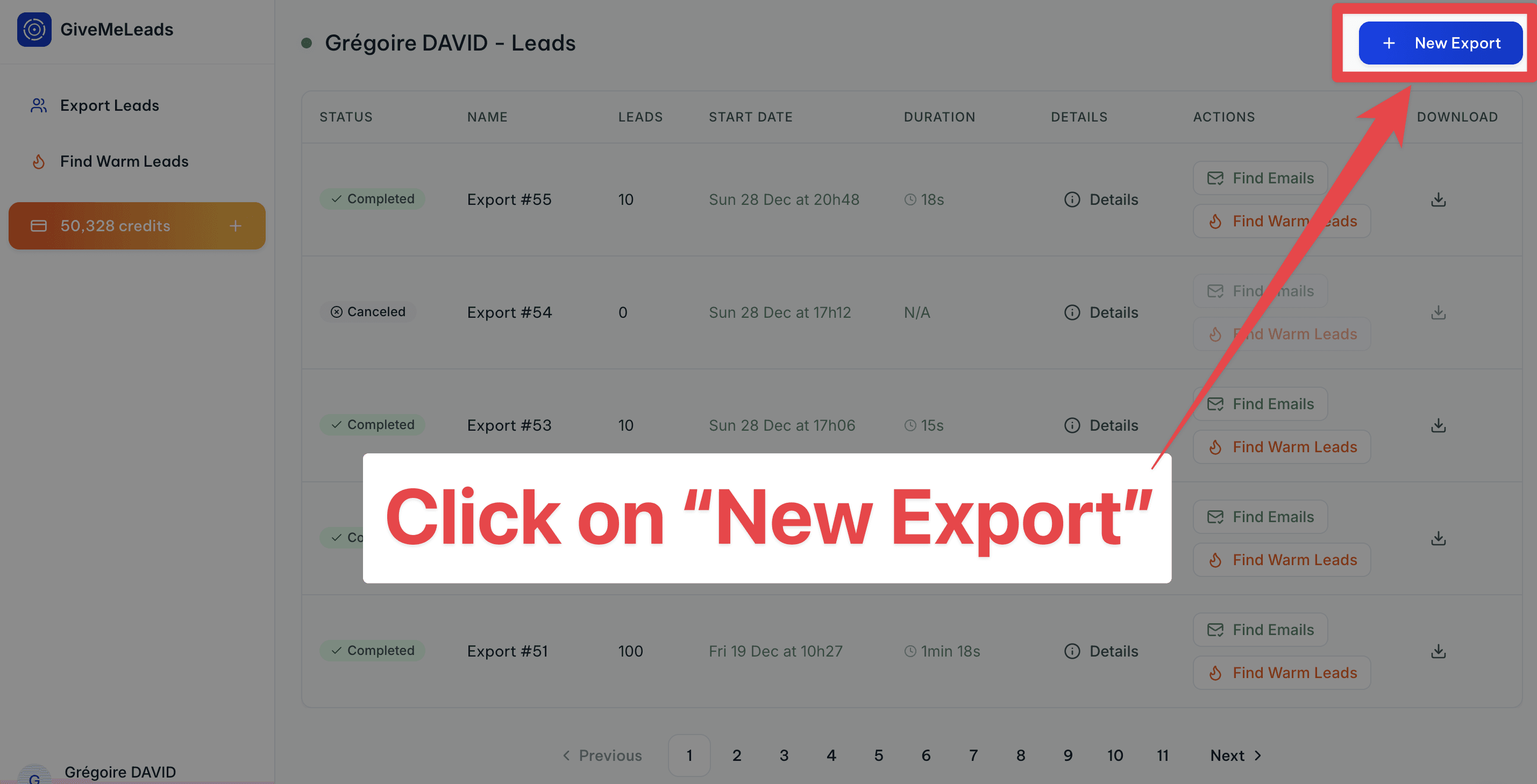
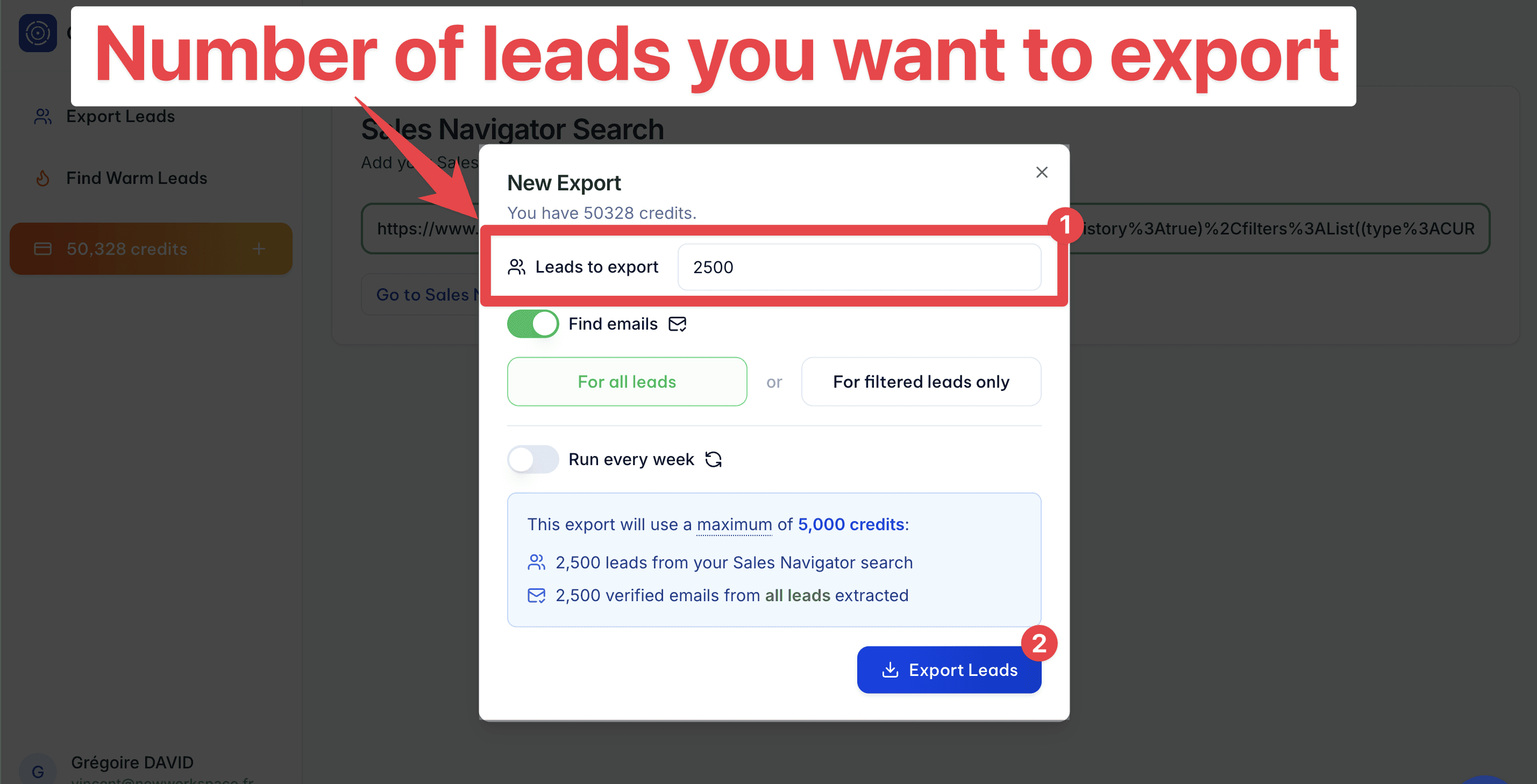
You will get a pop-up where you can select:
The number of leads you want to export
If you want to get the verified emails (of all leads or filtered leads only)
If you want to schedule this export on a weekly basis.
Then click on "Export Leads".
Step 5: Schedule Your Leads Export (Optional)
GiveMeLeads lets you schedule lead exports. Pick the day you want, and you’ll receive fresh leads weekly.
Once set up, you'll get a fresh list of leads every week — automatically.

Each lead is unique, and the system ensures there are no duplicates. This saves you time and keeps your CRM clean, so you can focus on outreach, not data cleaning.
Then, you’ll automatically receive new leads every week — no manual work needed.
You can focus 100% on what really matters: sending emails, starting LinkedIn conversations, and booking meetings.
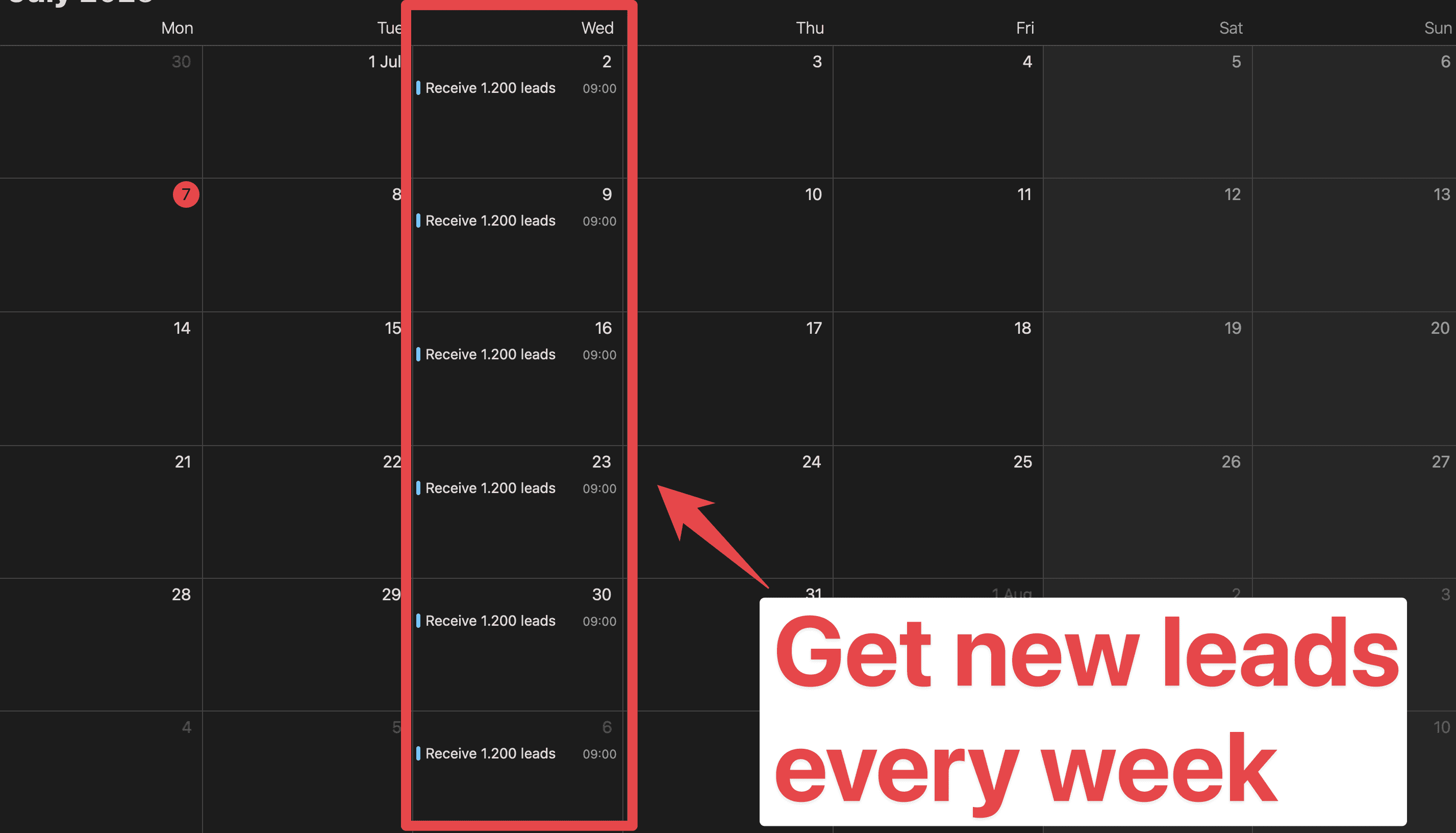
💡 Pro tip: With scheduled exports, you can easily build lead files with more than 2,500 fresh, qualified contacts delivered straight to your inbox every week.
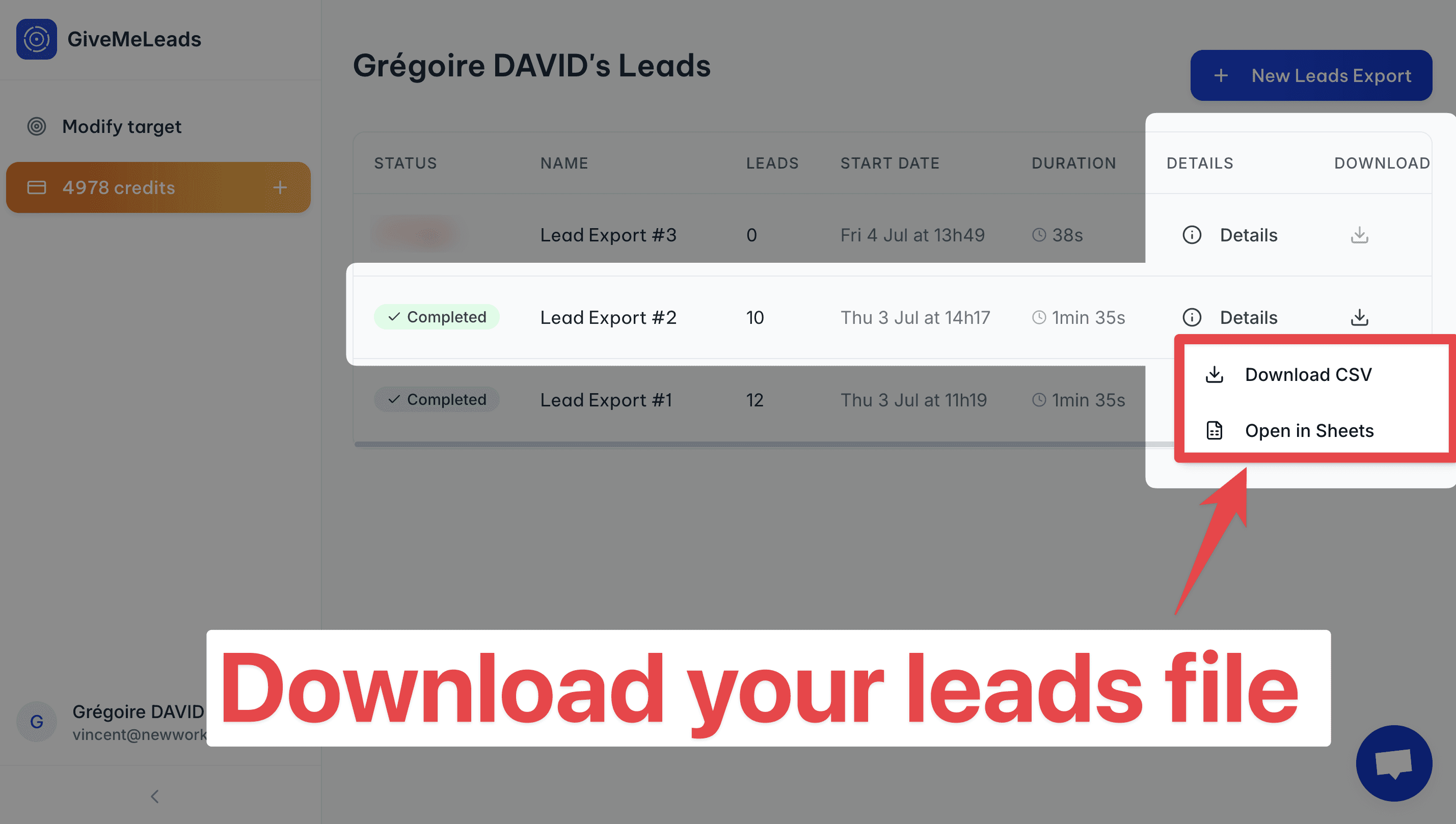
Step 6: Download your leads file
When your export is finished, you’ll receive an email with a download link.
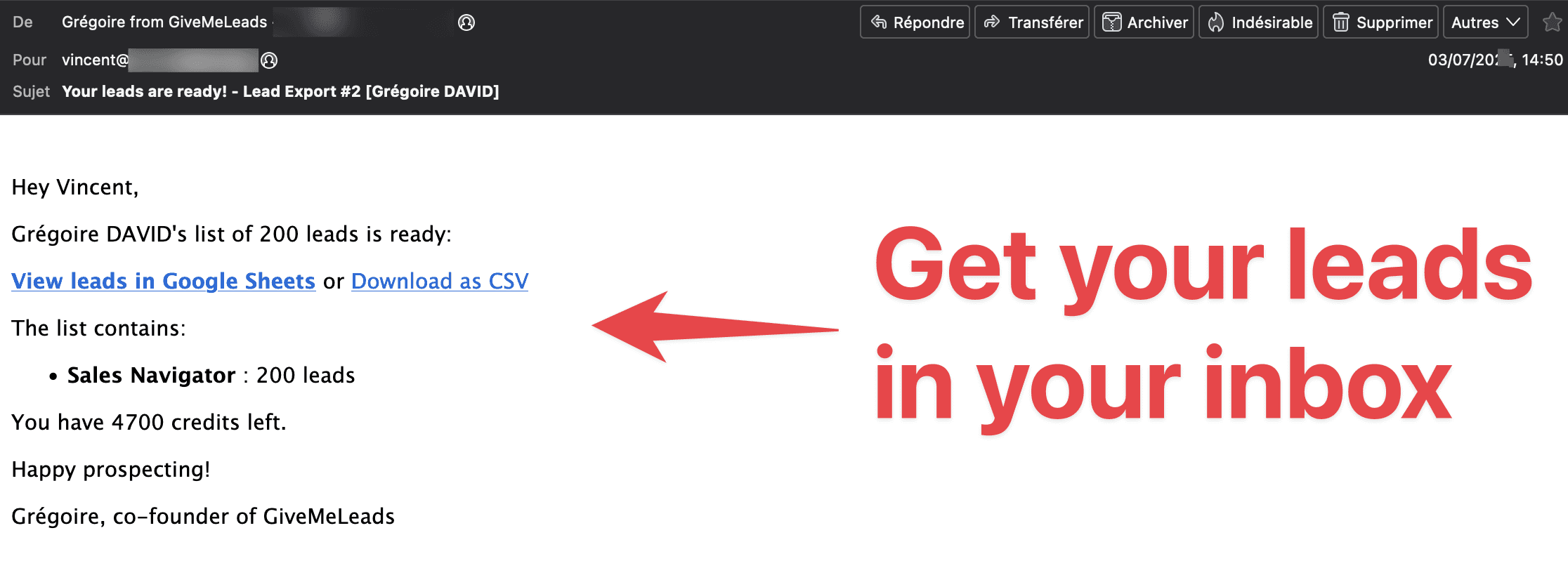
You can also download your file directly by clicking the "Download" button in your dashboard. You’ll see two options.
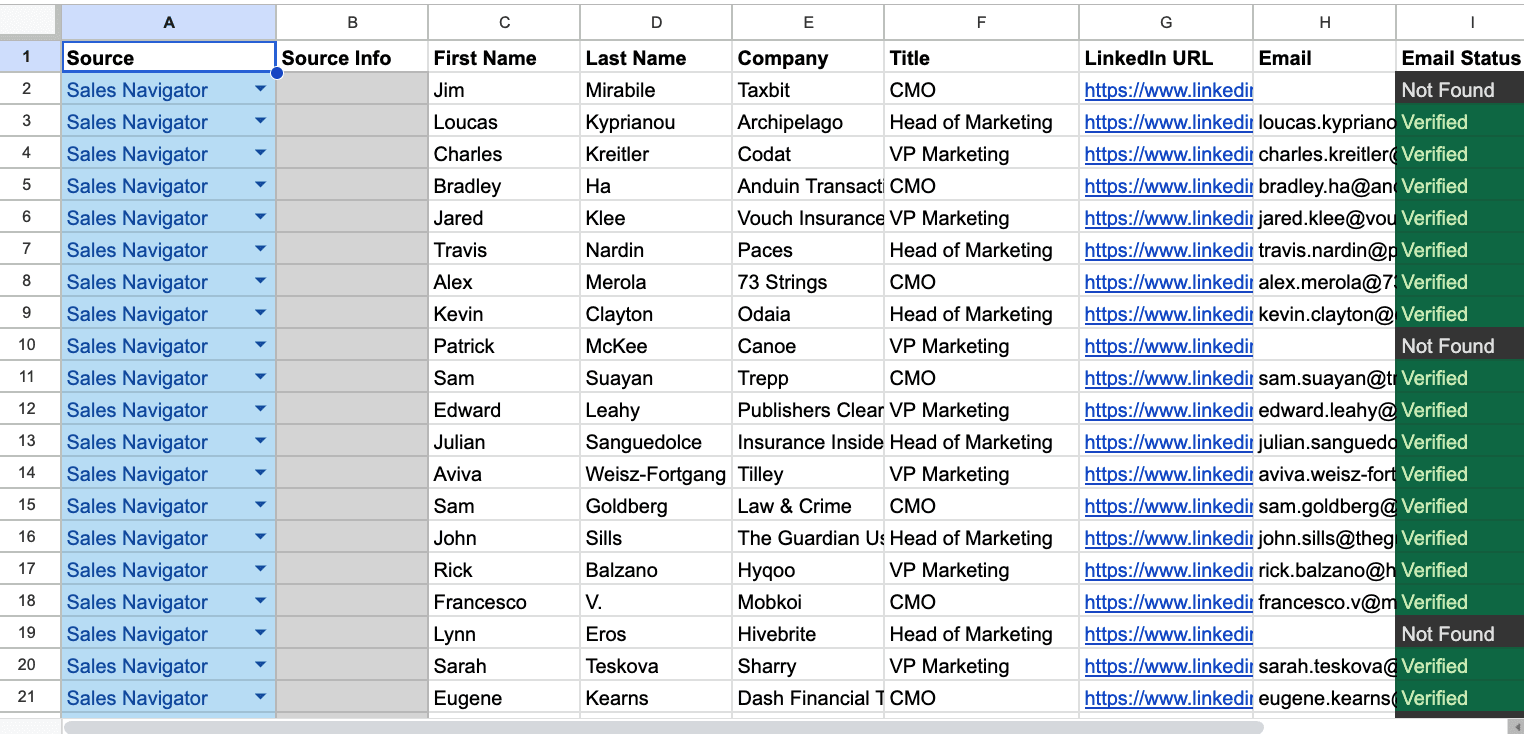
"Open in Sheets"
This gives you a simple version of your lead list.
You have:
Source (Sales Navigator, 1st-degree, profile viewers…)
First Name
Last Name
Profile picture
Company name
Job title
Headline
LinkedIn URL
Email
It doesn’t include all the data, but it’s perfect if you just want to import leads into your CRM or a B2B outreach tool like Lemlist or Expandi.
"Download CSV"
This gives you the full file with all available data. For each lead, you’ll see extra info like:
Whether they have LinkedIn Premium
Their total years of experience
Company details like size, industry, and location
Etc
Here's all the informations you can have:
filters | source | source_info | first_name | last_name | linkedin_url | linkedin_id | email_status | job_title | location | profile_picture_url | recent_posts_count | connection_degree | is_premium | is_open | headline | summary | current_companies_count | company_name | company_linkedin_id | company_website | company_location | company_industry | company_employee_count | company_employee_count_range | company_type | company_year_founded | company_specialties | company_description | duration_in_company | duration_in_role | |
|---|---|---|---|---|---|---|---|---|---|---|---|---|---|---|---|---|---|---|---|---|---|---|---|---|---|---|---|---|---|---|---|
VALID | Sales Navigator | John | Smith | ACwAAAEXAMPLE1 | Verified | CEO | New York, United States | 2 | FIRST_DEGREE | TRUE | TRUE | Helping SaaS startups scale faster | CEO at NovaTech | Experienced CEO passionate about B2B SaaS, growth marketing, and building winning sales teams. | 1 | NovaTech | 123456 | New York, United States | Information Technology | 45 | 11-50 | PRIVATELY_HELD | 2015 | B2B SaaS;Sales Automation;CRM Tools | NovaTech builds modern tools to help sales teams close more deals, faster. | 36 months | 36 months | |||||
VALID | Sales Navigator | Emily | Johnson | ACwAAAEXAMPLE2 | Verified | CMO | Chicago, Illinois, United States | 3 | SECOND_DEGREE | TRUE | FALSE | Marketing Leader at BrightWave | Helping brands grow with storytelling | I lead the marketing team at BrightWave, combining creative storytelling with strategy. | 1 | BrightWave | 654321 | Chicago, Illinois, United States | Marketing and Advertising | 85 | 51-100 | PRIVATELY_HELD | 2012 | Brand Strategy;Content Marketing;Digital Ads | BrightWave helps businesses shine with strategic marketing and bold storytelling. | 60 months | 48 months |
💡 Pro tip: Don’t forget to scroll horizontally — there's a lot of valuable data in your lead file, including job titles, company size, verified emails, and even intent signals.
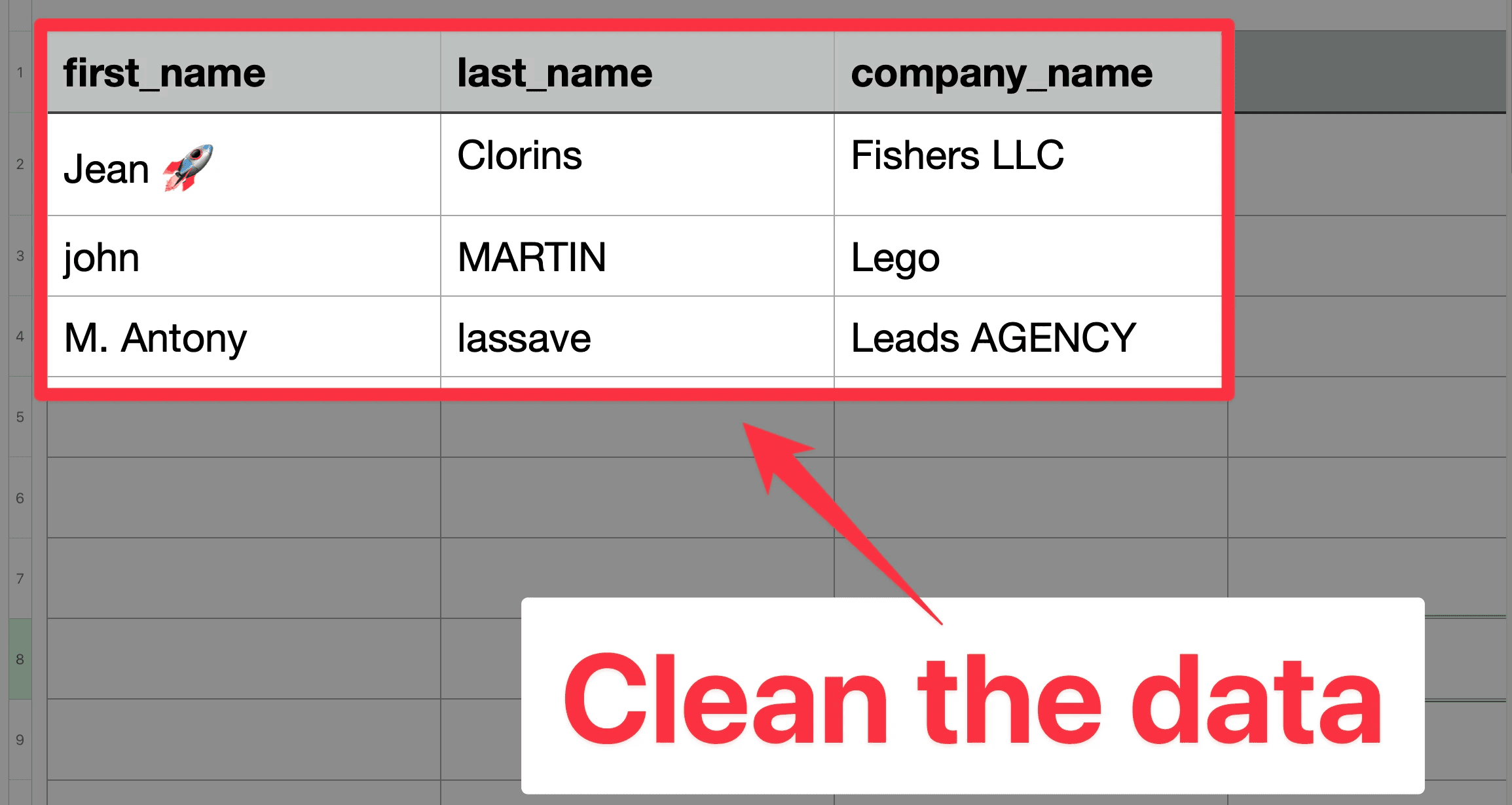
On top of that, GiveMeLeads automatically cleans your data:
Fixes capital letters in names and job titles
Removes emojis from job titles
Removes legal suffixes in company names (like LLC, GmbH, etc.)
Field | Before | After |
|---|---|---|
First Name | john | John |
Job Title | 🚀 CEO & Founder | CEO & Founder |
Company Name | Stripe GmbH | Stripe |
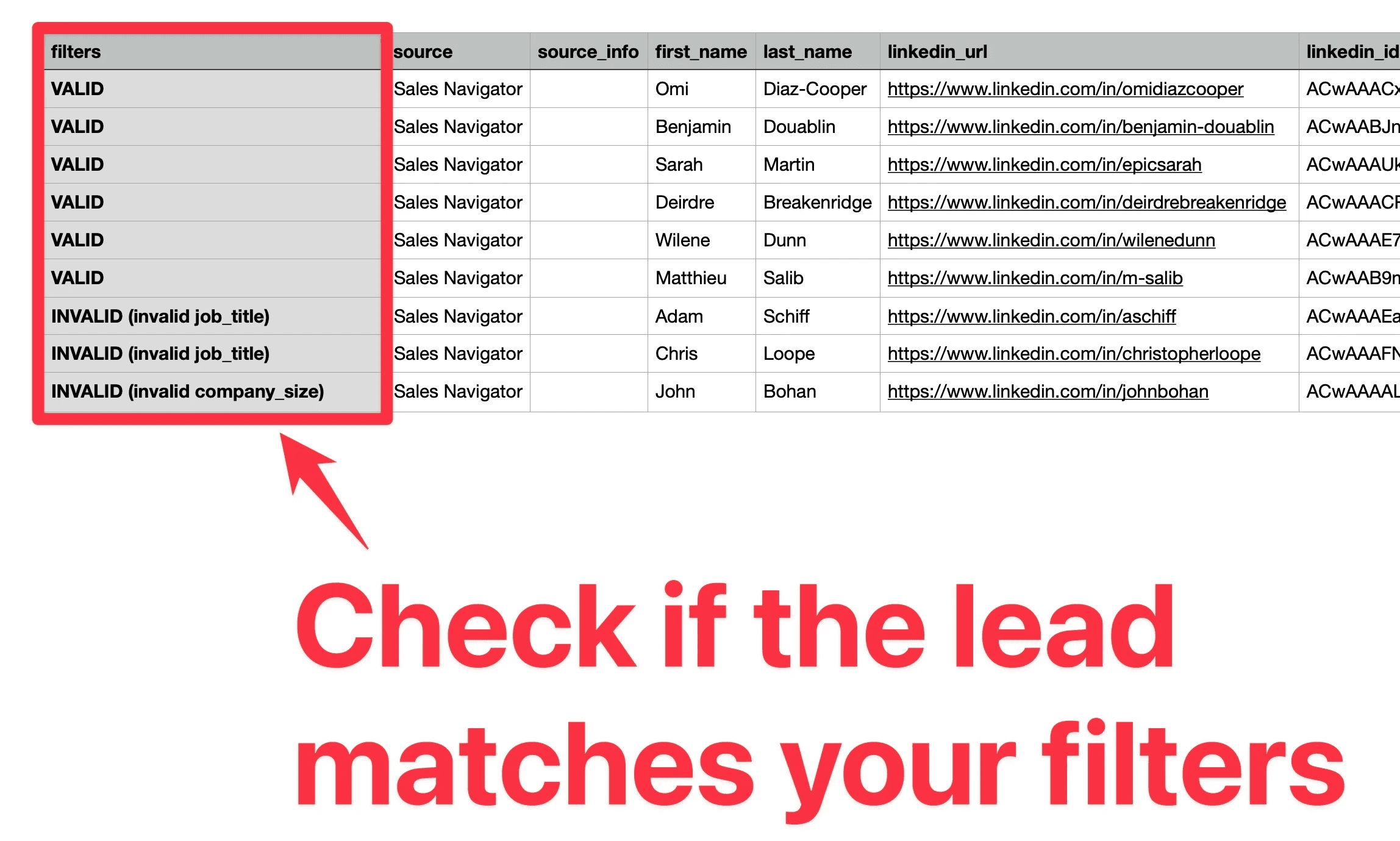
GiveMeLeads also checks if each lead matches your LinkedIn Sales Navigator filters.
If a lead doesn’t fit — for example, they have:
An invalid job title
Invalid location
Wrong company size work
Etc
We tag them in the column "filters" with the reason they’re invalid (like “Invalid job title” or “Wrong company size”).
That way, you keep full control of your data and don’t waste time guessing why a lead doesn’t match your targeting.
🎥 If you want to see how to extract your leads with GiveMeLeads and their verified emails, you can check this video:
What Data Can You Export from LinkedIn Sales Navigator?
You can get 3 types of data you can get when your export leads from LinkedIn Sales Navigator.
Profile information
Company details
Verified emails
Let's dive in!
Profile Information
With GiveMeLeads, every export includes essential profile data:
Data | Example |
|---|---|
Source | Competitor's network |
Source Info | Marc Dupont |
First Name | Emily |
Last Name | Clark |
LinkedIn URL | https://www.linkedin.com/in/emilyclark |
LinkedIn ID | ACoAAAXyz123 |
emily@company.com | |
Email Status | Verified |
Job Title | VP of Sales |
Location | San Francisco Bay Area |
Profile Picture URL | https://media.licdn.com/pic.jpg |
Recent Posts Count | 3 |
Connection Degree | 2nd-degree |
Premium Profile | Yes |
Open Profile | Yes |
Headline | Driving growth at B2B SaaS companies |
Summary | 15 years in B2B sales & marketing |
# of Current Companies | 1 |
Duration in Company | 2 years 3 months |
Duration in Role | 1 year 6 months |
This information identifies each lead clearly.
Company details
GiveMeLeads goes beyond basic LinkedIn profile scraping.
It also pulls detailed company data for every lead, giving you both personal and business-level insights in a single export.
Data | Example |
|---|---|
Company Name | SaaSify |
Company LinkedIn ID | 12345678 |
Company Website | https://www.saasify.com |
Company Location | New York, NY |
Company Industry | Software Development |
Company Employee Count | 120 |
Company Size Range | 51-200 employees |
Company Type | Private |
Year Founded | 2016 |
Specialties | CRM, Automation, Lead Gen |
Company Description | We help B2B teams close more deals |
Verified emails
On LinkedIn, you can sometimes find a lead’s email by clicking on their Contact Info — but that only works if they’re a 1st-degree connection. And even then, most people don’t add their email to their profile.
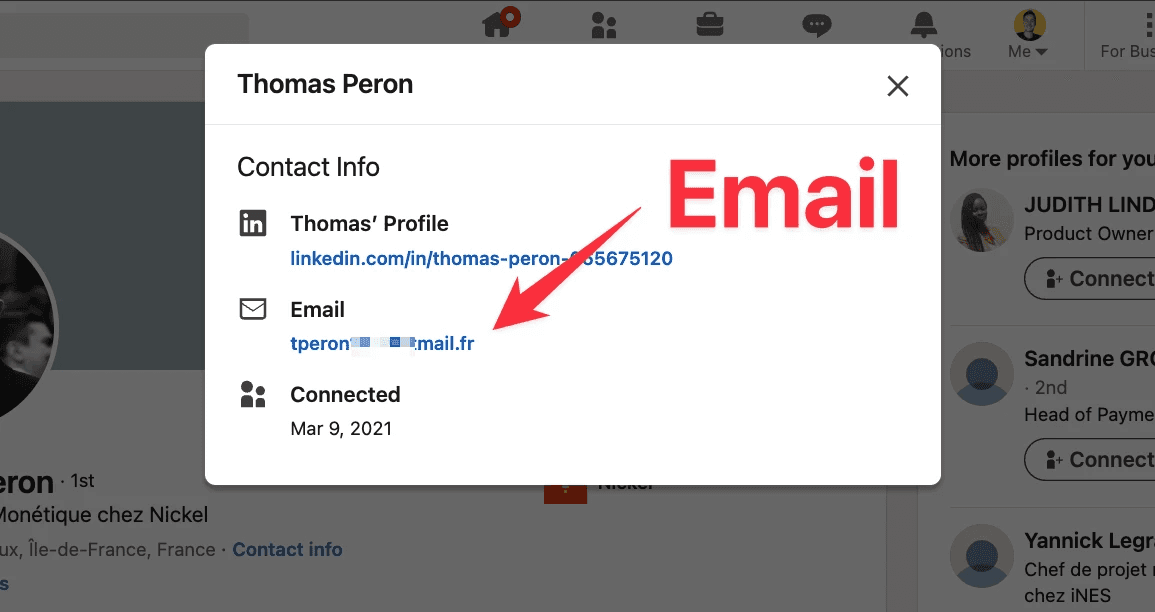
So if you’re doing outreach at scale, you’ll need another solution.
With GiveMeLeads, you get the verified professional email of every lead — even if they’re in your 2nd or 3rd-degree connections.
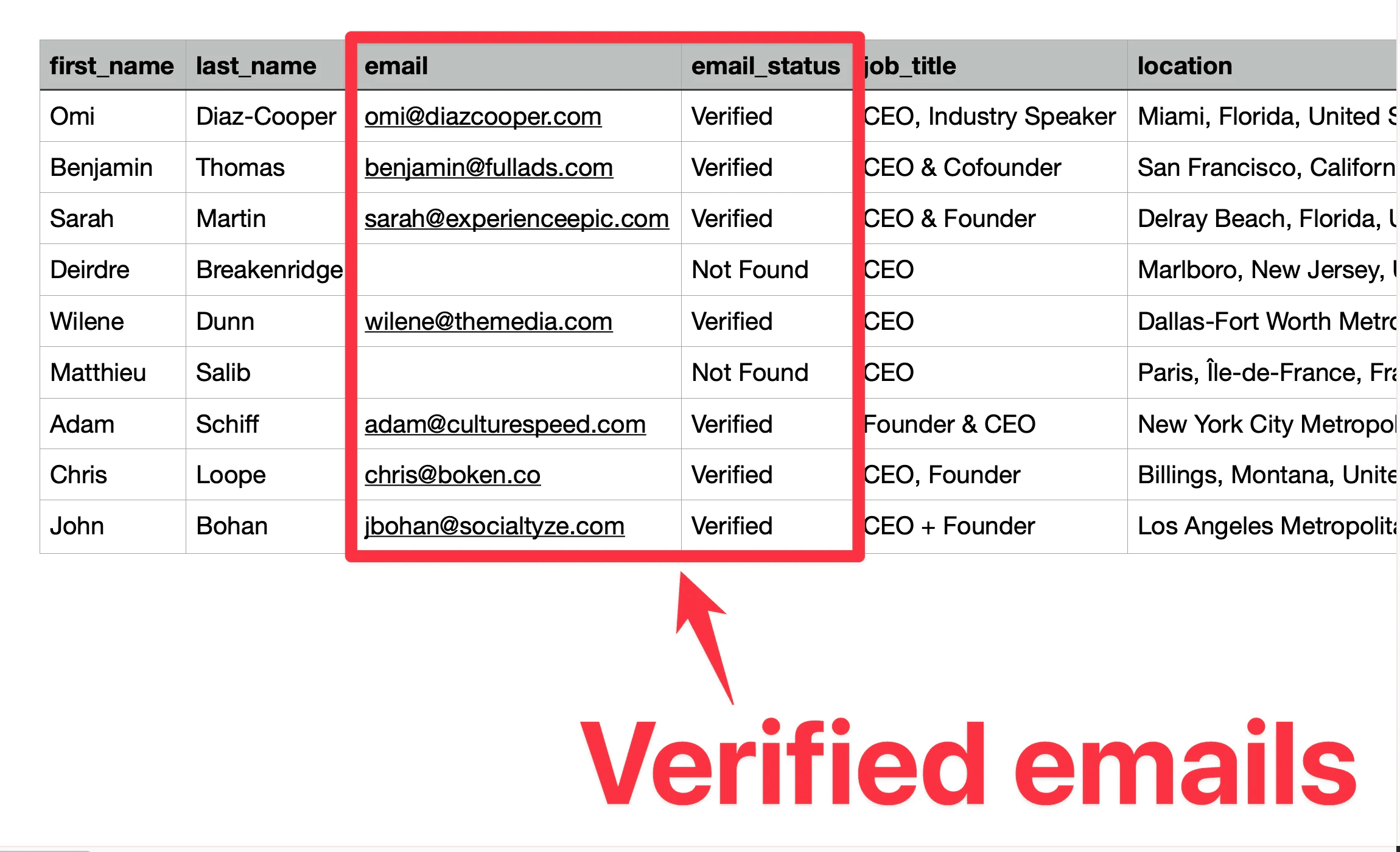
💡 Pro tip: No need to use separate tools to find or verify emails. Everything’s already cleaned, verified, and ready to go.
Conclusion
You now have everything you need to use LinkedIn Sales Navigator like a pro.
You know how to find qualified leads with the right filters. You know how to spot warm leads using intent data. You know how to build a pipeline that runs on autopilot.
But knowing is one thing. Executing is another.
Here's the simplest way to start today:
Open Sales Navigator
Set your 5 core filters (job title, company size, geography, industry, posted on LinkedIn)
Save your search
Export your leads with GiveMeLeads
Start your outreach
That's it. No complicated setup. No manual copy-pasting. No bounced emails.
FAQ
Is LinkedIn Sales Navigator worth it?
Yes. If you do outbound regularly, it's the best investment you can make.
No B2B database on the market gives you fresher data. No tool gives you better filters. And no platform lets you spot buying intent the way Sales Navigator does.
If you're serious about lead generation, it pays for itself fast.
How much does LinkedIn Sales Navigator cost?
There are three plans:
Plan | Monthly price | Annual price |
|---|---|---|
Core | $99/month | $79.99/month ($959.88/year) |
Advanced | $179/month | $139.99/month ($1,679.88/year) |
Enterprise | Custom | Custom |
💡 Pro tip: LinkedIn offers a free 1-month trial. Test it before you commit.
What is the daily limit on LinkedIn Sales Navigator?
With Sales Navigator and GiveMeLeads, you can export up to 2,500 leads per day.
Here's how that compares to other account types:
Account type | Daily export limit |
|---|---|
Free LinkedIn | ~80 profiles/day |
LinkedIn Premium | ~150 profiles/day |
Sales Navigator + GiveMeLeads | Up to 2,500 profiles/day |
How accurate is LinkedIn Sales Navigator data?
Very accurate. Because the data comes directly from LinkedIn profiles — updated by the users themselves.
That's why 99% of B2B data on the market originally comes from LinkedIn. You're going straight to the source.
That said, emails are not always visible on LinkedIn profiles. That's why GiveMeLeads adds triple-verified emails to every lead — so you can reach them even if they never shared their email publicly.
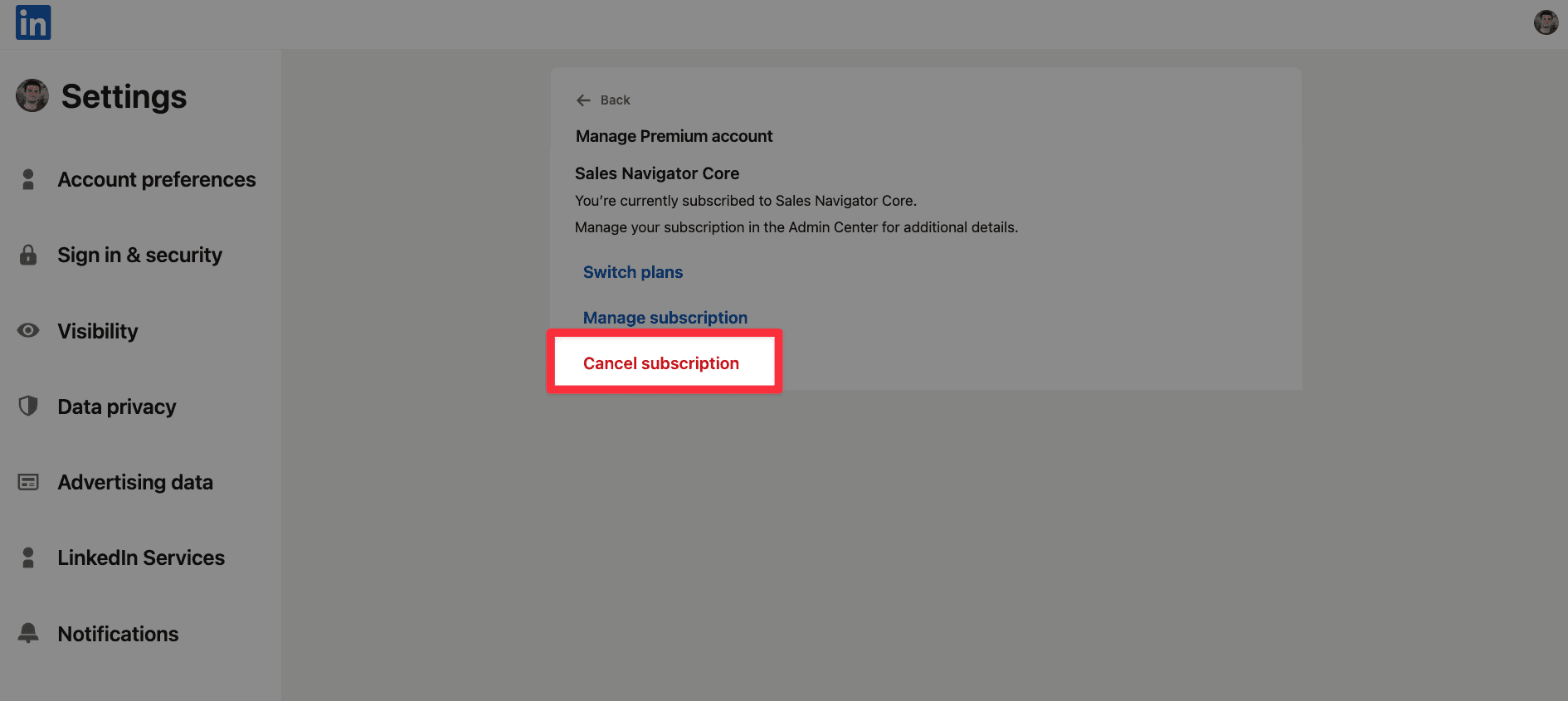
How to cancel my LinkedIn Sales Navigator subscription?
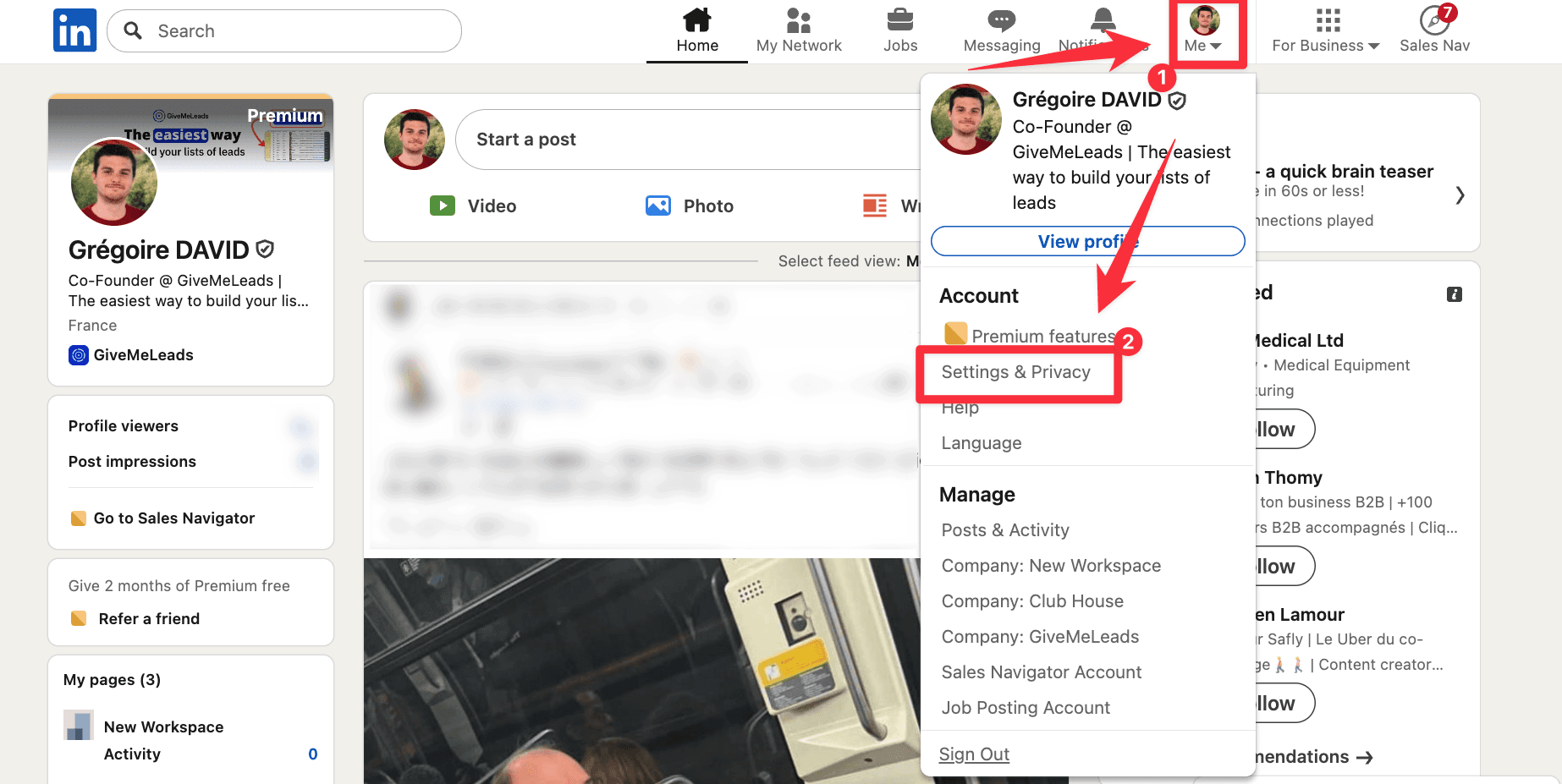
If you want to cancel your Sales Navigator subscription, click your profile picture in the top right, then select “Settings & Privacy”.
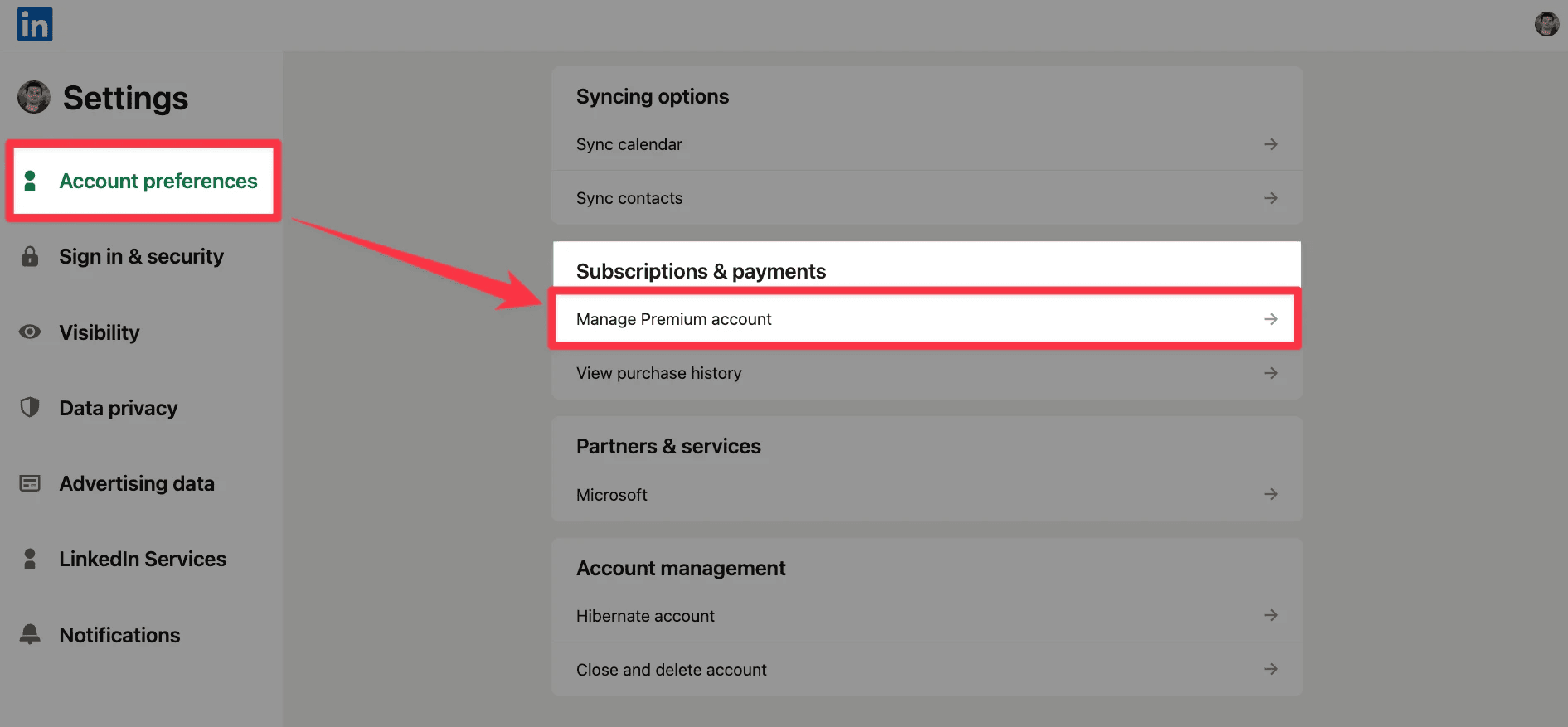
Then, inside “Account preferences”, click “Subscriptions & payments”, then select “Manage Premium account”.
Finally, open the cancellation options. You will see different actions like switching your plan or managing your billing. Click “Cancel subscription”.
How can I export leads from Sales Navigator?
LinkedIn doesn’t let you export leads directly.
But you can use GiveMeLeads to extract your lead lists in seconds. And get the verified emails of your leads.