Mar 17, 2026
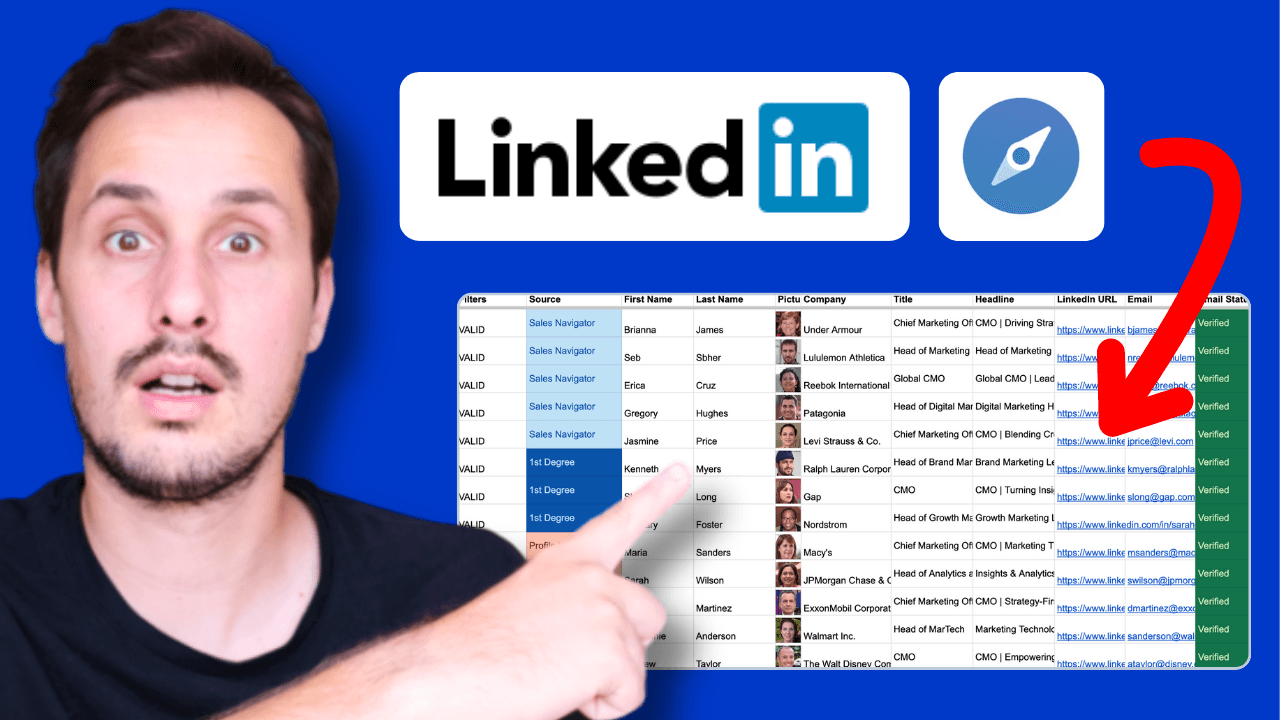
LinkedIn Sales Navigator doesn't let you export leads natively. There's no download button. No CSV export. No way to get emails directly from the platform.
To export your leads, you need a third-party tool like GiveMeLeads.
Here's how it works:
Install the Chrome extension
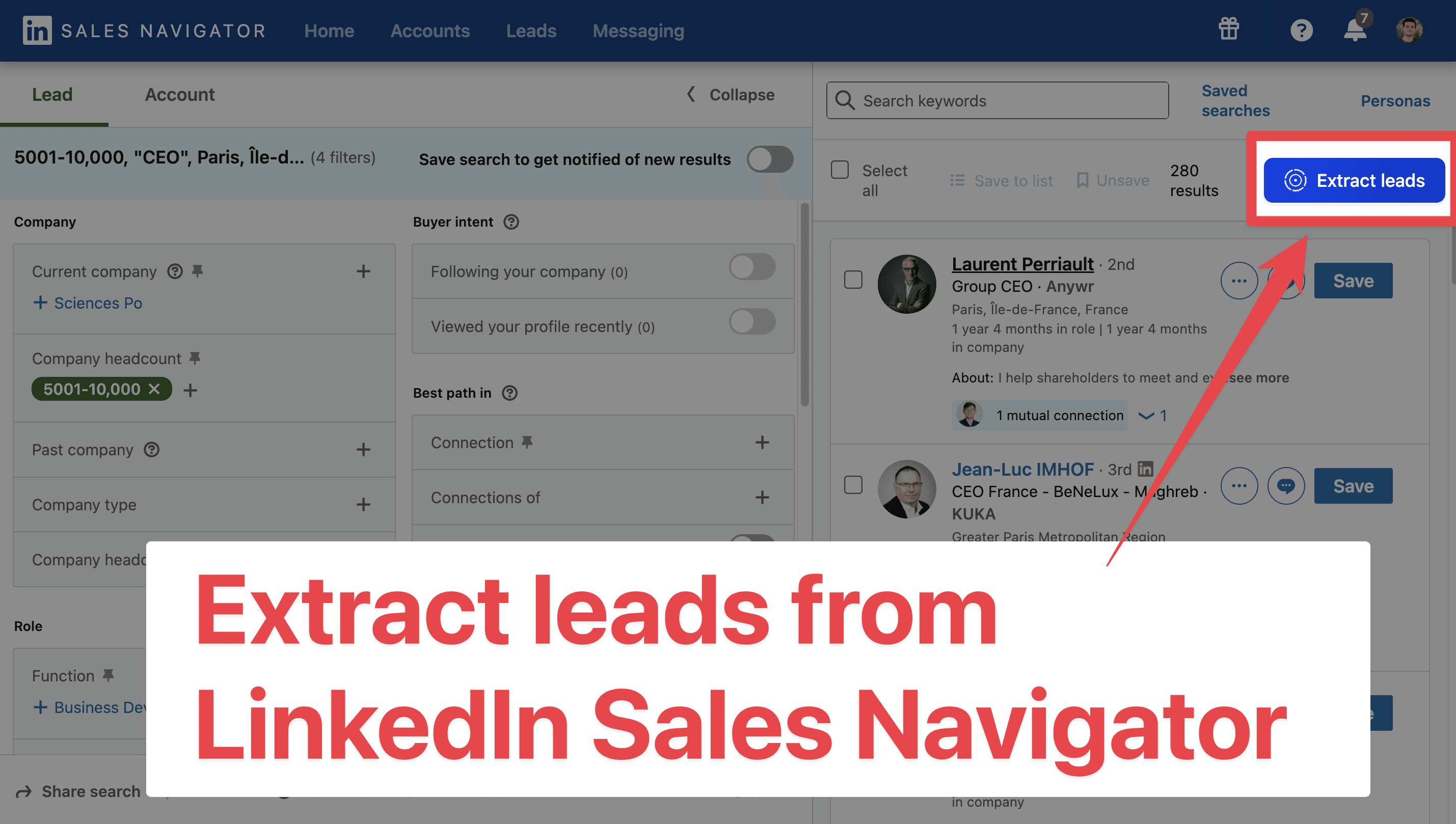
Run your search on LinkedIn Sales Navigator
Click "Extract leads"
Download your CSV file with verified emails
That's it. The whole process takes a few minutes.
In this guide, you'll learn:
How to export your leads from Sales Navigator step by step
What data you can export
How to get verified emails for every lead
How to work around LinkedIn's limits
How to import your leads directly into your CRM
Let's start!
🎥 If you want to know how to extract leads from Sales Navigator to Excel, you can check this video tutorial:
How to Export Leads from LinkedIn Sales Navigator
Follow these 7 steps to export your leads from LinkedIn Sales Navigator with their verified emails:
Create a GiveMeLeads account
Download the Chrome Extension
Make a search on LinkedIn Sales Navigator
Launch your export
Schedule your export (optional)
Rename your export (optional)
Download your leads file
Let's dive in!
Step 1: Create a free GiveMeLeads account
Go on GiveMeLeads. Then click on "Get first 20 leads for free".
Then, to sign-up you have 2 options:
Google account — the fastest way
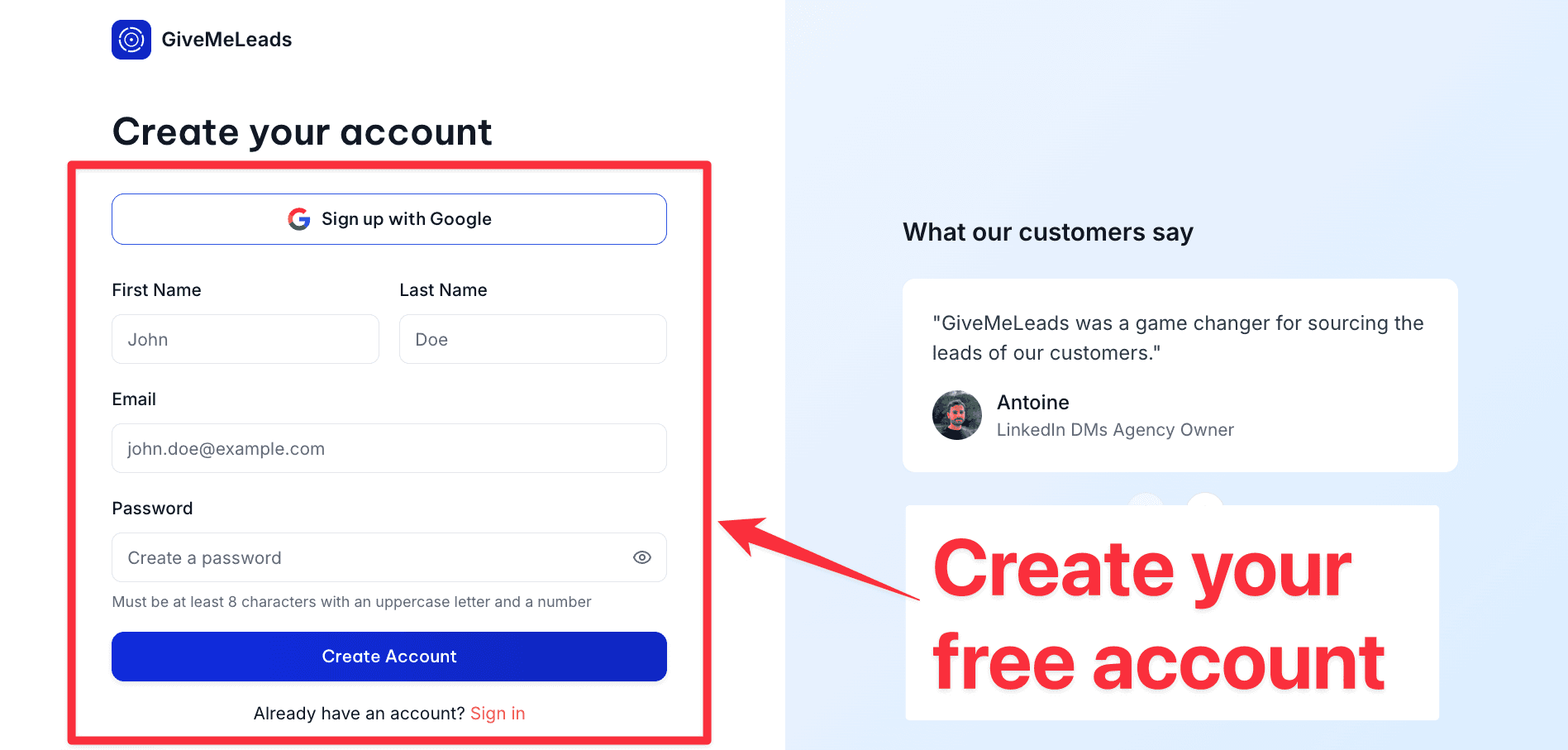
Email and password — enter your first name, last name, email, and password
Pick the option that works for you and click "Create account".
Step 2: Download the Chrome Extension
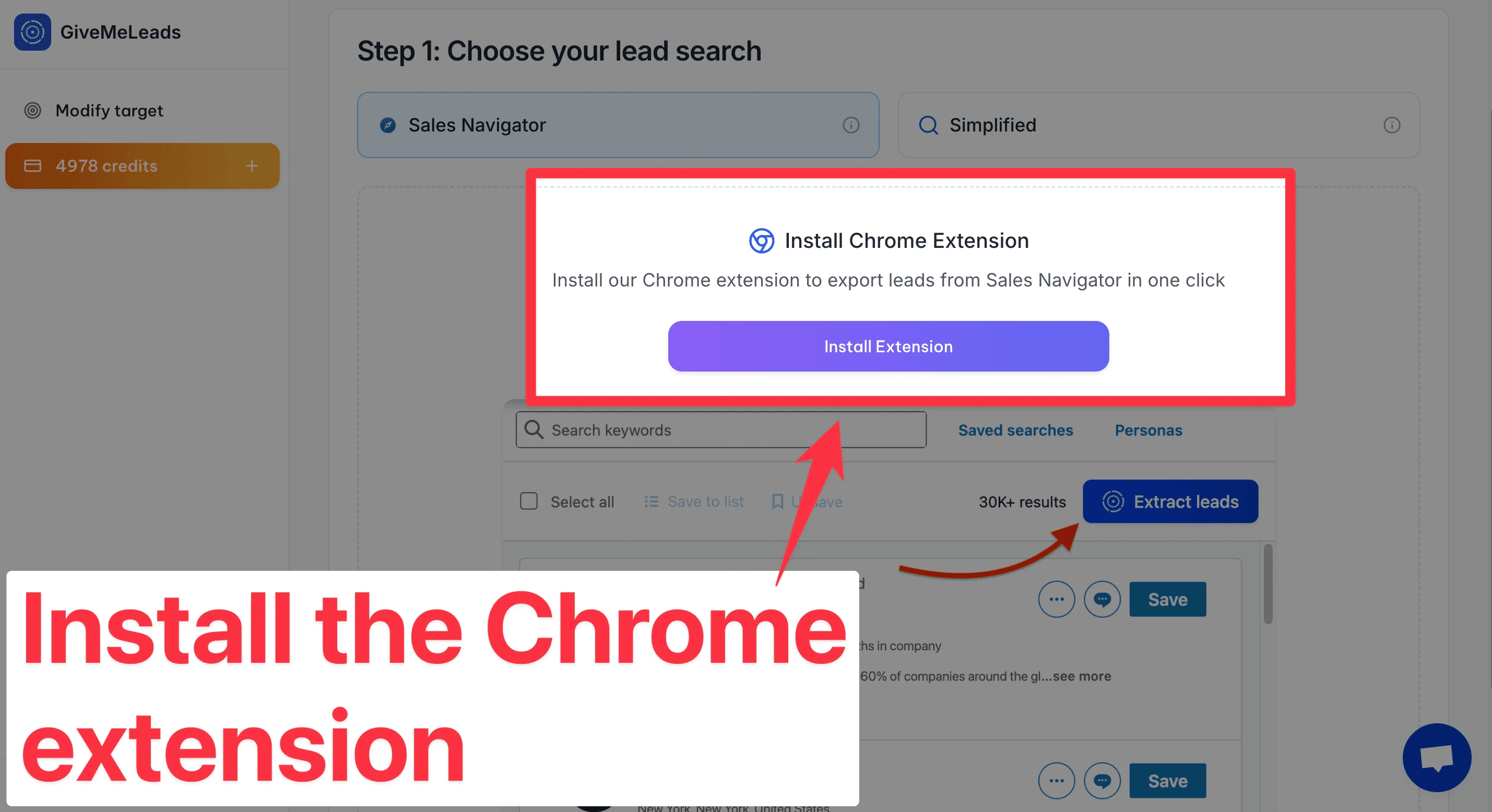
To get started, install the GiveMeLeads Chrome extension from the Chrome Web Store.
Once installed, it integrates directly into LinkedIn Sales Navigator, allowing you to extract your leads instantly while browsing your search results or saved lead lists.
Step 3: Make a search on LinkedIn Sales Navigator
Go to LinkedIn Sales Navigator.
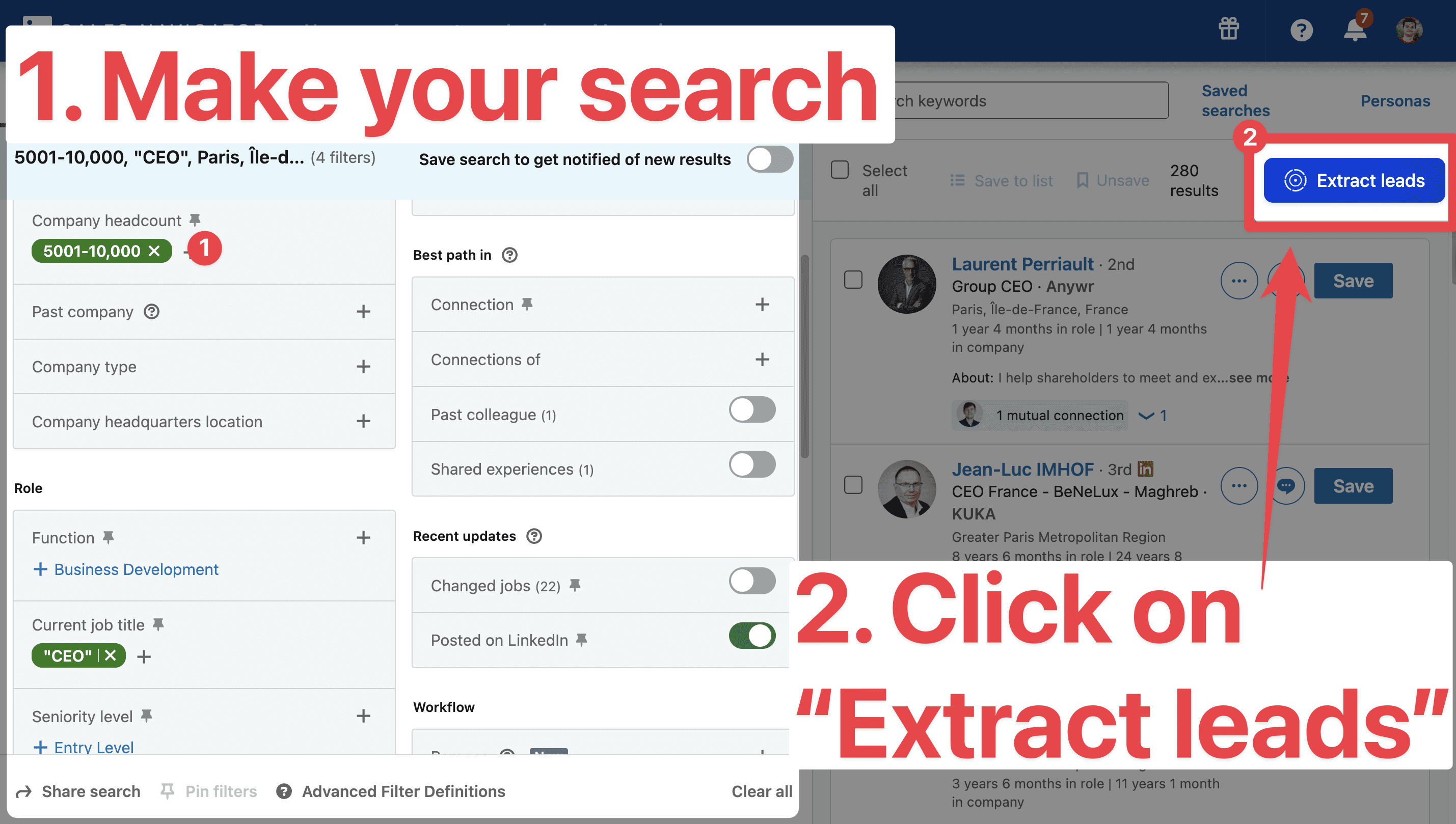
Use filters to find your ideal leads (like job title, company size, or geography). Like decision makers for example.
Then click “Extract leads” using the GiveMeLeads extension.
🎥 If you're not sure how to use LinkedIn Sales Navigator to find qualified leads, you can check this video:
Step 4: Launch your export
Once you've clicked the button "Extract leads", you will be redirected to GiveMeLeads.
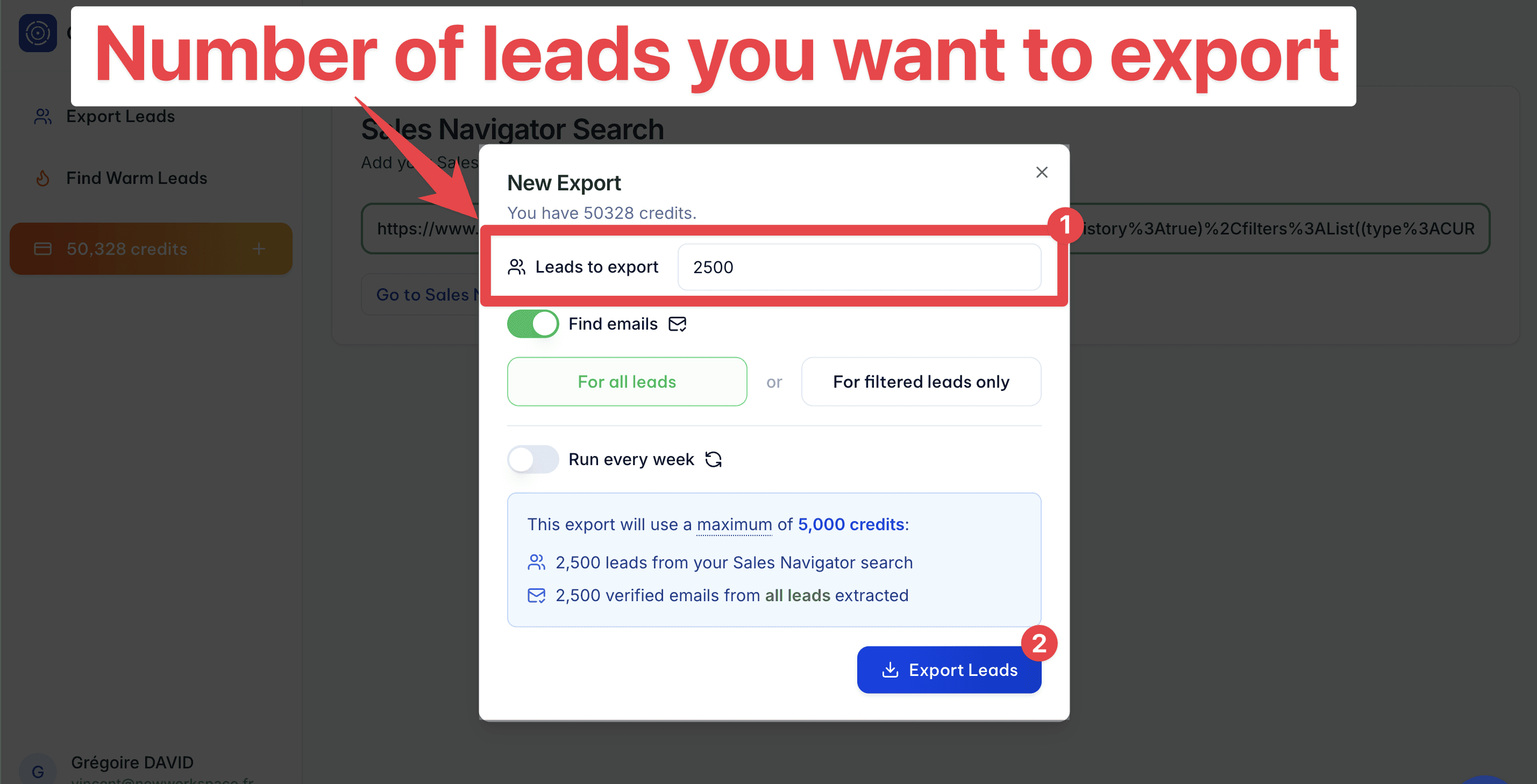
You will see a pop-up where you can select:
The number of leads you want to export
If you want to get the verified emails (of all leads or filtered leads only)
If you want to schedule this export on a weekly basis.
Then click on "Export Leads".
💡 Pro tip: GiveMeLeads exports your leads in real-time, straight from LinkedIn. No stored data. No outdated contacts. That keeps your lead generation process fully GDPR-compliant.
Step 5: Schedule Your Leads Export (Optional)
GiveMeLeads lets you schedule lead exports. Pick the day you want, and you’ll receive fresh leads weekly.
Once set up, you'll get a fresh list of leads every week automatically.

💡 Pro tip: Each lead is unique, and the system ensures there are no duplicates. This saves you time and keeps your CRM clean, so you can focus on outreach, not data cleaning. Then, you’ll automatically receive new leads every week — no manual work needed.
You can focus 100% on what really matters: sending emails, starting LinkedIn conversations, and booking meetings.
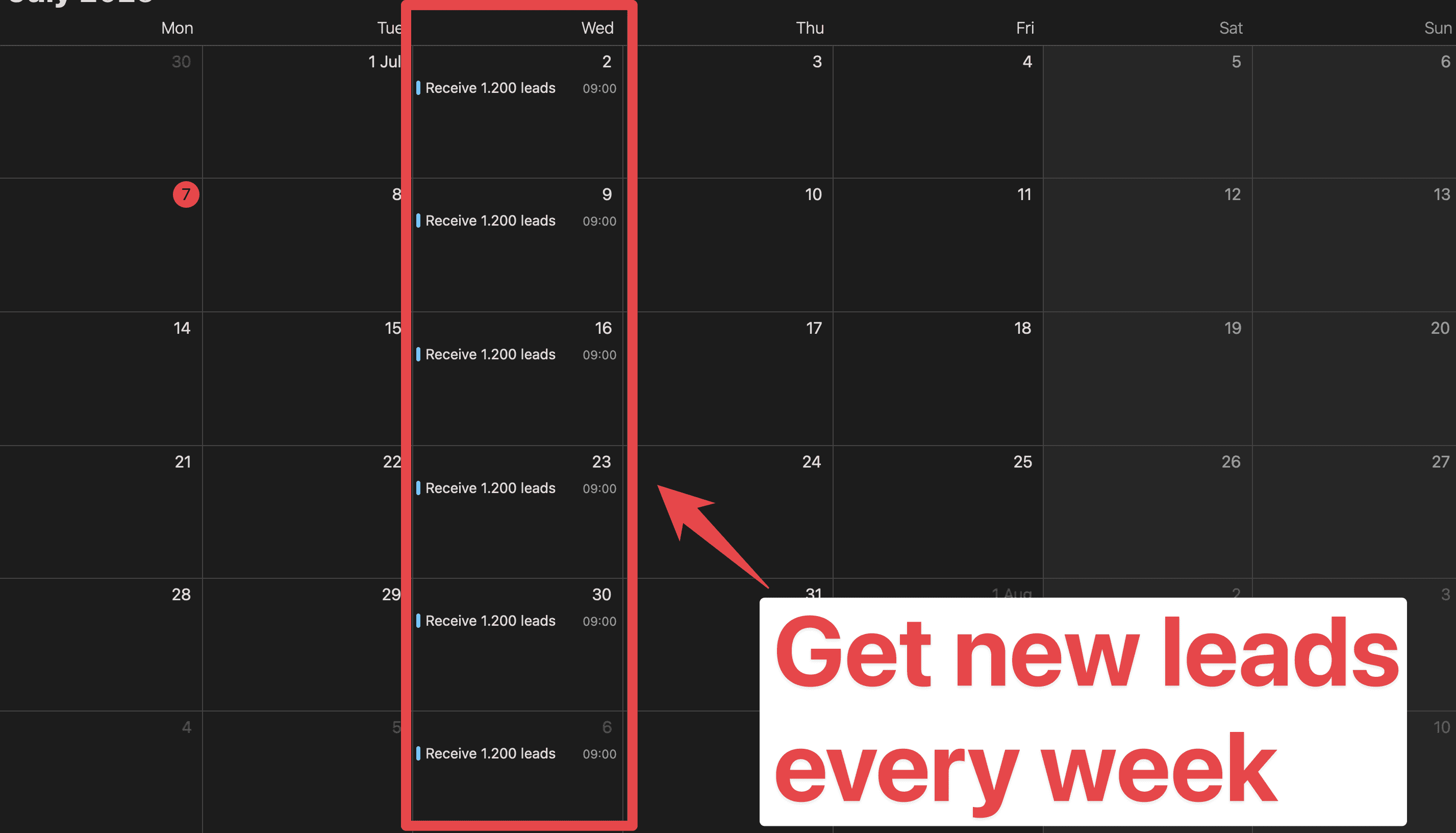
💡 Pro tip: With scheduled exports, you can easily build lead files with more than 2,500 fresh, qualified contacts delivered straight to your inbox every week.
Step 6: Rename your export (Optional)
While your export is running, you can rename it.
I like to use the filters I applied to find those leads. It makes it easy to find the file later.
For example: "Head of Sales - New York - 501/1000".
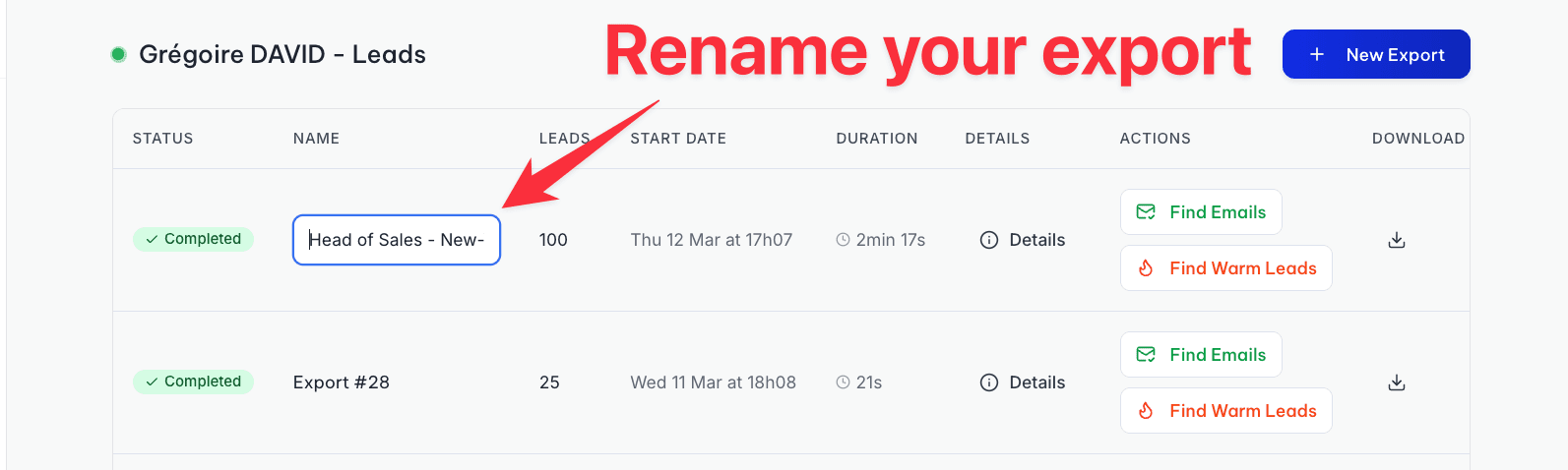
💡 Pro tip: The name you give your export in GiveMeLeads becomes the filename when you download it. Keep it descriptive and you'll always know what's inside.
Step 7: Download your leads file
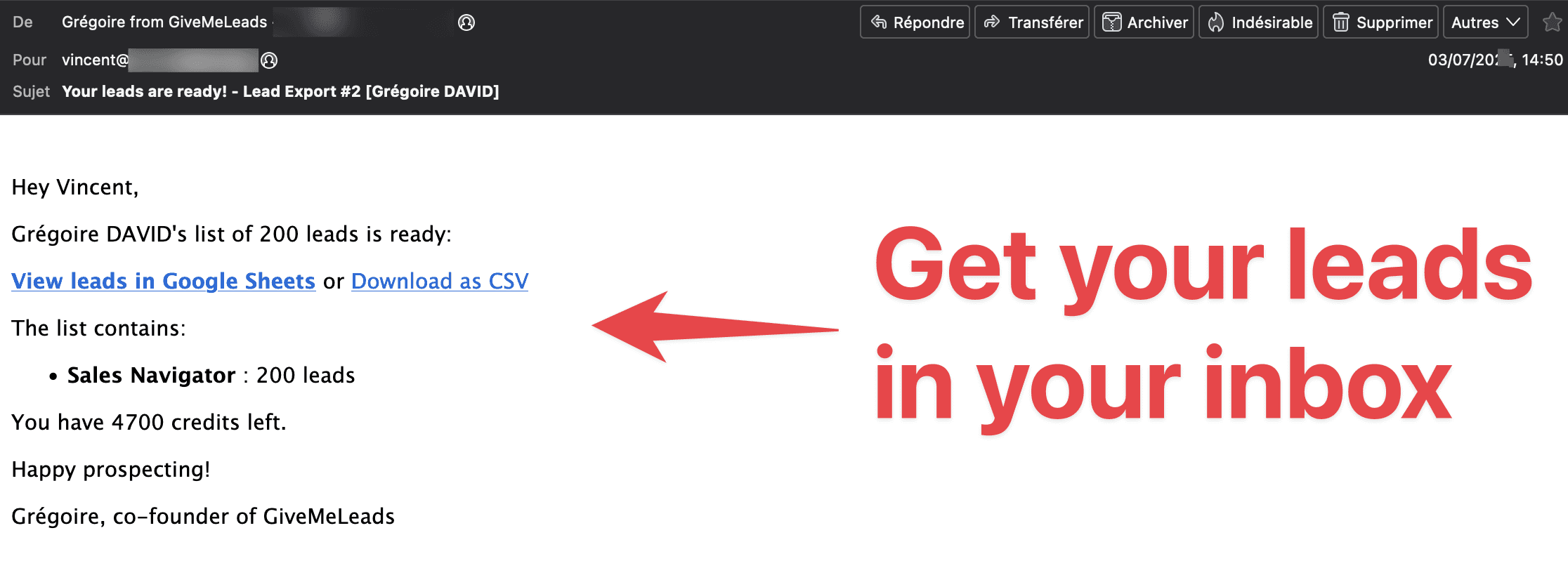
When your export is finished, you’ll receive an email with a download link.
You can also download your file directly by clicking the "Download" button in your dashboard. You’ll see two options.
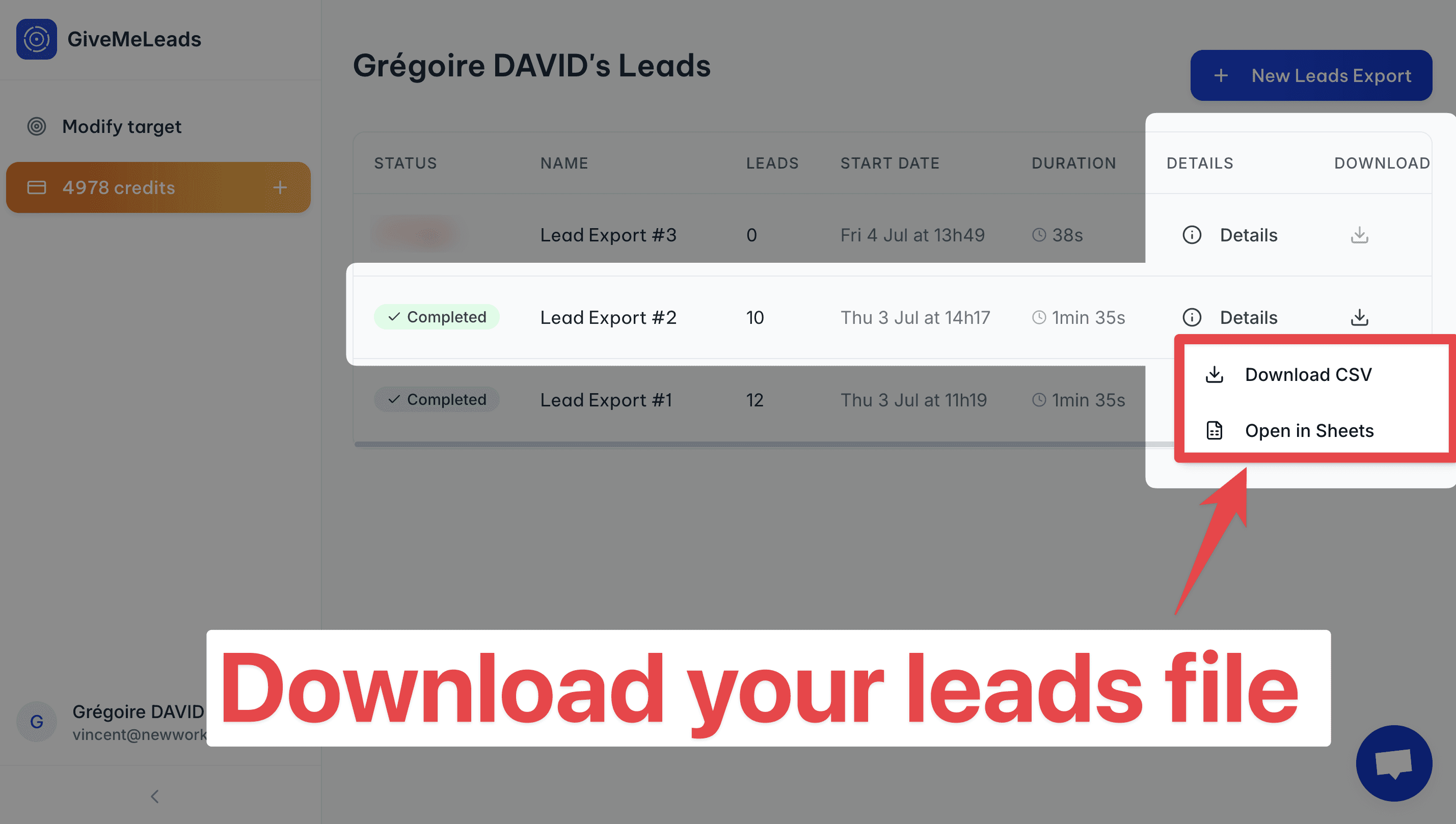
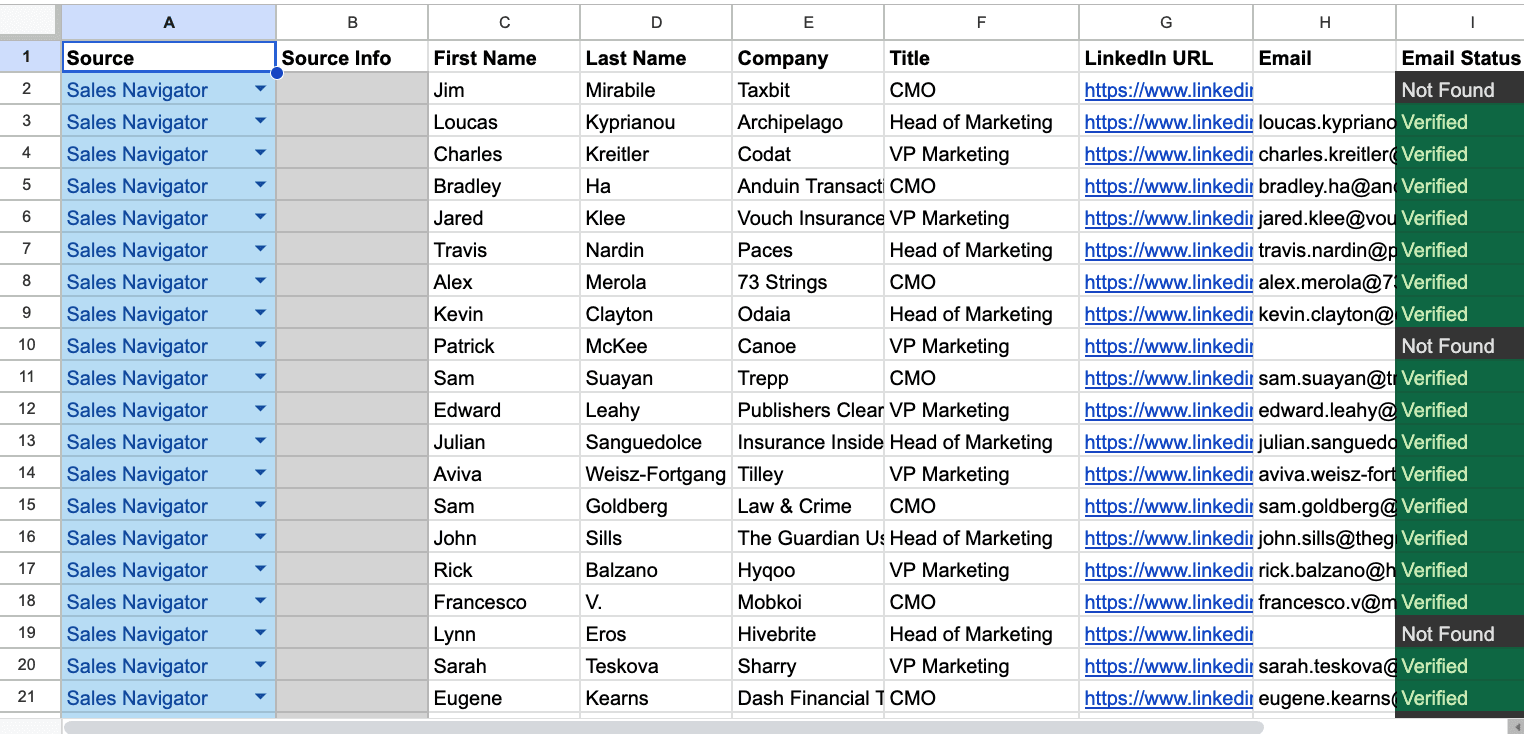
"Open in Sheets"
This gives you a simple version of your lead list.
You have:
Matches_filters
Invalid_reason
First Name
Last Name
Profile picture
Company name
Job title
Headline
LinkedIn URL
Email
It doesn’t include all the data, but it’s perfect if you just want to import leads into your CRM or a B2B outreach tool like Lemlist or Expandi.
"Download CSV"
This gives you the full file with all available data. For each lead, you’ll see extra info like:
Whether they have LinkedIn Premium
Their total years of experience
Company details like size, industry, and location
Etc
Here's all the informations you can have:
matches_filters | invalid_reason | first_name | last_name | linkedin_url | linkedin_id | email_status | job_title | location | profile_picture_url | recent_posts_count | connection_degree | is_premium | is_open | headline | summary | current_companies_count | company_name | company_linkedin_id | company_website | company_location | company_industry | company_employee_count | company_employee_count_range | company_type | company_year_founded | company_specialties | company_description | duration_in_company | duration_in_role | |
|---|---|---|---|---|---|---|---|---|---|---|---|---|---|---|---|---|---|---|---|---|---|---|---|---|---|---|---|---|---|---|
TRUE | John | Smith | ACwAAAEXAMPLE1 | Verified | CEO | New York, United States | 2 | FIRST_DEGREE | TRUE | TRUE | Helping SaaS startups scale faster | CEO at NovaTech | Experienced CEO passionate about B2B SaaS, growth marketing, and building winning sales teams. | 1 | NovaTech | 123456 | New York, United States | Information Technology | 45 | 11-50 | PRIVATELY_HELD | 2015 | B2B SaaS;Sales Automation;CRM Tools | NovaTech builds modern tools to help sales teams close more deals, faster. | 36 months | 36 months | |||||
FALSE | job_title | Emily | Johnson | ACwAAAEXAMPLE2 | Verified | CMO | Chicago, Illinois, United States | 3 | SECOND_DEGREE | TRUE | FALSE | Marketing Leader at BrightWave | Helping brands grow with storytelling | I lead the marketing team at BrightWave, combining creative storytelling with strategy. | 1 | BrightWave | 654321 | Chicago, Illinois, United States | Marketing and Advertising | 85 | 51-100 | PRIVATELY_HELD | 2012 | Brand Strategy;Content Marketing;Digital Ads | BrightWave helps businesses shine with strategic marketing and bold storytelling. | 60 months | 48 months |
💡 Pro tip: Don’t forget to scroll horizontally. There's a lot of valuable data in your lead file, including job titles, company size, verified emails, and even intent signals.
How GiveMeLeads cleans the data for you
Exporting leads is one thing. Getting clean, usable data is another.
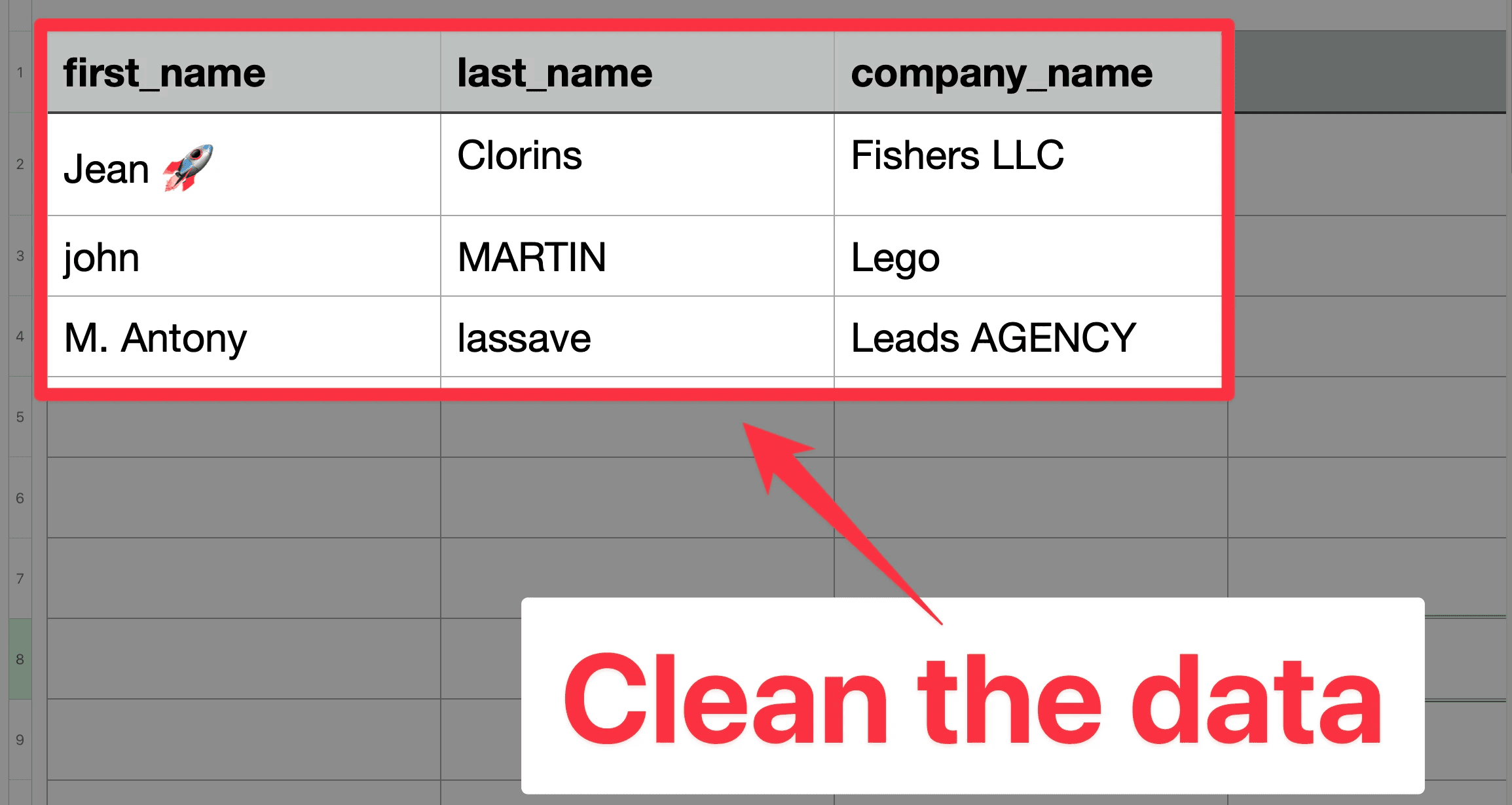
If you've ever exported a list and spent 30 minutes fixing weird capitalization, random emojis in job titles, or company names stuffed with legal suffixes. I'm sure you know the pain.
GiveMeLeads takes care of all that for you:
Fixes capitalization in names and job titles
Removes emojis from job titles
Strips legal suffixes from company names (LLC, GmbH, Inc. and more)
You get a spreadsheet that's actually ready to use. No cleanup needed.
For example:
Field | Before | After |
|---|---|---|
First Name | john | John |
Job Title | 🚀 CEO & Founder | CEO & Founder |
Company Name | Stripe GmbH | Stripe |
How GiveMeLeads Filters Your Leads
LinkedIn isn't perfect.
When you run a Sales Navigator export, between 10% and 40% of leads don't actually match your filters. Wrong job title, wrong location, wrong company size.
Checking them manually is painful and time-consuming.
That's why we built a filter validation system.
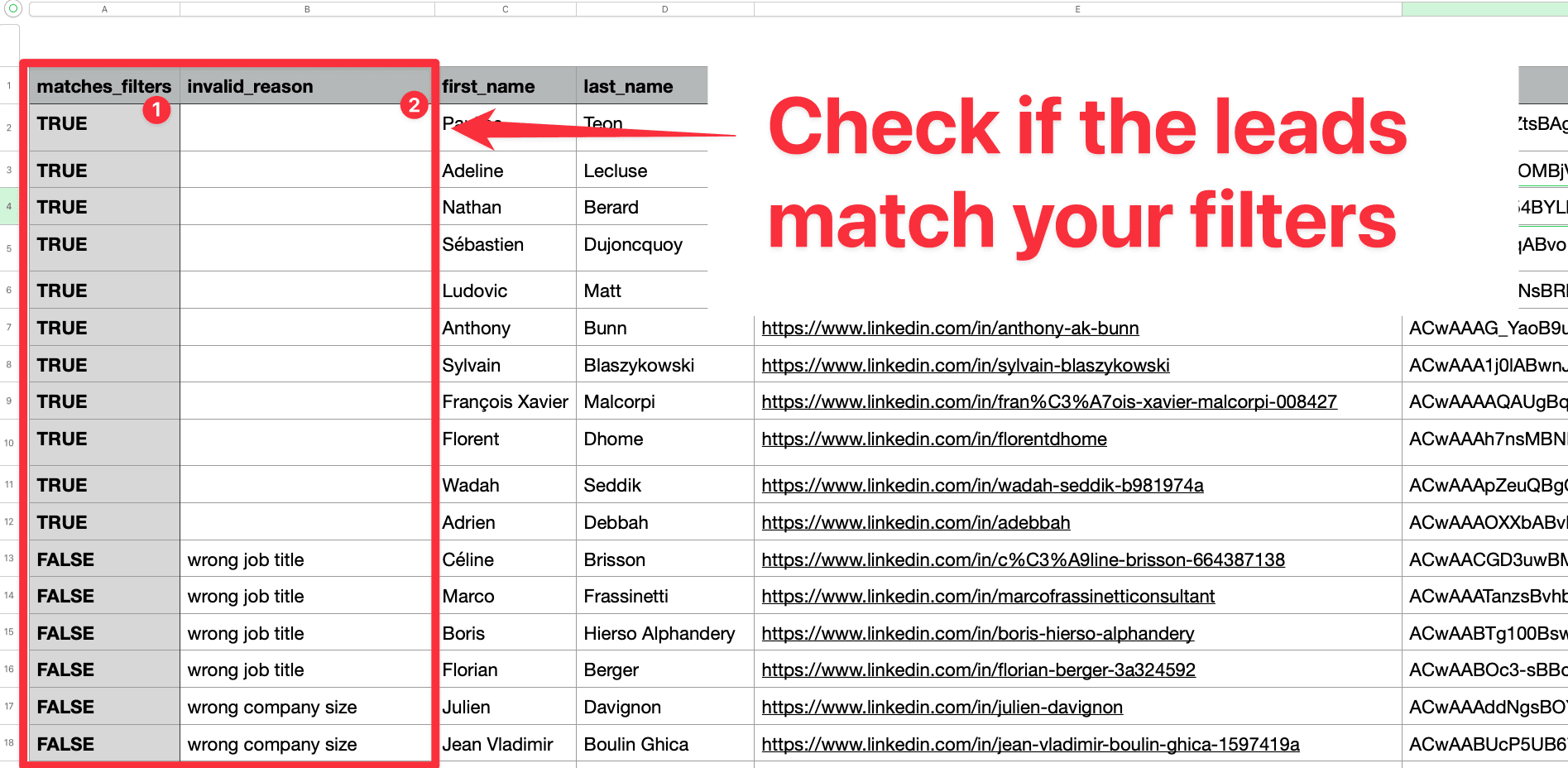
GiveMeLeads automatically checks every lead against your Sales Navigator filters. The result shows up in the "matches_filters" column:
TRUE — the lead matches all your filters
FALSE — the lead doesn't match
If a lead is flagged as FALSE, check the "invalid_reason" column to see exactly why:
Invalid job title
Wrong location
Company size out of range
And more
No guessing. No manual checking.
You instantly know which leads are worth your time — and which ones to skip.
What Data Can You Export from LinkedIn Sales Navigator?
You can get 3 types of data you can get when your export leads from LinkedIn Sales Navigator.
Profile information
Company details
Verified emails
Let's dive in!
Profile Information
With GiveMeLeads, every export includes essential profile data:
Data | Example |
|---|---|
Source | Competitor's network |
Source Info | Marc Dupont |
First Name | Emily |
Last Name | Clark |
LinkedIn URL | https://www.linkedin.com/in/emilyclark |
LinkedIn ID | ACoAAAXyz123 |
emily@company.com | |
Email Status | Verified |
Job Title | VP of Sales |
Location | San Francisco Bay Area |
Profile Picture URL | https://media.licdn.com/pic.jpg |
Recent Posts Count | 3 |
Connection Degree | 2nd-degree |
Premium Profile | Yes |
Open Profile | Yes |
Headline | Driving growth at B2B SaaS companies |
Summary | 15 years in B2B sales & marketing |
# of Current Companies | 1 |
Duration in Company | 2 years 3 months |
Duration in Role | 1 year 6 months |
This information identifies each lead clearly.
Company details
GiveMeLeads goes beyond basic LinkedIn profile scraping.
It also pulls detailed company data for every lead, giving you both personal and business-level insights in a single export.
Data | Example |
|---|---|
Company Name | SaaSify |
Company LinkedIn ID | 12345678 |
Company Website | https://www.saasify.com |
Company Location | New York, NY |
Company Industry | Software Development |
Company Employee Count | 120 |
Company Size Range | 51-200 employees |
Company Type | Private |
Year Founded | 2016 |
Specialties | CRM, Automation, Lead Gen |
Company Description | We help B2B teams close more deals |
Verified emails
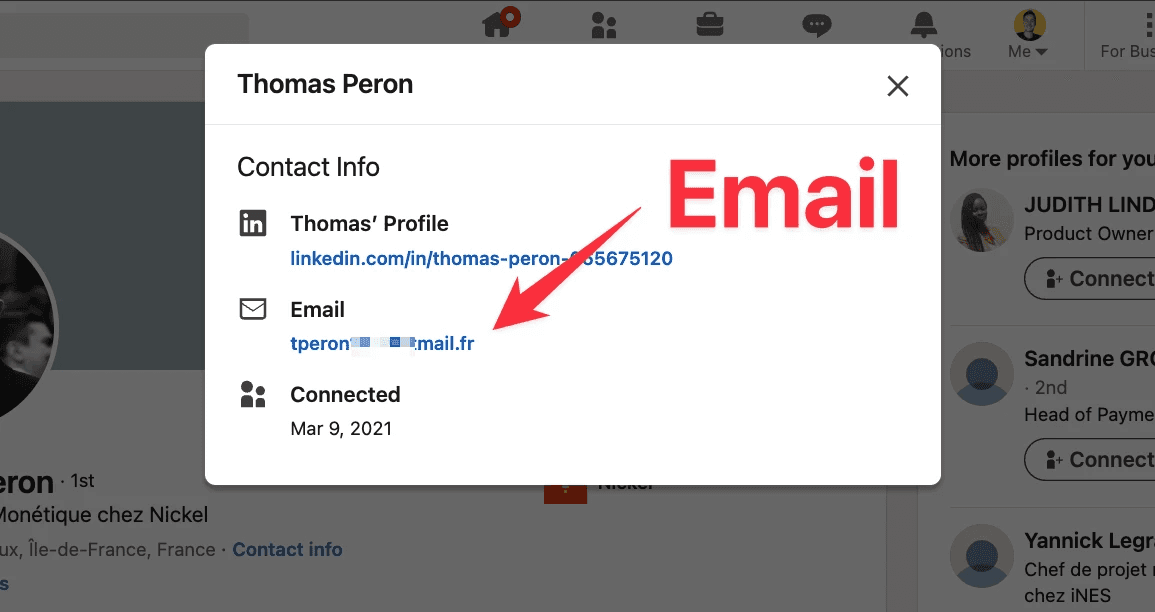
On LinkedIn, you can sometimes find a lead’s email by clicking on their Contact Info — but that only works if they’re a 1st-degree connection. And even then, most people don’t add their email to their profile.
So if you’re doing outreach at scale, you’ll need another solution.
GiveMeLeads finds the professional email of every lead including 2nd and 3rd-degree connections.
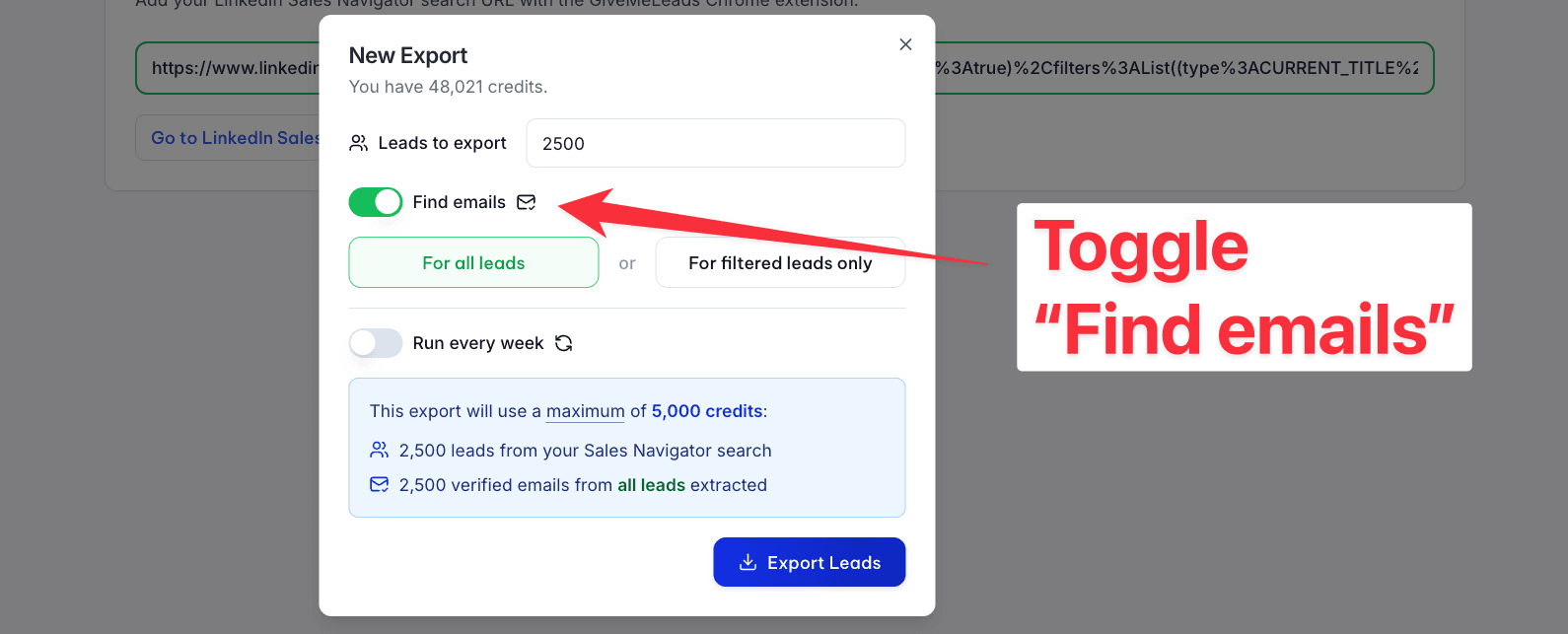
Just toggle the "Find Emails" button before launching your export.
You can also enrich your leads later. Go to the GiveMeLeads homepage and click "Find Emails" on any existing export.
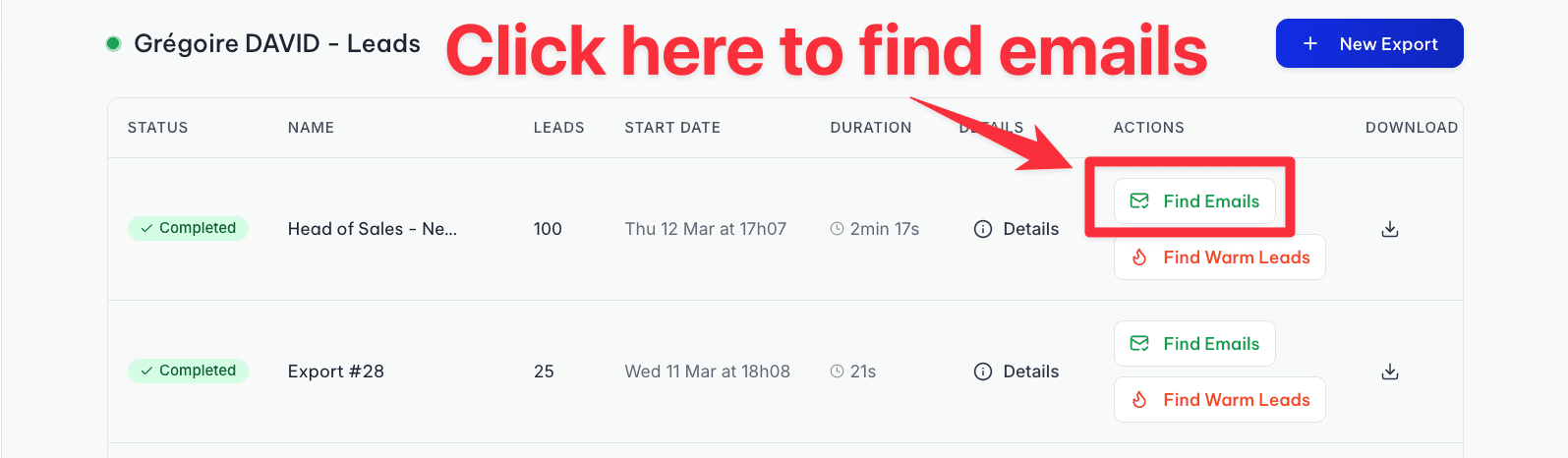
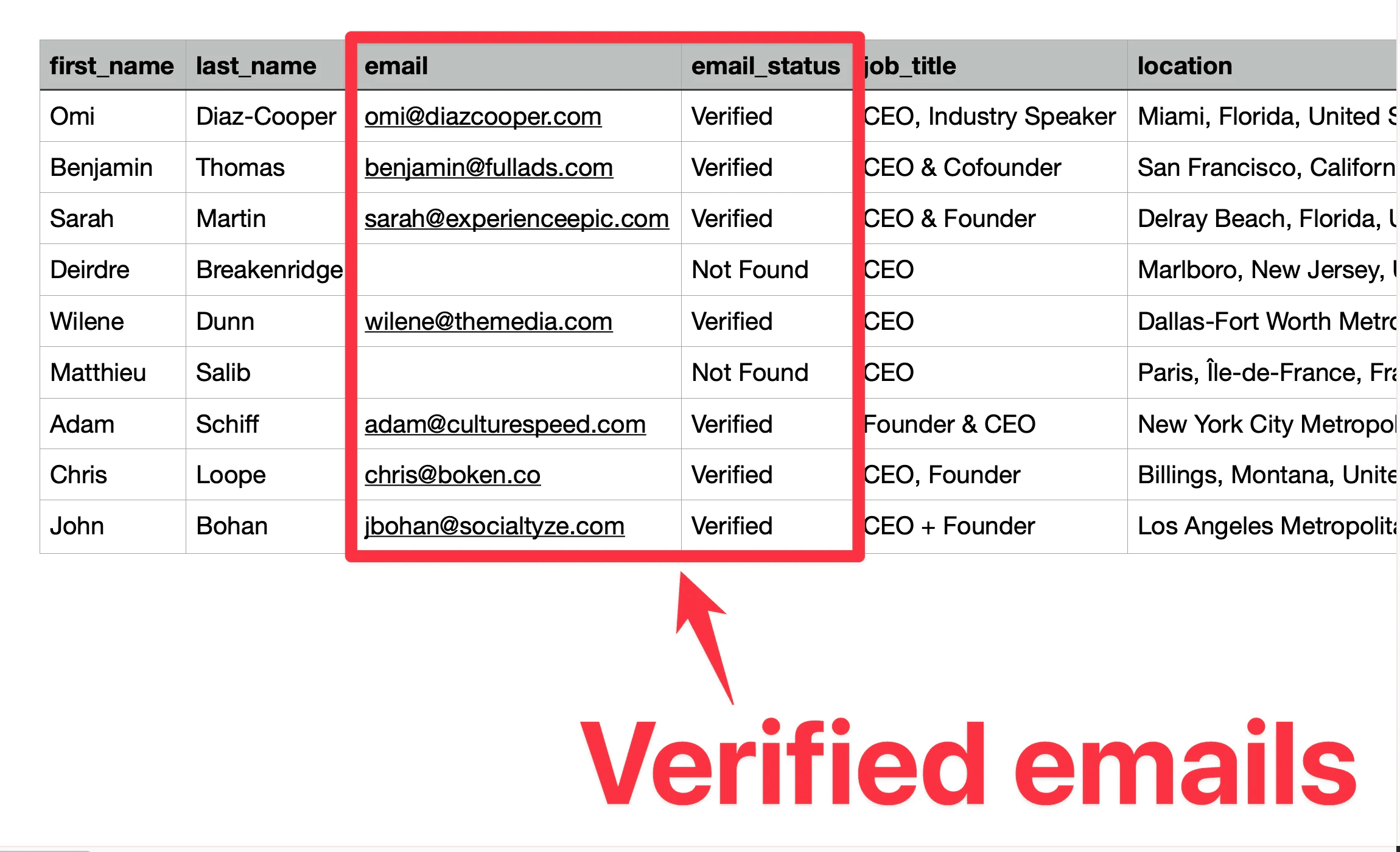
A few minutes later, your file is ready with verified emails for every lead.
🎥 If you want to see how to extract your leads with GiveMeLeads and their verified emails, you can check this video:
LinkedIn Sales Navigator Export Limits: What You Need to Know
When you export leads from Sales Navigator, you'll run into 2 limits.
Here's what they are and how to work around them.
Limit 1: Search Results Are Capped at 2,500 Leads
LinkedIn only shows 100 pages of results per search. Each page has 25 profiles.
That means you can only access 2,500 leads per search, no matter how many results your query returns.
How to work around it:
Split your search into smaller segments using filters like:
Function
Seniority level
Industry
Geography
Company headcount
Each segment becomes its own search under 2,500 leads. You export them separately and combine the files at the end. This way you can cover your entire target market without hitting the wall.

💡 Quick note: LinkedIn has this limit to protect its data.
Limit 2: LinkedIn Monitors Your Daily Activity
LinkedIn doesn't publish official limits, but the platform actively monitors unusual activity. If you extract too many leads too fast, your account can get restricted or banned.
Based on our experience, here's what we recommend:
Stay under 2,500 leads per day
Don't run multiple scraping tools at the same time
Avoid using multiple tools at once (e.g. GiveMeLeads + another scraping tool)
GiveMeLeads is built to stay within these limits automatically. You don't have to worry about it.
🎥 If you want to see how to bypass LinkedIn limits, you can check this video:
A Note on Data Accuracy
Sales Navigator has the freshest B2B data available. But no database is perfect.
Keep these points in mind before you start outreach:
Some profiles may not be fully up to date
Email verification rates vary depending on your target audience
Company data depends on how complete each LinkedIn profile is
Always do a quick sanity check on your most important leads before reaching out.
How to Export More Than 2,500 Leads from Sales Navigator
LinkedIn caps every search at 2,500 results. But that doesn't mean you're stuck.
The fix is simple: split your search into smaller segments, each under 2,500 leads. Then export them one by one and combine the files at the end.
Here's how to do it:
Start with your base search. Apply your core filters like job title, industry, and location. If the results show more than 2,500 leads, add an extra filter to bring it down.
The easiest filters to use for segmentation are:
Function
Seniority level
Years in current company
Years in current position
Geography
Etc
Each filter reduces the total number of results.
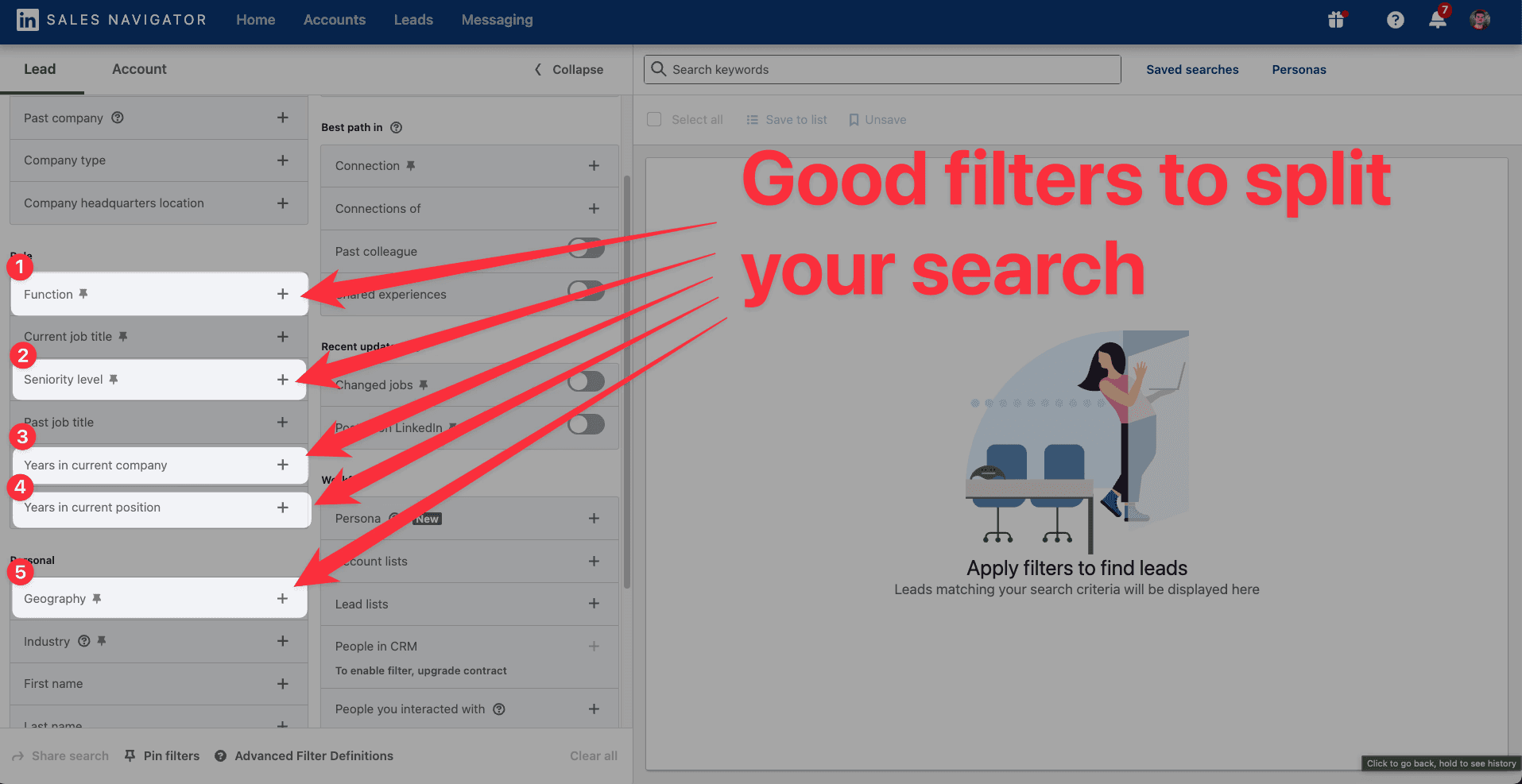
Example: You're targeting "Head of Sales" in Europe and you get 8,000 results. Split it into 4 searches by geography: UK, France, DACH, and Southern Europe. Each search now returns under 2,500 leads and you can export them separately.
Once all your exports are done, download each file and merge them in Google Sheets or Excel. GiveMeLeads automatically removes duplicates, so you don't have to worry about the same lead appearing twice.
💡 This method works for both lead searches and account searches on Sales Navigator.
🎥 If you want to export more than 2k5 leads from one search, you can check this video tutorial:
How to export leads from LinkedIn Sales Navigator for free?
You can export leads for free by copying and pasting data manually from each profile into a spreadsheet.
It costs nothing. But it doesn't scale.
Got 5 leads? Fine. Got 100? You're looking at 2 to 3 hours of copy-paste work, with no email addresses at the end of it.
GiveMeLeads does the same job in minutes. You get a clean, structured file with verified emails, ready to use.
How to use data extracted from LinkedIn Sales Navigator?
Now that you’ve exported a list of leads with all the right information, it’s time to put that data to work.
Here are a few ways you can use it effectively:
Send personalized LinkedIn DMs
Send cold emails
Run multichannel outreach campaigns (LinkedIn + email)
1 - Send LinkedIn DMs
Since your exported list includes each lead’s LinkedIn profile URL, you can easily reach out to them directly on LinkedIn.
This approach is great for warming up your prospects and starting genuine conversations before pitching anything. You can do it manually, or use a B2B prospecting tool like Waalaxy to send personalized messages at scale while staying within LinkedIn’s limits.
Just make sure your message feels human — mention something relevant from their profile or recent post, and keep it short and natural.
🎥 If you want to check a complete tutorial on how to send LinkedIn DMs using Heyreach, you can check this video:
2 - Send cold emails
Your exported list also includes verified work emails. That's perfect to launch targeted cold email campaigns.
Use the data from Sales Navigator — such as job title, company size, or industry — to personalize your message and increase your reply rate.
For example:
“Hi {{FirstName}}, I noticed you’re leading {{CompanyName}}’s growth in {{Industry}}. I thought you might be interested in…”
We recommend tools like Instantly to help you automate and manage your campaigns safely while keeping your deliverability high.
🎥 If you want to check a complete tutorial on how to send cold emails using Smartlead, you can check this video:
3 - Multichannel outreach (mail + LinkedIn)
The most effective strategy often combines both LinkedIn and email.
Start by connecting or engaging with your lead on LinkedIn — a like, comment, or message can make your name familiar. Then follow up with a personalized email a few days later.
This mix builds trust and increases your chances of getting a reply since your prospect has already seen your name before.
Tools like Lemlist can work hand in hand to automate this multichannel approach.
🎥 If you want to check a complete tutorial on how to do multichannel outreach using Lemlist, you can check this video:
How to Export LinkedIn Sales Navigator Leads to Your CRM (Without Advanced Plus)
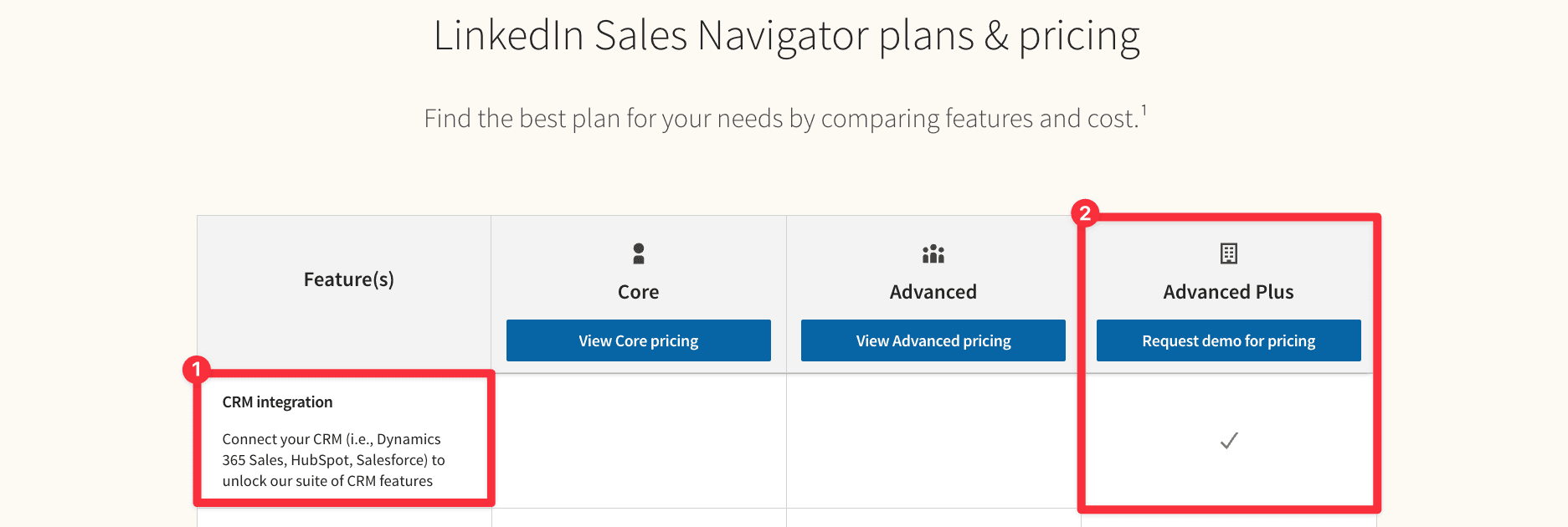
LinkedIn Sales Navigator offers native CRM integrations… But only if you’re on the Advanced Plus plan.
It doesn't work with the Core and Advanced plan.
The Advance plan doesn’t have public pricing, and to get access, you need to talk to LinkedIn’s sales team.
But in short: it’s expensive, and mostly designed for large sales teams.
How to export leads to your CRM without Advanced Plus
If syncing leads to your CRM is part of your workflow, you have a much simpler option:
👉 Use GiveMeLeads to export the leads and import your leads in your CRM.
With GiveMeLeads, you can export your LinkedIn Sales Navigator leads with verified business emails in just a few clicks.
Once your leads are exported to CSV, simply import the file into your CRM (HubSpot, Salesforce, Pipedrive… they all support this).
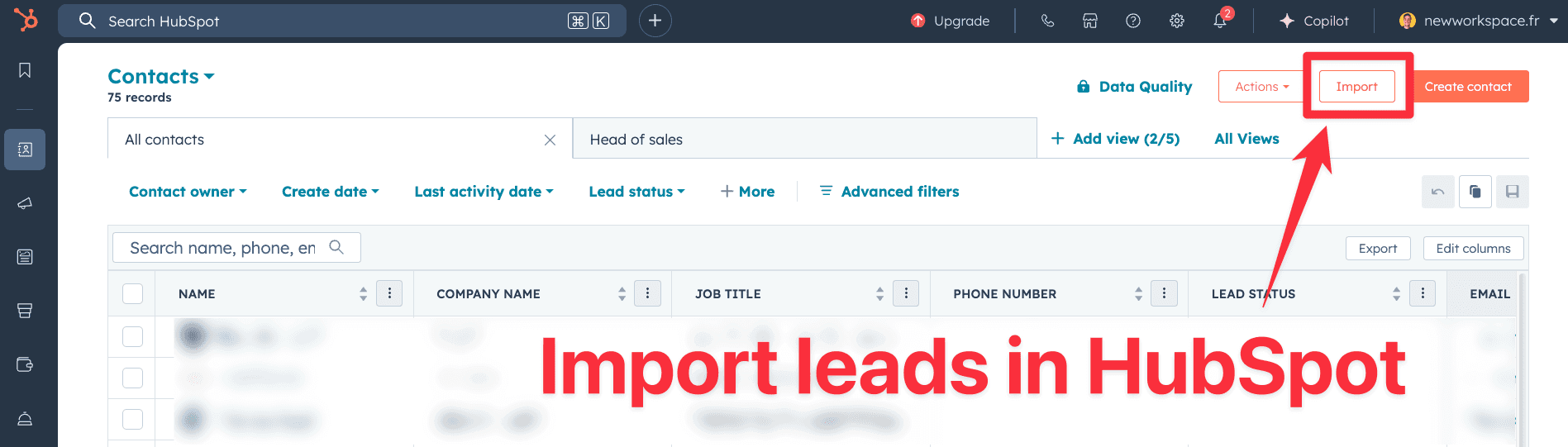
No tech setup. No enterprise pricing. Just your leads, ready to work with.
🎥 If you want to check how to import leads in HubSpot from LinkedIn Sales Navigator using GiveMeLeads, you can check this video:
Conclusion
Exporting leads from LinkedIn Sales Navigator is not as complicated as it sounds.
The only thing you need is the right tool. LinkedIn doesn't offer a native export. But with GiveMeLeads, you can go from a Sales Navigator search to a clean CSV file with verified emails in just a few minutes.
Here's a quick recap of what you can do with GiveMeLeads:
What you need | What GiveMeLeads does |
|---|---|
Export leads from Sales Navigator | One-click export directly from your search |
Get verified emails | Triple-verified business emails for every lead |
Clean data | Fixes names, job titles, and company names automatically |
Filter validation | Flags leads that don't match your ICP |
Fresh leads every week | Schedule automatic weekly exports |
Import to your CRM | Download as CSV and import in one click |
No manual copy-paste. No outdated data. No wasted time.
If you haven't tried it yet, create a free GiveMeLeads account and export your first 20 leads for free. No credit card needed.
FAQ
How to export lead lists from Sales Navigator to Excel for free?
Some tools let you scrape LinkedIn Sales Navigator for free, but if you want to export leads properly, you’ll usually need to pay.
The easiest way to export your leads from Sales Navigator to Excel? Use a tool like GiveMeLeads
Here’s how it works:
Log into Sales Navigator and run your lead search.
Apply filters to find leads
Save them to a list.
Create a GiveMeLeads account (on this page)
Open your list, hit “Export with GiveMeLeads” (top right), select the number of leads you want
Click on "Export"
Boom — your leads file is ready with verified emails
Can you export leads from LinkedIn Sales Navigator?
Yes, but not directly. LinkedIn Sales Navigator doesn’t offer a built-in export feature.
To export your leads, you’ll need to use third-party tools like GiveMeLeads or other automation platforms.
These tools let you extract lead data and turn your saved lists into downloadable files.
Can you export Sales Navigator leads to Google Sheets?
Yes. And with GiveMeLeads, it's built right in.
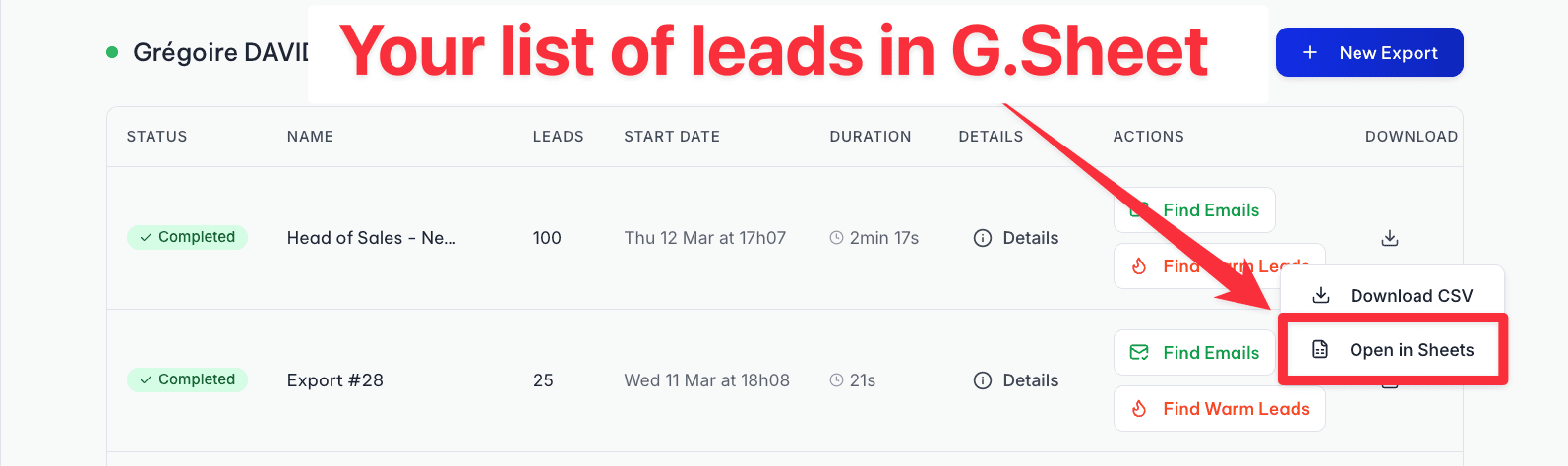
Once your export is ready, click "Download" then "Open in Sheets".
Your leads will open directly in a Google Sheet. No extra steps.
How often can you export Sales Navigator leads?
You can export leads from LinkedIn Sales Navigator daily, but there are a few limits to keep in mind:
Per search: You can only access up to 2,500 leads per search.
Per day: The export limit depends on the tool you’re using. For example, GiveMeLeads lets you export up to 2,500 leads per day, while staying under LinkedIn’s safe usage limits.
Is Exporting Sales Navigator Leads GDPR Compliant?
It depends on how you do it.
Buying contact lists or using static databases is risky.
You don't know where the data came from. You can't verify if consent was given. That's exactly what GDPR was designed to prevent.
GiveMeLeads is different.
You export leads in real-time, straight from LinkedIn Sales Navigator. No stored records. No data of unknown origin.
That keeps your data collection GDPR compliant.
How to export more than 2,500 results from LinkedIn Sales Navigator?
LinkedIn limits Sales Navigator search results to 2,500 profiles per search. To access and export more, you’ll need to split your search into smaller segments using filters like Function, Seniority level, or Industry.
By creating multiple searches with slightly different criteria, you can cover your entire market while staying within LinkedIn’s limits. Once you’ve segmented your searches, you can extract each list separately and combine them for a complete dataset.